
The Coupa Supplier Portal is an online platform that helps suppliers work with customers using Coupa for procurement. Depending on each buyer’s configuration, suppliers can review purchase orders, create and submit invoices, maintain company details, manage payment information and track transactions.
What Is the Coupa Supplier Portal?
The Coupa Supplier Portal (CSP) is an online platform that helps suppliers work with customers who use Coupa for procurement and purchasing processes. Depending on the buyer’s configuration, suppliers can use their accounts to view purchase orders, create invoices, maintain business details and follow the progress of submitted documents.
For a supplier, the main advantage is having a central place to handle routine purchasing activities with participating customers. Instead of relying entirely on separate email conversations, you may be able to review order information and submit invoices through the portal.
The available functions can vary by customer, account permissions and the purchasing process your buyer follows. If a feature is missing, check the buyer’s instructions before assuming that your account is broken.
What can you do through the portal?
| Feature | What it helps you do |
|---|---|
| Supplier registration | Create an account and connect with a customer |
| Business profile | Maintain relevant company information |
| Purchase orders | Review orders issued by participating buyers |
| Invoice management | Create and submit invoices where supported |
| Payment information | Maintain the applicable remittance details |
| Account access | Sign in and manage your portal account |
| Document tracking | Check the status of available orders and invoices |
Who should use this guide? New suppliers, existing vendors, finance teams, accounts receivable staff and business administrators who need practical help with Coupa account access or supplier transactions.
Coupa Supplier Portal Login
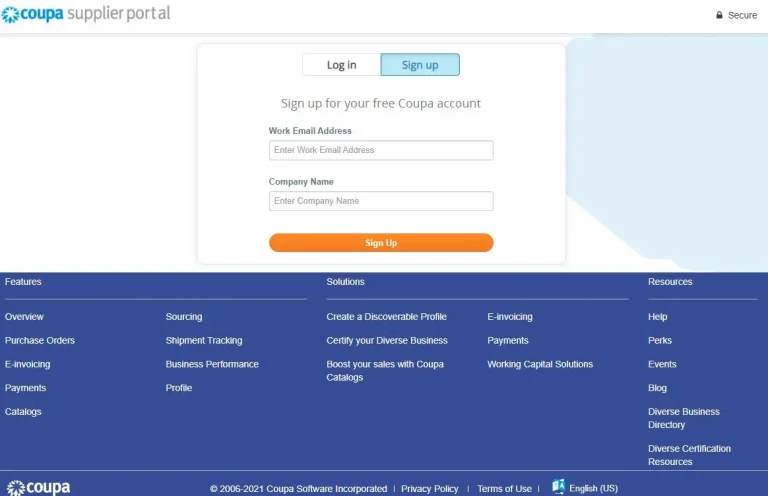
Official supplier access page
For registered suppliers and business users
Open Official Login Page
Always check that the address belongs to the official Coupa domain before entering your credentials.
What can you do through the Coupa Supplier Portal?
The available features depend on the relationship between your business and its Coupa customers.
Coupa does not charge suppliers to use the standard Supplier Portal. However, particular customer arrangements or optional services may have separate terms.
Coupa Supplier Portal Login: How to Sign In
If your supplier account already exists, you can start at the official login page. Keep your registered email address and password available before beginning.
Steps to access your account
Step 1: Open the official login page
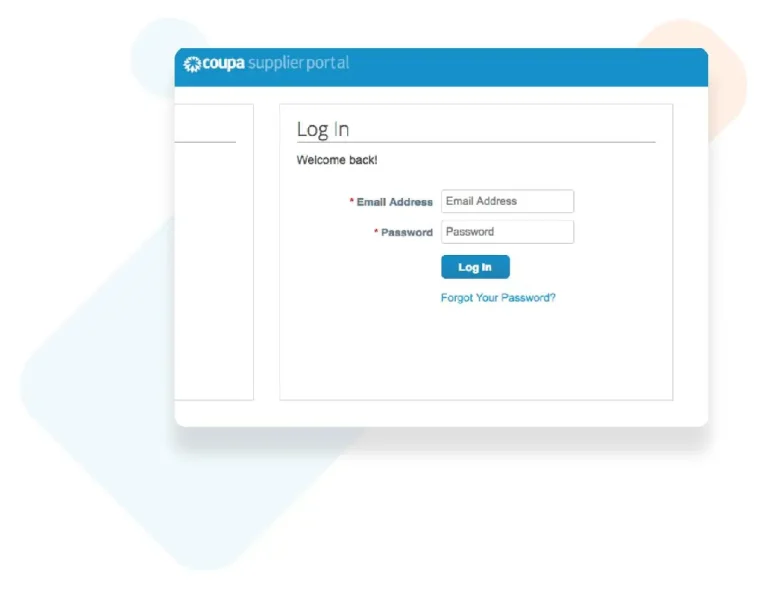
Visit supplier.coupahost.com/sessions/new. Check the web address carefully before entering any account details.
Step 2: Enter your registered credentials
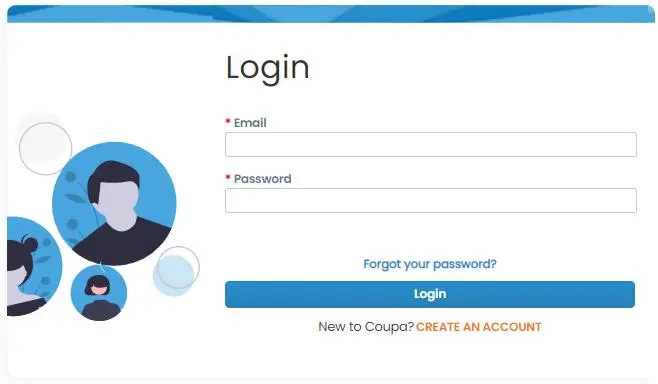
Use the email address associated with your supplier account and enter your password. If your organisation uses an additional authentication step, follow the instructions displayed on screen.
Step 3: Open your supplier workspace
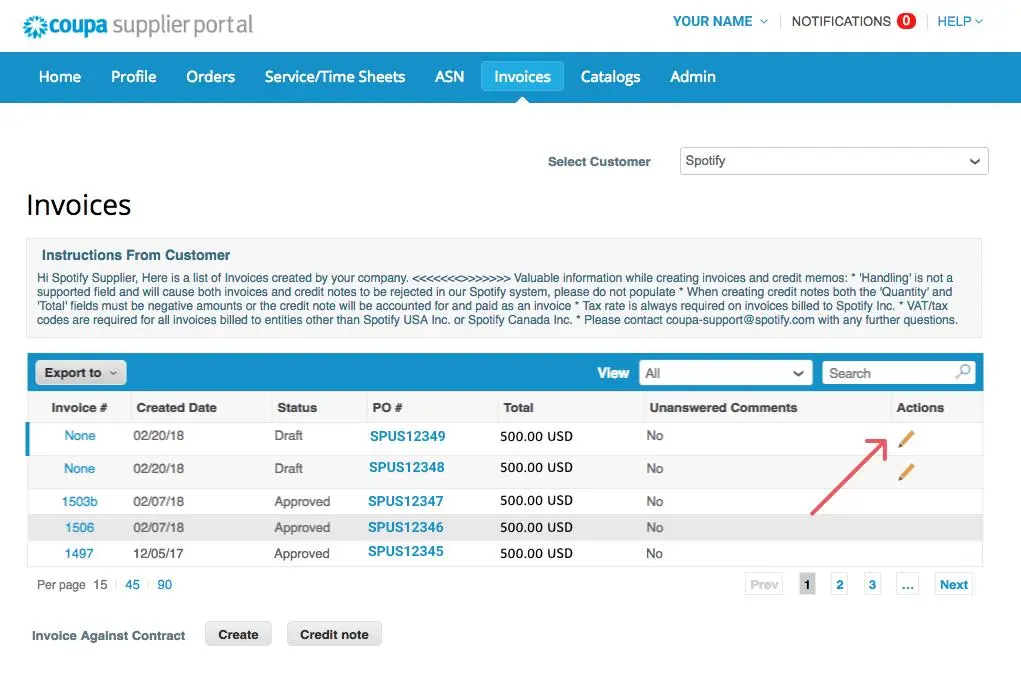
After signing in, review the available navigation options. Depending on your access, these may include orders, invoices, customer connections and business profile settings.
What is the Coupa Supplier Portal home page?
The Coupa Supplier Portal home area is the starting point for accessing the tools available to your account. You may use it to find customer-related tasks, review available orders or navigate to invoice management.
The exact layout and labels can change. Rather than relying on a particular icon or menu position, look for the relevant section in your current account.
For the smoothest experience:
Coupa Supplier Portal Login Password: What If You Cannot Sign In?
Login problems can happen when credentials are entered incorrectly, a password has changed or an account requires additional verification. Before contacting support, identify the point at which the sign-in process fails.
Password and access troubleshooting
| Problem | What to try |
|---|---|
| Forgotten password | Use the password-reset option on the official login page, if displayed |
| Incorrect email address | Check the invitation or account email from your buyer |
| Password rejected | Re-enter the password carefully and check for accidental spaces |
| Reset email not received | Check spam and junk folders, then verify the registered email |
| Account or verification issue | Follow the on-screen instructions or contact the appropriate support team |
| Page will not load | Try another current browser or a private browsing window |
How to reset your password
The precise recovery options may differ depending on the current login page and account configuration. If no recovery option appears, use the official help route or ask your customer administrator for assistance.
Security tip: Never send your password to a buyer or support representative by email. A legitimate troubleshooting process should not require you to disclose your existing password.
How to Register for the Coupa Supplier Portal
Suppliers can register through a customer invitation or another registration route supported by Coupa. If a buyer has invited your business, use that invitation where possible because it can link your account to the customer automatically.
Step-by-step supplier registration
Step 1: Find your invitation
Open the invitation email sent by your customer. Select the option to join the Coupa Supplier Portal and follow the link provided. If you have not received an invitation, ask your buyer whether you should register independently or request an invitation.
Step 2: Create your user account
Enter your name and the requested company details, create a password and accept the applicable terms. Follow the current registration screen to complete the process.
Step 3: Check your company profile
Review the business name and other company information. If your business already has a Coupa supplier profile, avoid creating a duplicate without checking with your company administrator.
Step 4: Complete onboarding
Follow any outstanding setup tasks displayed in the portal. Your buyer may require additional company, tax, invoicing or payment information before transactions can proceed.
For official instructions, see Coupa’s supplier registration documentation.
Business profile, legal entities and payment details
Your company profile and legal entity information help establish how your business is identified when working with customers. The information required depends on your organisation and the buyer’s setup.
| Information | What to check |
|---|---|
| Company details | Use the correct registered business name and address |
| Tax information | Enter the applicable tax registration details when requested |
| Legal entity | Select or create the appropriate entity, subject to your permissions |
| Remit-to or payment details | Check that the correct payment method and remittance information are available |
| User permissions | Confirm that the right staff can access orders and invoices |
A legal entity represents your business for transactions in the portal. Coupa’s documentation explains that administrators manage legal entities and that these records support invoicing and payment setup. If you cannot create or edit an entity, ask your company’s portal administrator rather than repeatedly trying the same action.
Understanding the Coupa Supplier Portal Home Page
After signing in, the Coupa Supplier Portal home page gives you access to the main tools available for managing your customer relationships and transactions. The exact layout can vary according to your account permissions and your customers’ settings.
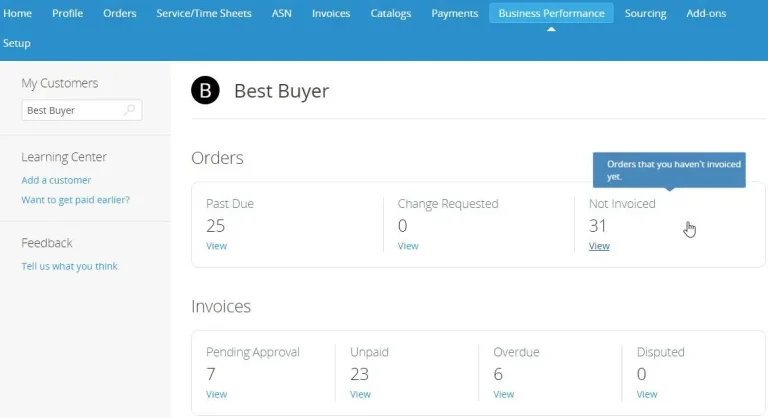
supplier.coupa.com
Main sections of the supplier dashboard
| Portal section | What you can do |
|---|---|
| Home | Review your company profile and connected customers. |
| Profile | Maintain public and customer-specific business details. |
| Orders | View purchase orders received from customers. |
| Invoices | Create and manage invoices, where enabled. |
| Service/Time Sheets | Review supported service records and related purchase order lines. |
| ASN | Send advance shipping notices when this feature is available. |
| Payments | Access supported payment information and digital payment options. |
| Setup | Manage users, permissions and other account settings. |
Some accounts also show Catalogs, Business Performance and Add-ons. Not every supplier will see every option.
How to use the Workbench
The Workbench helps you identify pending tasks and notifications. Coupa’s documentation describes accessing it through the bell icon near the top-right of the portal.
To check it:
The Workbench is particularly useful after registration because your account may still need additional information before you can complete certain supplier activities.
Coupa Supplier Portal Orders: How to View Purchase Orders
A purchase order (PO) is a document a buyer issues to request goods or services under specified terms. Suppliers can receive purchase orders through the Coupa Supplier Portal, email-based notifications or an electronic integration such as cXML, depending on the arrangement with their customer.
Step-by-step: Find and review an order
Step 1: Open Orders
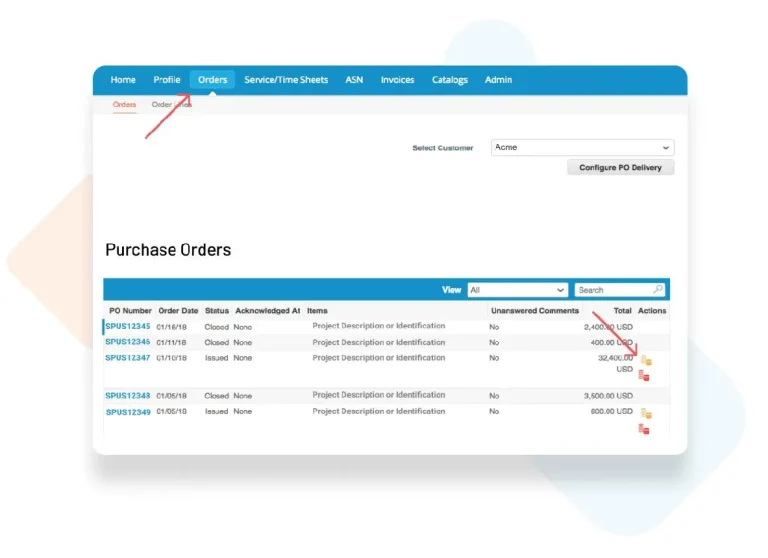
Sign in and select Orders from the main navigation menu. If you work with multiple Coupa customers, choose the appropriate customer where the interface provides a customer selector.
Step 2: Locate the purchase order
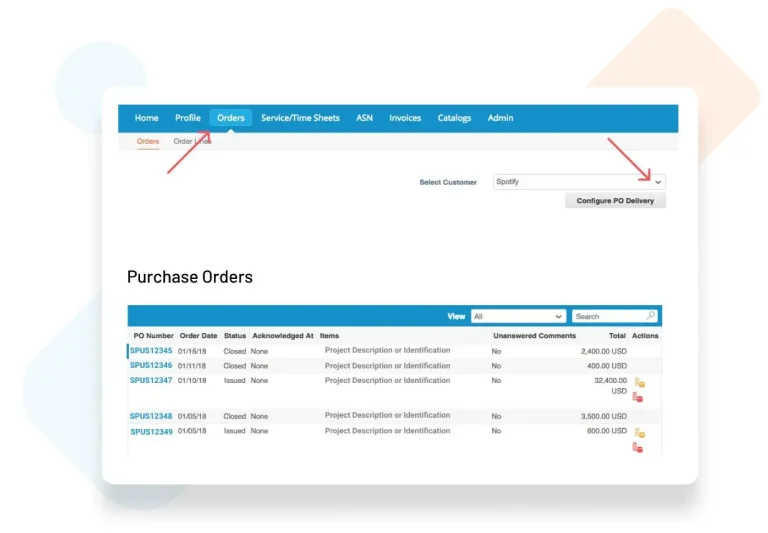
Search or filter the available records using the order information shown on your account. If the PO is missing, confirm that the buyer has issued it and that you are viewing the correct customer.
Step 3: Check the details
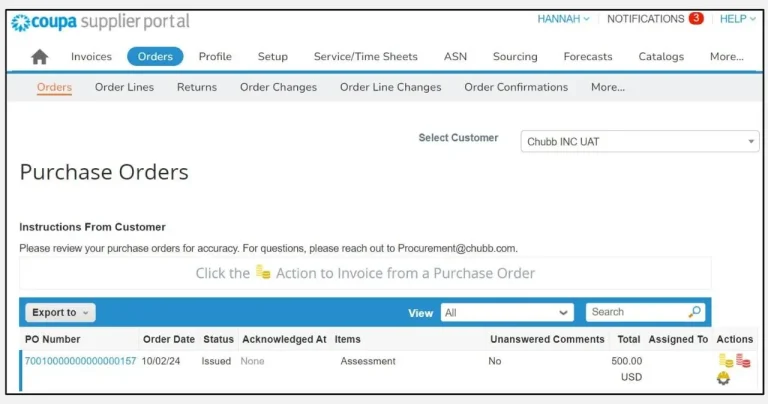
Review the PO number, item descriptions, quantities, prices, currency and requested delivery date. Compare them with the agreed quotation, contract or order confirmation.
Step 4: Respond when required
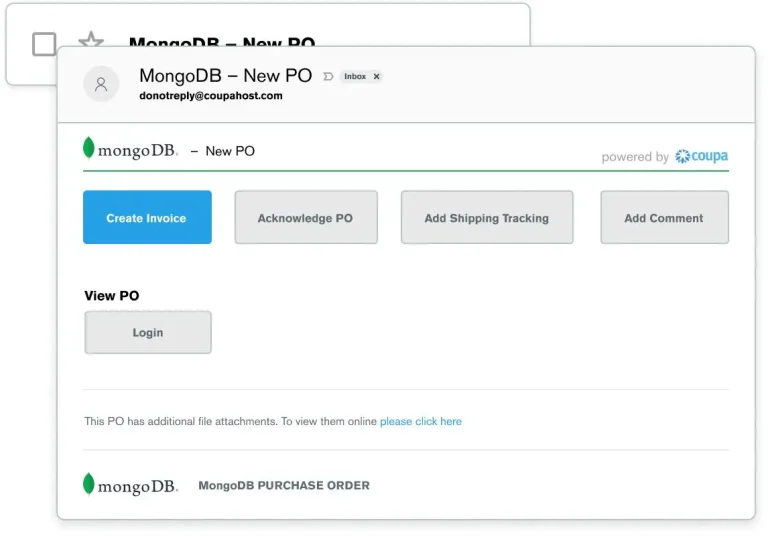
If your buyer requests acknowledgement and the option is available, use it according to the buyer’s instructions. Raise any discrepancies before proceeding with fulfilment or invoicing.
For detailed instructions, consult Coupa’s official Purchase Order documentation.
What should you do if a purchase order is missing?
Do not create a replacement order or invoice based on an assumption. Instead:
A buyer may need to check the supplier connection, order status or delivery method. Coupa also supports receiving POs by email or cXML, so the portal is not necessarily the only place where your business can receive an order.
Coupa Supplier Portal Invoice: How to Create and Submit an Invoice
Creating an accurate invoice is one of the most important tasks for suppliers. The Coupa Supplier Portal supports several invoicing methods, but the options available to you depend on your buyer’s configuration.
The recommended starting point is to create an invoice from the relevant purchase order when your customer requires PO-backed invoicing.
Method 1: Create an invoice from a purchase order
Step 1: Open the relevant order
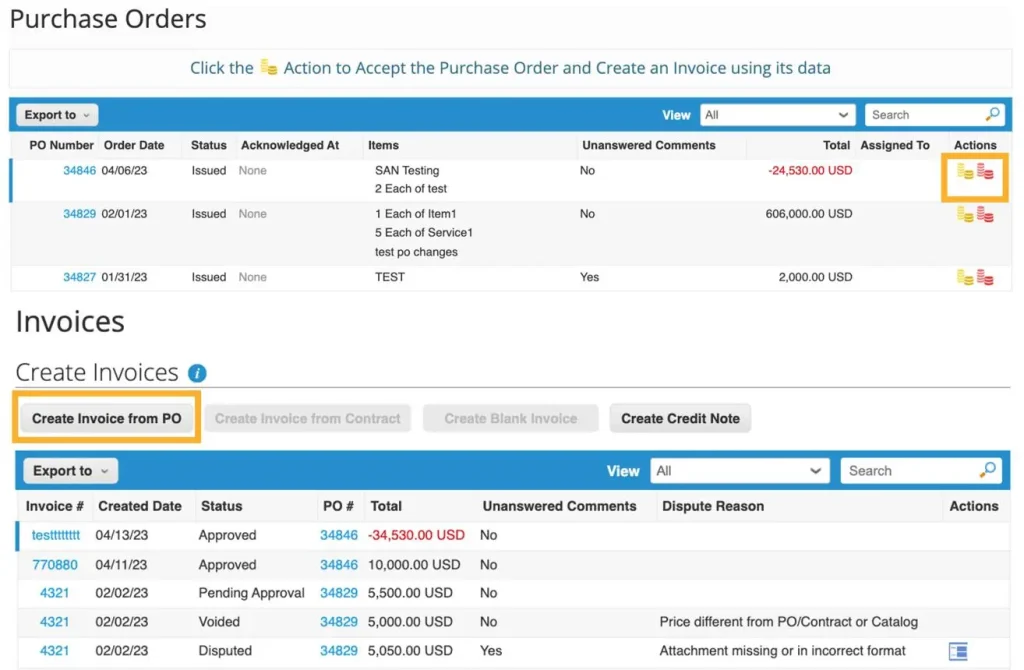
Sign in to the Coupa Supplier Portal, select Orders, and find the purchase order you need to invoice.
Step 2: Start invoice creation
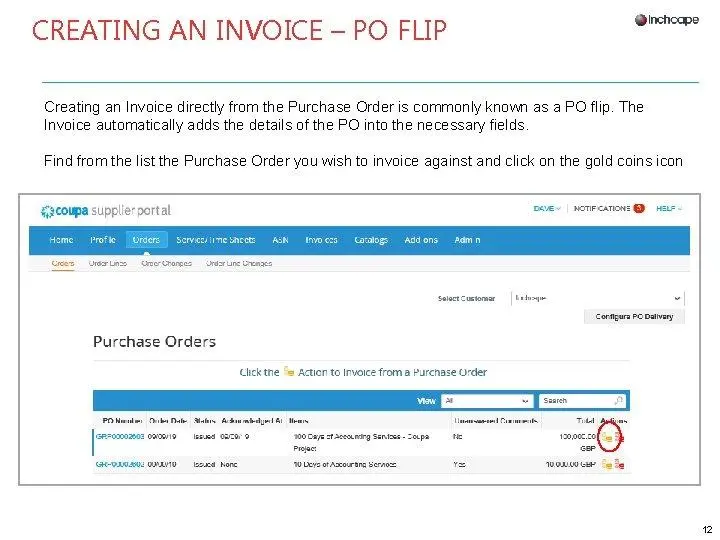
Select the invoice-creation action beside the relevant PO, or open the order and choose the available invoice option. The icon and wording may vary by interface.
Step 3: Enter the invoice information
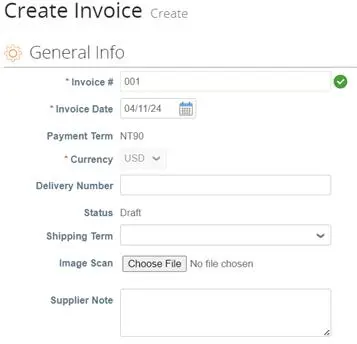
Complete the required fields, including your invoice number, date, applicable line items, quantities, tax details and other information requested by the buyer.
Step 4: Verify business and payment details
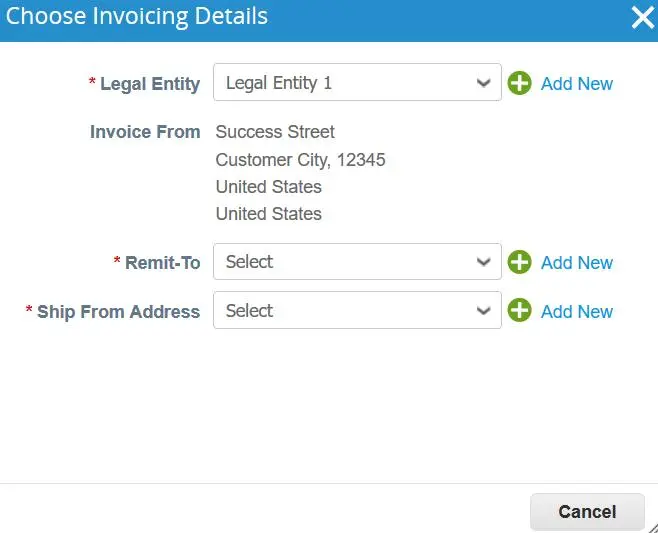
Check the invoice-from address, legal entity, remit-to address and other payment details. Make sure they match your business records and the customer’s requirements.
Step 5: Review and submit
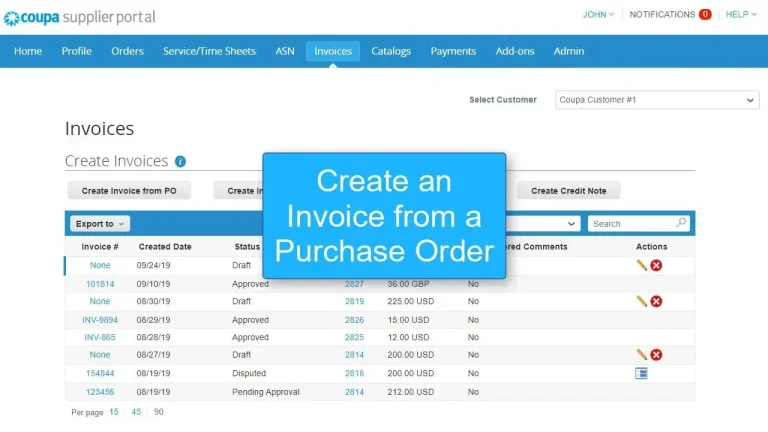
Check the totals, currency, purchase order reference and attachments. Submit the invoice using the available button, then check its status in the Invoices section.
Coupa’s official instructions are available in Create or Edit an Invoice in the CSP.
Method 2: Coupa Supplier Portal upload invoice feature
If you already prepare invoices in your accounting software, Coupa may offer an AI Invoice Upload feature that extracts invoice information from a PDF and creates an editable draft.
This feature has specific availability and usage conditions, so it may not appear in every account.
To use it when available:
An uploaded invoice is not necessarily a submitted invoice. Check the resulting draft and complete the submission process. Coupa’s documentation describes the AI Invoice
Method 3: Submit an invoice without a purchase order
Some buyers allow suppliers to submit invoices that are not linked to a purchase order. Others require every invoice to reference an approved PO.
If your customer permits non-PO invoices:
If the blank-invoice option is unavailable, contact your buyer to confirm whether non-PO invoicing is permitted and whether your supplier account needs additional configuration.
How to Track Coupa Supplier Portal Invoice Status
After submission, open the Invoices section to review your records. Select the correct customer and find the invoice by its number or other available search criteria.
Coupa uses multiple invoice statuses. The exact status displayed will depend on the transaction’s progress.
Coupa Documentation
| Invoice status | Meaning |
|---|---|
| Draft | The invoice has been created but not yet submitted. |
| Pending Approval | The buyer is reviewing the invoice. |
| Approved | The buyer has accepted the invoice for payment. |
| Processing | The invoice is being processed by the accounts payable team. |
| Disputed | The buyer has raised an issue with the invoice. |
| Voided | The invoice has a problem that requires follow-up. |
Do not assume that an approved invoice has already been paid. Check the available payment information and contact the buyer if the payment status is unclear.
Coupa Supplier Portal App: Is There a Mobile App?
If you search for the Coupa Supplier Portal app, make sure you distinguish a mobile-friendly website from a separately installed application.
You can begin by opening the official supplier portal in a browser on your device:
Open Coupa Supplier Portal
The official resources referenced in this guide do not establish that a dedicated mobile app is required for ordinary supplier login, order management or invoice submission. Before installing an app claiming to provide CSP access, check Coupa’s official documentation and verify the publisher.
For business transactions, a desktop browser may also be more convenient when reviewing lengthy purchase orders, entering invoice details or attaching documents.
Coupa Supplier Portal Customer Service and Contact Number
When something goes wrong, identifying the right support team can save time. Coupa distinguishes between problems with the supplier platform and issues that belong to the buying organisation.
Who should you contact?
Coupa Supplier Support
Contact Coupa for account registration problems, password-reset emails that never arrive, login and multi-factor authentication issues, and technical errors within the supplier portal.
- Email: [email protected]
- Help centre: Official Coupa Help for Suppliers
Your customer or buyer
Contact the purchasing organisation for missing purchase orders, PO changes, invoice approval delays, payment questions, supplier-record corrections and buyer-specific invoicing requirements.
These responsibilities are described in Coupa’s official Help for Suppliers resource.
What is the Coupa Supplier Portal contact number?
A single universal public telephone number for all Coupa Supplier Portal issues is not established by the official supplier support information cited here. Coupa provides an email support route and a live-chat option through its supplier help resources.
To contact support, open the official help centre and follow the available instructions. When using live chat, describe the issue and provide the requested contact details. Do not include your password or other unnecessary sensitive information.
Read more