
Need to open a school assignment, submit homework or check feedback from your teacher? The official Showbie login page is the best place to start. Students can sign in using an existing account, while new users may need a class code or registration instructions provided by their school.
Showbie is a digital classroom platform that helps teachers share learning materials, collect homework and provide feedback. Students can access assignments through a web browser or the compatible iOS app, while parents can connect their accounts to view permitted information about their children’s schoolwork.
Whether you’re looking for Showbie login, student registration, app access, homework submission or parent sign-up, this guide explains how to get started and resolve common problems.
Quick access to the right Showbie page
| Your goal | Official resource |
|---|---|
| Sign in | Login page |
| Register as a student | Student sign-up guide |
| Connect a parent account | Parent registration guide |
| Understand available features | What is Show bie? |
| Resolve a technical issue | Official Support Centre |
Before you begin: If your school has already created your account, use the details provided by your teacher. Registering a second account may leave you unable to see the classes and assignments attached to your original profile.
What Is Showbie? Understanding the Digital Classroom
Showbie is an educational platform that helps teachers distribute learning materials, collect assignments and provide feedback. Students can access their classroom work online, while teachers can organise activities and review submitted responses.
Its main purpose is to bring classroom tasks and feedback into a shared digital workspace. Rather than searching through separate messages for every worksheet, a student can open the relevant class and find the work posted there.
The official Show bie feature overview describes tools for assignments, feedback and student portfolios. Available options depend on the account, device and school configuration.
Who uses Showbie?
Access assigned work, submit supported files, use available annotation tools and review teacher feedback.</box>
Organise classes, distribute assignments, review submissions and provide written or other supported feedback.</box>
Connect a parent account to a child's account to view permitted classwork and portfolio content.</box>
Support account setup, invitations, classroom access and school-level configuration.</box>
What can you do after signing in?
Depending on your role and available features, Show bie can help you:
Show bie is a classroom tool, not a replacement for your school’s instructions. If an assignment, class or feature is missing, the teacher may need to adjust your access.
How to Complete Showbie Login
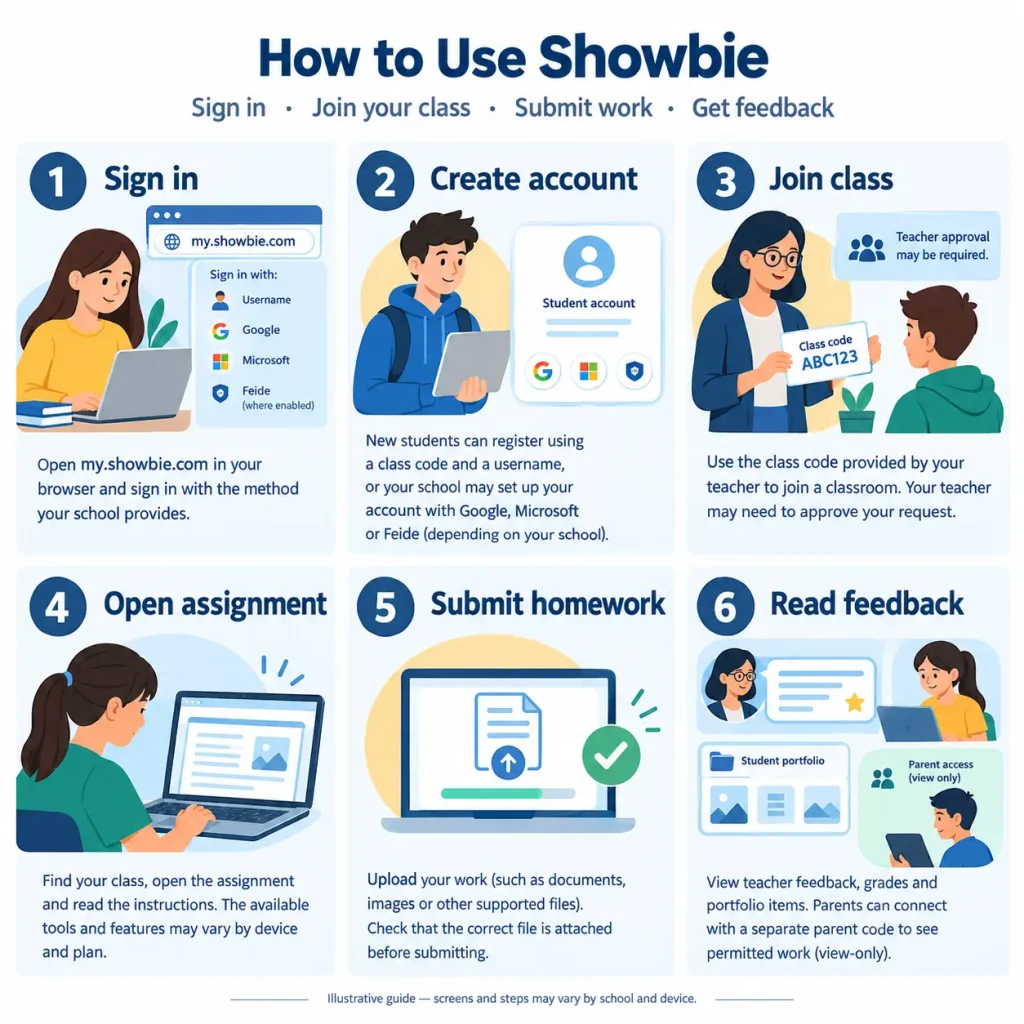
The sign-in process depends on how your account was registered. Show bie supports username-based registration and compatible single sign-on options, including Google and Microsoft. Feide and UniLogin are also supported where enabled for the school. Check the official sign-in guidance for the current options.
Step-by-step login instructions
If your school uses Google or Microsoft sign-in, select the account associated with your Show bie profile. Using a different personal account may not give you access to your schoolwork.
Why does the login method matter?
A Show bie account created with a username may not be accessed in the same way as an account connected to a school sign-in service. If you cannot log in, first establish which method your teacher asked you to use.
Avoid sharing passwords or verification codes. On a shared computer, sign out when you finish and close the browser if the device is used by other students.
What if you cannot remember your password?
Try the available password recovery option on the sign-in page. If your school manages your credentials or the recovery option is unavailable, contact your teacher or school administrator.
Before requesting a reset, check that you are using the right username and sign-in method. A second account will not automatically inherit the assignments associated with your original profile.
Showbie Student: Create an Account and Join a Class
New students may register independently or receive an account through their school. The correct process depends on the school’s setup, so have your teacher’s instructions ready before starting.
Showbie sign up for students
Show bie’s official student guide provides the following registration process for username-based accounts:
If your school requires Google, Microsoft or Feide sign-in, choose that option instead of creating a username-based account.
One useful detail: Show bie states that student accounts do not necessarily require an email address. However, if you add an email or other personal details during registration, check them carefully because some account information may need to be changed with help from your teacher or support.
For the exact current process, use the official student registration instructions.
How does a Showbie class code work?
A class code connects a student to the correct classroom. Teachers provide the code and control the class’s joining settings.
For security, Show bie documents that classes use an approval process by default. A student may therefore see a waiting message after entering the code. This does not necessarily mean registration has failed; the teacher may still need to approve the request.
Read the official class joining and approval instructions if you need further help.
Keep class codes private. Only share them with the intended students rather than posting them publicly.
What if your class is missing?
Check the account first. If you have signed in successfully but cannot see the expected classroom, confirm that you used the correct profile and that the teacher has added or approved you.
If the class still does not appear, ask the teacher to verify your enrolment. Repeatedly registering with new details can make the problem harder to resolve.
Showbie App Download: Android, iPhone, iPad and Browser Access
You do not need to assume that every device has a dedicated Show bie app. The official student registration documentation confirms that Show bie can be accessed through a web browser on computers, phones and Chromebooks, and through its app on compatible iOS and iPadOS devices.
Showbie app for Android: Is it available?
If you searched for showbie app for android, the key point is to distinguish browser access from a native Android application.
Show bie’s official student guide confirms browser access from Android phones and other devices with a browser. The official documentation reviewed for this article does not confirm a native Android app, so check Show bie’s current compatibility information before installing anything advertised under its name.
To access Show bie from an Android phone:
Do not download APK files from unknown websites or enter your school credentials into an unverified application.
Showbie app download for iPhone and iPad
Show bie documents app support for compatible iOS and iPadOS devices. To install it, use the official Show bie website or search for the app in Apple’s App Store and verify the listing before proceeding.
After installation, open the app and use the sign-in method linked to your account. If your school requires a particular account type, follow its instructions.
Browser versus app: Which is better?
| Device or method | Practical use |
|---|---|
| Laptop or desktop browser | Typing longer answers, uploading documents and reviewing detailed feedback |
| Android browser | Checking assignments and accessing supported classroom tools |
| iPhone or iPad app | Completing supported activities and working with compatible annotation tools |
| Chromebook browser | Accessing classroom work through the web app |
Some tools may behave differently depending on the device, file type and account permissions. If an option is missing, check compatibility before assuming your account is broken.
How to Submit Homework and Read Feedback
Signing in is only the first step. Students also need to know how to find an assignment, submit the correct work and confirm that the teacher can access it.
The correct homework submission process
1. Open the assigned class. Find the classroom where your teacher shared the activity.
2. Read the task instructions. Check the deadline, required file type and whether you must write directly on a worksheet.
3. Prepare your work. Depending on the assignment and device, you may be able to type a response, annotate a document or prepare a file in another application.
4. Attach the correct file. Use the available upload or sharing options. Show bie documents support for uploading files, images, comments and voice notes, with options that vary by device.
5. Check the submission. Confirm that the correct work appears in the assignment before leaving the page.
6. Return for feedback. Read the teacher’s comments and follow any instructions about corrections or resubmission.
Show bie’s official file-upload guide explains the available upload methods.
Which file types can you use?
Show bie’s published compatibility table includes formats such as PDF, images, DOCX and PowerPoint, along with audio, video and other supported material. However, the actions available for each file type vary between the web app and Apple devices.
The official documentation also identifies different upload-size limits:
| Plan | Documented maximum upload size |
|---|---|
| Show bie Basic | 25 MB |
| Show bie Pro | 250 MB |
| Show bie Complete | Unlimited |
These limits are from Show bie’s compatible file formats guide. Check the latest documentation if you are uploading a large file or if your school has a different subscription arrangement.
If your file is too large, try exporting a smaller version or using an approved alternative format. Do not remove important content simply to reduce the file size without checking the assignment requirements.
Why can’t you edit or submit an assignment?
The task may be locked, unavailable until a particular date or configured with restrictions set by the teacher. The account may also lack permission to make changes.
Check the instructions and deadline first. If the assignment should be open but you still cannot submit work, ask your teacher to confirm the settings rather than creating another account.
Showbie Parent Login: Connect Your Child’s Account
Parents and guardians can use linked Show bie access to follow their child’s schoolwork when the school has enabled it. The parent account is separate from the student’s login and uses a different code.
How to set up Showbie parent login
These steps follow Show bie’s official parent sign-up guide.
Parent code versus student class code
The two codes serve different purposes:
Show bie describes parent access as view-only. Parents may view the child’s classes and portfolio content made available through the platform, but should not expect the parent account to have the same editing permissions as a student or teacher.
Can one parent account connect to more than one child?
Show bie’s parent guidance allows additional students to be added to a linked parent account using the relevant parent codes. Sign in to the parent account, use the option to add another student and follow the instructions.
If a child is missing from the account, ask the relevant teacher to confirm that you have the correct code.
Showbie Pro: Plans, Features and Upload Limits
Show bie offers different plans for educational use. Showbie Pro is a subscription option for educators, while students generally access the classroom through the account and arrangements established by their school or teacher.
Do not assume that a student must purchase Pro simply to log in, join a class or submit ordinary schoolwork.
Showbie Basic, Pro and Complete
The most useful way to compare plans is to identify the feature you actually need. For example, the published upload limits differ between Basic, Pro and Complete, and certain advanced feedback features are associated with paid plans.
Before upgrading, check:
For current details, use the official Show bie website and its support documentation. Features and subscription terms can change, so avoid relying on old plan comparisons.
Is Show bie Pro necessary for students?
Usually, students should first use the account provided or approved by their school. If an assignment or feature is unavailable, ask the teacher whether the restriction relates to account permissions, classroom settings or the school’s subscription.
This helps avoid paying for a service that your school may already provide.
Showbie Login Troubleshooting: Practical Solutions
If you can open Show bie but cannot access your class or complete an assignment, identify where the problem occurs before trying several fixes at once.
| Problem | What to check | Recommended action |
|---|---|---|
| Login rejected | Username, password and sign-in method | Use the correct account or available recovery option |
| Class code fails | Code accuracy and class settings | Ask the teacher to confirm the code |
| Waiting to join | Teacher approval | Wait for approval or contact the teacher |
| Class missing | Correct account and enrolment | Ask the teacher to verify class membership |
| File upload fails | File type and size | Check the official compatibility guide |
| App or browser problem | Device compatibility and internet connection | Refresh the browser or try another supported access method |
| Parent account not linked | Parent code and registration details | Confirm the code with the teacher |
| Google or Microsoft login fails | Correct school account | Select the account associated with Show bie |
Showbie will not load
Start with the simplest checks:
If the problem continues, record the error message and contact your school’s IT team or Show bie support. Avoid sharing your password or private student information in a public forum.
How to contact official Showbie support
Visit the Show bie Support Centre for help with account setup, class access, file uploads and device compatibility.
For school-managed accounts, your teacher or administrator may be the right first contact because they can check classroom membership and account configuration.
Is Showbie Suitable for UK Schools?
Show bie can help UK schools organise digital learning activities, collect homework and provide feedback. Its usefulness depends on the school’s teaching approach, the devices available to students and the tools included in the school’s subscription.
Before adopting or expanding its use, schools should review accessibility, safeguarding, data protection, account management and compatibility with existing systems. They should also ensure thatFor individual students, the practical priority is simpler: use the correct login method, keep account details private, follow the teacher’s instructions and check assignments regularly.
Conclusion
Show bie brings classroom assignments, homework submissions and teacher feedback into a shared digital workspace. Students can sign in, join classes and submit supported work, while parents may use linked accounts to view permitted learning information.
Start with the official login page, use the account method supplied by your school and consult Show bie’s support documentation whenever an instruction or feature is unclear. For Android users, browser access is a documented option; check the latest official compatibility information before looking for a native app.
The most reliable approach is to solve the immediate access problem first, then use the platform’s available tools to keep schoolwork organised and respond to teacher feedback.
Read more