
The Northumbria Student Portal is the central online gateway for Northumbria University students. It brings together the tools you need for daily university life, including your timetable, module information, student email, Blackboard, announcements and support services.
Whether you are a new student activating your account or an existing student facing a login problem, this guide explains how to access the Northumbria University student portal, reset your password, complete registration and solve common issues.
For safety, always start from the official Northumbria Student Hub. Never enter your university username or password after clicking a link from an unexpected email, text message or social-media post.
What Is the Northumbria Student Portal?
The Northumbria student portal is your personal dashboard for university digital services. It is usually accessed through the Student Hub. After signing in, you can reach Blackboard, student email, announcements, timetable updates and other university resources.
The portal also connects with the NU Connect mobile app, which provides campus maps, schedules and other useful mobile services.
Almost every digital service at Northumbria depends on your IT account. Learning how the portal works during your first week can save time and reduce stress later, especially around exams, coursework and enrolment deadlines.
What Can You Access Through the Portal?
The student portal Northumbria provides a single route to several important services. Depending on your course and needs, you can access:
| Service | What You Use It For | How to Access |
|---|---|---|
| Student Hub | Dashboard, announcements and profile information | Official Northumbria Student Hub |
| Blackboard | Modules, lecture materials, assignments and grades | Through the portal using your IT account |
| Student Email | University messages, deadlines and timetable updates | Microsoft Office 365 |
| NU Connect | Campus maps, schedules and mobile services | App Store or Google Play |
Your university IT account is important because it unlocks many of these systems. Setting up your account and security settings early helps you avoid problems when you need to check your timetable, open course materials or meet an enrolment deadline.
Useful habit: Once you confirm you are on the genuine Northumbria website, bookmark the official Student Hub. This gives you a faster and safer route whenever you need the Northumbria student portal login.
How to Log In to the Northumbria Student Portal
Your first login should be straightforward if your IT account has already been activated and your Duo authentication is ready.
1. Use a current browser
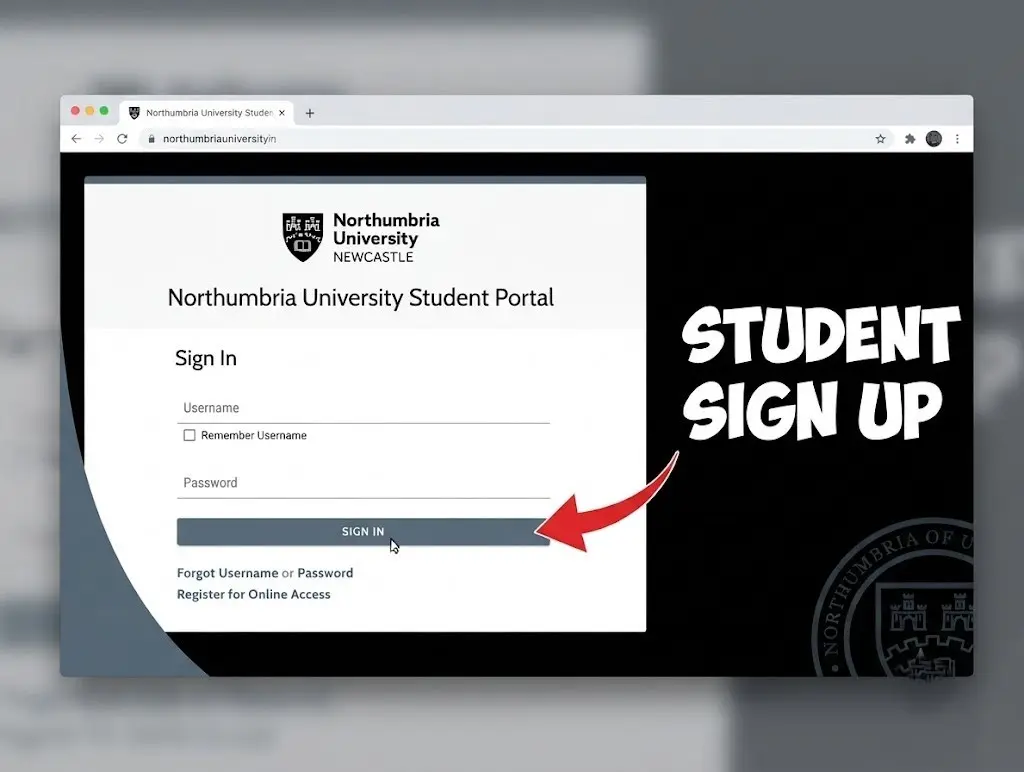
Open a modern browser such as Chrome, Microsoft Edge or Safari. If the portal loads incorrectly or refuses to open, checking your browser is a sensible first step.
2. Open the official Student Hub
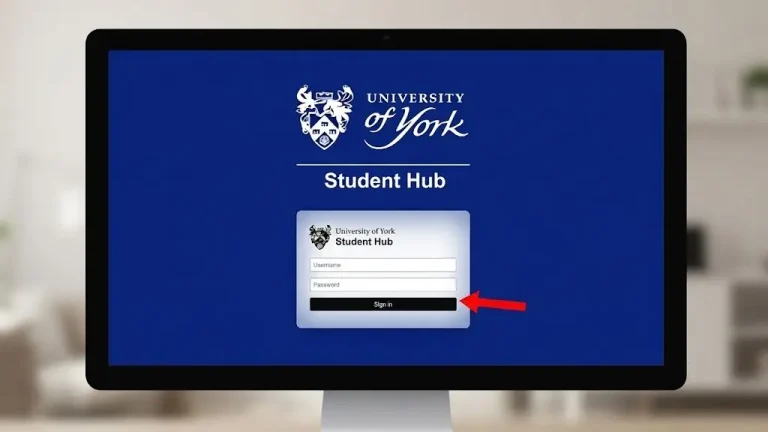
Go directly to the official Northumbria Student Hub rather than following an unexpected login link.
This is especially important when you’re searching for the Northumbria uni student portal, because search results can sometimes contain pages that are not the university’s official login route.
3. Enter your university IT username
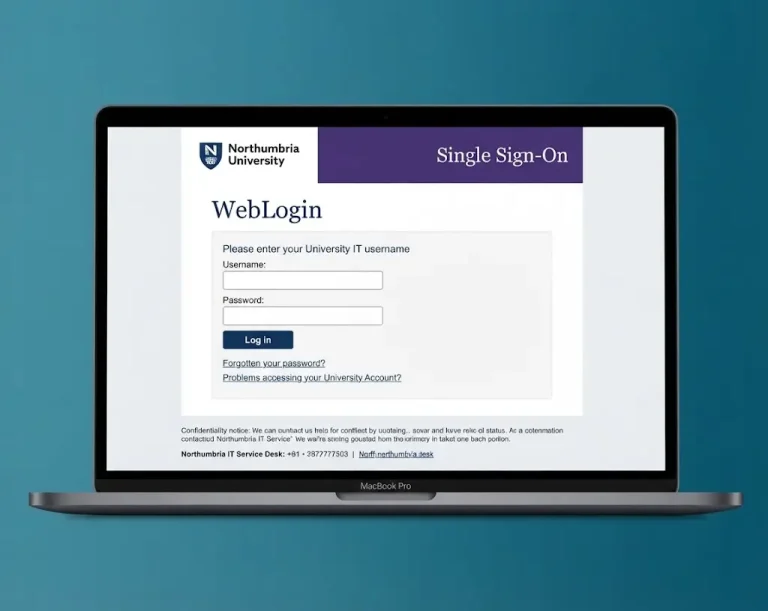
Use the username provided for your Northumbria IT account. The format may look similar to a letter followed by numbers, such as w1234567.
Your personal email address should not be used in place of your university IT username for this login.
4. Enter your password
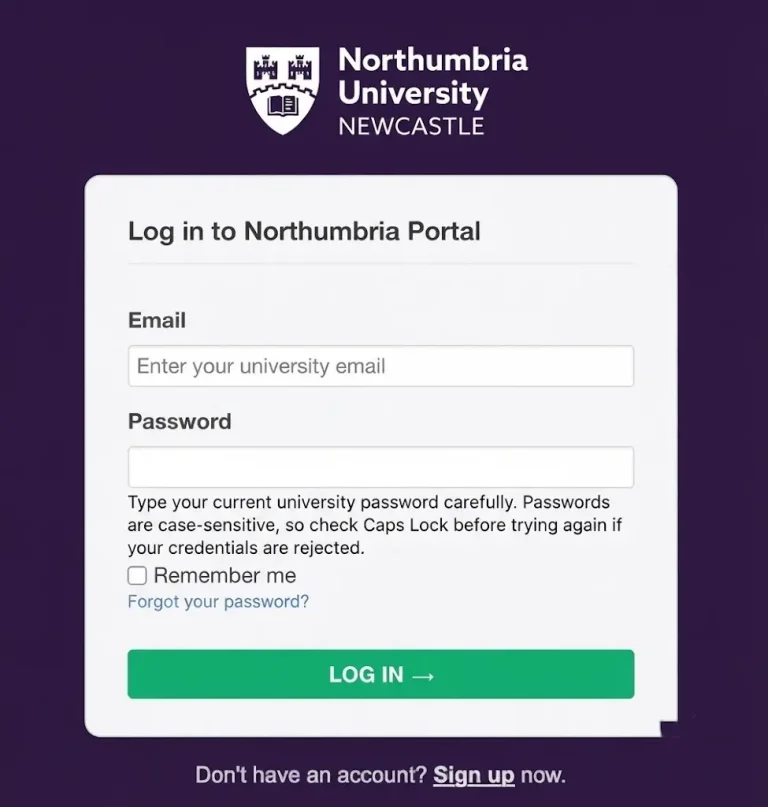
Type your current university password carefully. Passwords are case-sensitive, so check Caps Lock before trying again if your credentials are rejected.
5. Complete Duo verification
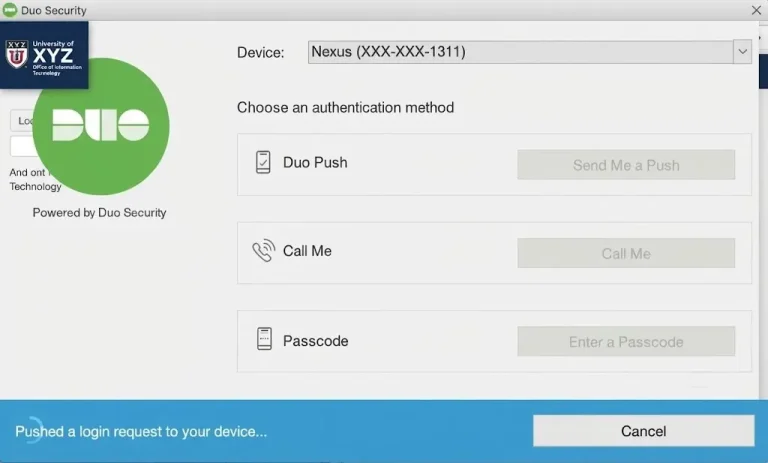
When prompted, approve the Duo Mobile authentication request only if you personally started the login.
This second verification step is an important part of protecting your university account.
6. Check your dashboard
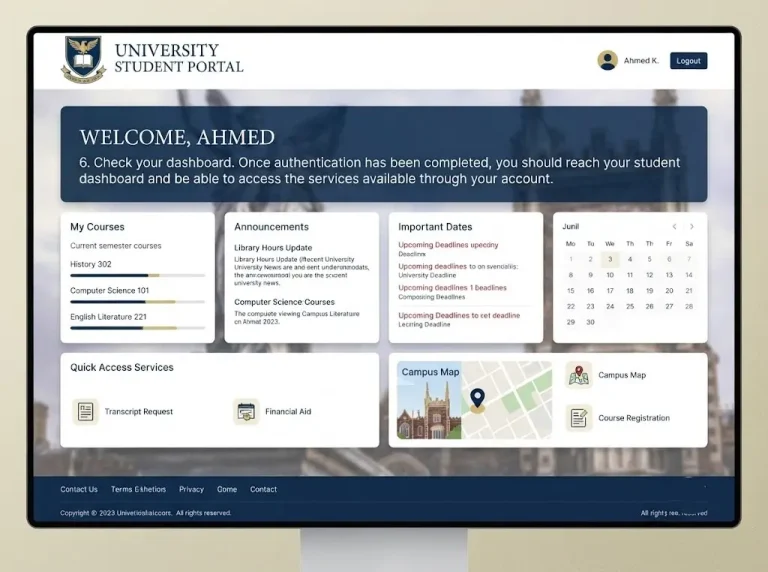
Once authentication has been completed, you should reach your student dashboard and be able to access the services available through your account.
Security reminder
Never give another person your password or approve a Duo request on their behalf.
If a Duo notification appears when you have not attempted to sign in, do not approve it. Treat unexpected authentication requests seriously and contact IT support if you believe someone may be trying to access your account.
Getting Access to Your University Account
Access to the Northumbria University student portal depends on having an active university IT account. This is established as part of the registration and enrolment process.
Once your account has been activated, you can normally access the relevant university services wherever you have a reliable internet connection.
That means you can use the portal while studying on campus or when accessing your university services remotely, including when you’re travelling outside the UK.
Make your first few logins easier
A little preparation can prevent common access problems later.
For international students, setting up your IT account and Duo authentication before travelling can be particularly useful. It gives you a chance to resolve access issues before you need the Northumbria student portal after arriving.
Northumbria Student Portal Password Reset
A forgotten password is one of the easiest account problems to solve when you use the university’s official recovery process.
If you cannot remember your password, avoid repeatedly guessing it. Instead, use the official Northumbria password-reset service and follow the verification steps provided.
How to reset your password
Step 1: Open the official reset service
Go directly to:
Typing the address yourself is preferable when dealing with account recovery. Avoid using password-reset links from unexpected messages.
Step 2: Enter your IT username
Provide the same university username that you normally use for your Northumbria student portal login.
Step 3: Complete the security verification
Follow the verification instructions and use Duo Mobile when prompted. Keep your registered phone available during the process.
Step 4: Create a new password
Choose a strong password that you do not use for another website or service.
A longer passphrase made from several unrelated words can be easier to remember while still providing a strong level of protection.
Step 5: Try the portal again
After changing your password, return to the official Student Hub and sign in using your new credentials.
If your browser or device has saved the old password, make sure it is updated. An outdated saved password can cause repeated failed-login attempts.
Password Security Tips
Your university account gives access to important academic and personal information, so treat the password as private information.
Keep these points in mind:
A genuine member of staff should not need you to disclose your password to them.
Common Northumbria Student Portal Login Problems
Not every failed login means that your account is broken. A typing error, browser problem or missed Duo notification can be enough to prevent access.
Use the table below to identify the most likely cause.
| Problem | Possible reason | What to try |
|---|---|---|
| “Invalid username or password” | Typing mistake or Caps Lock | Check your username, turn off Caps Lock and enter your details again |
| Duo notification doesn’t appear | Connection or notification issue | Open Duo Mobile manually or use another available verification method |
| Account appears locked | Several unsuccessful login attempts | Stop repeated attempts and use the password-reset process if appropriate |
| Portal won’t load | Browser cache, cookies or JavaScript issue | Clear the browser data and try another current browser |
| Login works on one device but not another | Device or browser-specific problem | Try a private window, different browser or another device |
What to Try When the Portal Won’t Let You In
If your normal Northumbria student portal login is still failing, work through these checks in order.
Check your internet connection
Make sure your device is connected to the internet. If possible, switch between Wi-Fi and mobile data to see whether the connection is causing the problem.
Use a private browser window
An incognito or private window can bypass old cookies and some browser extensions that interfere with sign-in pages.
Try another browser
If the portal does not work in Chrome, try Edge or Safari. This can help determine whether the problem is related to your current browser.
Try another device
If you have access to another phone or computer, test the login there. If the account works elsewhere, the original device may need further troubleshooting.
Check Duo
If your username and password are accepted but the login stops during MFA, open Duo Mobile manually and check whether the expected authentication request is available.
Also make sure your phone’s date and time are set automatically. An incorrect device clock can sometimes interfere with authentication.
Check the website address
Before entering your credentials, make sure you’re on the genuine Northumbria website. Students who are struggling to access an account can be especially vulnerable to phishing messages claiming that their account has been suspended.
Don’t use the link supplied in a suspicious message. Open the official Northumbria website yourself instead.
Contact IT support
If you’ve worked through the basic checks and still cannot sign in, contact the university’s IT support through the appropriate official route.
When asking for help, provide useful information such as:
Providing these details can make it easier for support staff to understand what is going wrong.
Northumbria Student Portal Registration Guide
New students need to complete the relevant registration, enrolment and IT-account setup before they can make full use of the portal.
The exact instructions you receive may depend on your course and circumstances, so use the latest information supplied by Northumbria as you work through the process.
New-student setup
1. Find your activation information
After pre-enrolment, check the communications sent to you for your student ID and temporary account information.
If you cannot find the message, check your spam or junk folder as well as your main inbox.
2. Activate your IT account
Follow the university’s activation instructions and establish your official password and recovery details.
Choose a password that is unique to your university account rather than reusing one from another service.
3. Set up Duo MFA
Install Duo Mobile on your phone and follow the university’s instructions for linking it to your account.
You’ll need your authentication method available when signing into protected university services.
4. Test your first login
Once your account has been activated and Duo is ready, sign in to the Northumbria student portal.
Checking access at this stage is worthwhile. If something doesn’t work, you have time to resolve it before classes, coursework or enrolment deadlines become urgent.
5. Review your course information
After gaining access, check your course structure, module information and personal details.
If anything appears incorrect, report it through the appropriate university support route rather than assuming it will be corrected automatically.
6. Install useful university apps
Consider installing the university apps you need for day-to-day study.
NU Connect can help with services such as campus maps and schedules, while SafeZone provides campus safety features.
Advice for International Students
International students may be accessing the Northumbria student portal from outside the UK before travelling to campus.
If that applies to you, it is sensible to establish your digital access as early as possible. Activate your IT account, complete the Duo setup and test your login before travelling where possible.
Also keep your university account information accessible and remember that university deadlines and scheduled activities may be based on UK time.
If you change your mobile number or SIM card, make sure your authentication arrangements continue to work so that you don’t lose access when you need to verify a login.
Northumbria Student Portal: First-Week Checklist
Once your account is active, take a few minutes to confirm that everything you are likely to need is working.
Account
Security
Study
Mobile services
Getting these basics sorted early means the student portal Northumbria provides you with a reliable starting point throughout your studies, rather than becoming something you only visit when a problem appears.
Frequently Asked Questions
Conclusion
The Northumbria student portal provides a convenient starting point for managing many of your university services, from checking your timetable and modules to accessing Blackboard, student email and other support tools. Setting up your IT account and Duo authentication early can make everyday access much easier.
If you are a new student, complete your account activation, MFA setup and initial checks before you need them for coursework or enrolment. If you are an existing student experiencing a Northumbria student portal login problem, check your credentials, browser, device and Duo authentication before contacting IT support.
Most importantly, always use the official Northumbria website when signing in or resetting your password. Keeping your university credentials secure and responding carefully to unexpected authentication requests will help you use the Northumbria University student portal safely throughout your studies.
Read more