
Smart Assessor gives learners a central place to manage their training, monitor course progress and share evidence with their assessor. Whether you’re starting an apprenticeship, completing a qualification or preparing work for your next assessment, knowing how to use the platform can make your learning experience easier to manage.
The first step is accessing your account using the username and password provided by your training provider. Once signed in, you can explore your learner dashboard, check upcoming appointments, review outstanding activities, upload coursework and record off-the-job training hours.
This Smart Assessor guide explains the main learner features, including account access, e-portfolio management, evidence submissions and common login problems. It also covers questions about the Smart Assessor app, platform availability and support options so you know where to look when something isn’t working.
What Is Smart Assessor?
Smart Assessor is an online learning and assessment platform used to help manage vocational training and learner portfolios. It provides a digital space where learners can access course information, communicate progress through their portfolio and submit evidence for assessment.
Instead of keeping all your coursework and training records separately, the platform brings several learning activities together in one account.
Depending on your training provider and course configuration, your learner dashboard may give you access to:
The available features can differ depending on your training organisation and the permissions assigned to your account.
Smart Assessor Login UK: How to Access Your Account
To complete your Assessor login, you need the account details supplied by your training provider. For learners following the TrainPlus instructions, these details are sent to the email address registered with the organisation.
Follow these steps to access your account:
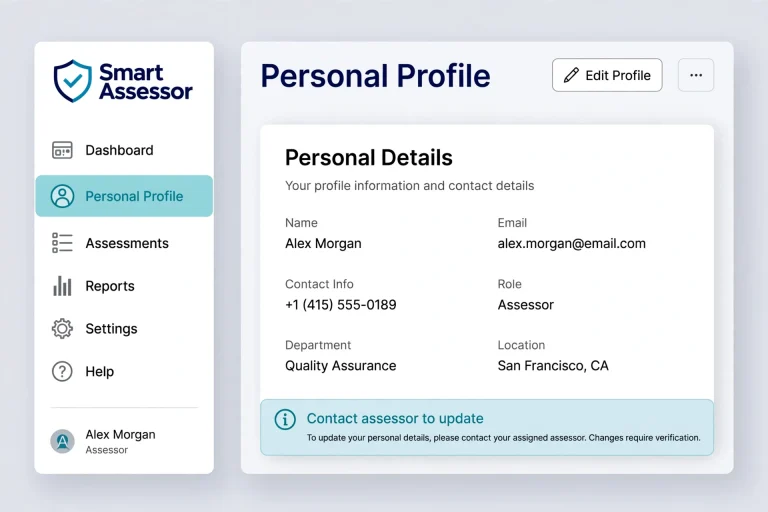
Once you’re signed in, you can access your portfolio, course activities, resources and other available learning tools.
Important: The login instructions above are based on the TrainPlus learner guide. If you’re enrolled with another training provider, use the login link and account details supplied by that organisation.
Understanding Your Smart Assessor Learner Dashboard
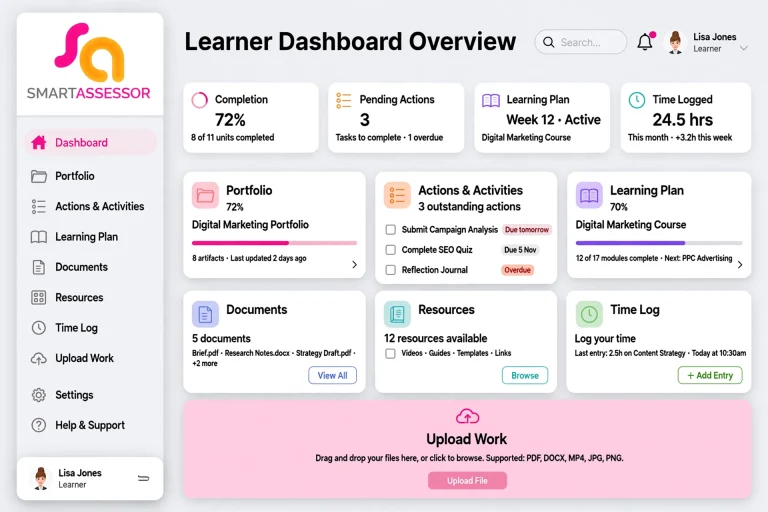
The learner dashboard is the main starting point after signing in. It brings together useful information about your course and provides shortcuts to different areas of your portfolio.
For a new learner, it is worth spending a few minutes exploring the dashboard before submitting any work.
| Dashboard area | What you can do |
|---|---|
| Portfolio | View your qualification and learning progress |
| Actions and Activities | Check tasks and update their status |
| Learning Plan | Review appointments and session information |
| Documents | Find documents waiting for your signature |
| Resources | Open available course materials |
| Time Log | Record eligible training hours |
| Upload Work | Submit evidence towards your qualification |
Your dashboard can also help you identify outstanding work and see whether there are documents that need your attention.
Tip: Make checking your dashboard part of your regular study routine. This helps you keep track of deadlines, upcoming sessions and activities assigned by your assessor.
How to Use Smart Assessor for Your Course
Understanding the main features will help you manage your training without overlooking important tasks. Here are the areas learners are most likely to use.
1. Access Your Personal Profile
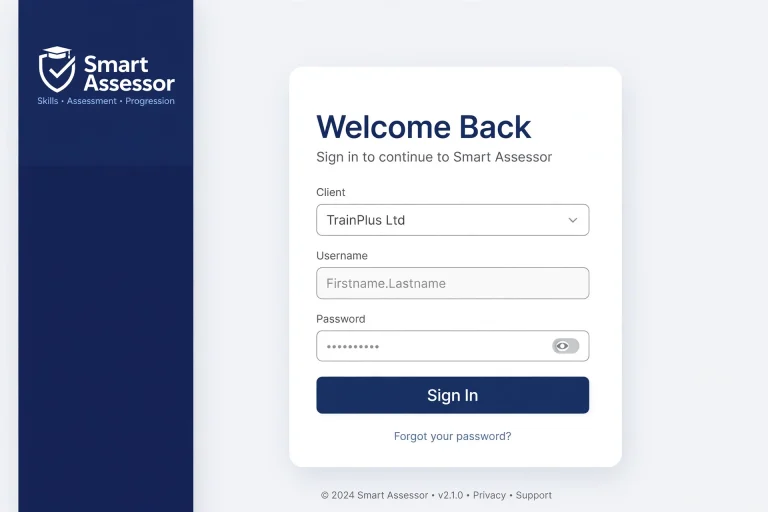
Your profile contains personal information associated with your learner account. Your assessor can guide you through this section when introducing you to your portfolio.
Check that your details are correct, particularly your name and contact information.
If anything needs updating, inform your assessor rather than changing the profile yourself. The TrainPlus instructions specifically advise learners not to edit these details because incorrect information could affect the delivery of certificates and other important documents.
2. Create or Upload Your CV
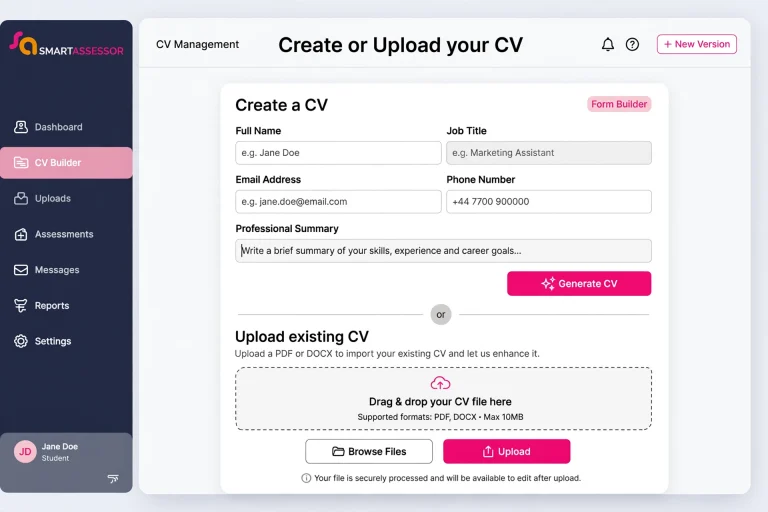
TrainPlus requires learners to provide a current CV through Smart. If you don’t already have one, you can complete the online CV form.
To do this:
Check that you’ve selected the correct file before uploading it. Keeping a current CV in your portfolio also makes it easier for your training provider to access the information required for your learning record.
3. Check Your Next Assessor Appointment
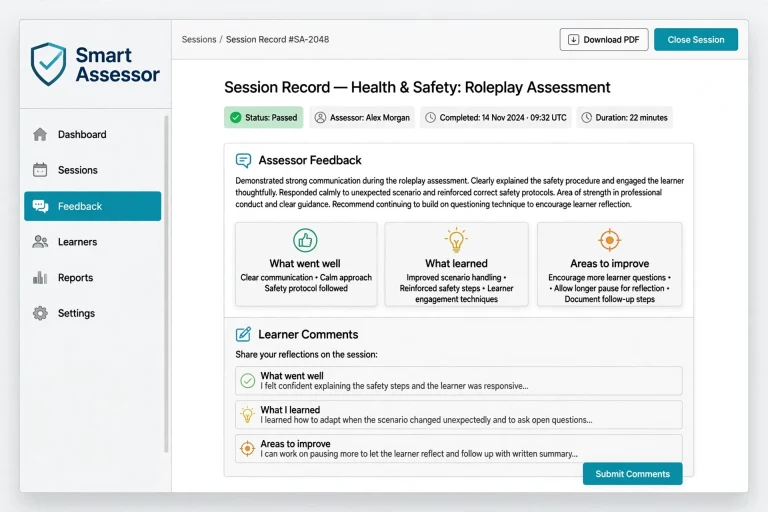
Missing an assessment session can interrupt your learning progress. You can use the Learning Plan area to check the latest appointment recorded in your portfolio.
For the TrainPlus learner setup:
This allows you to check when your next session is scheduled without searching through old emails.
If the appointment information appears incorrect or you cannot find a scheduled session, contact your assessor for clarification.
4. View and Submit Session Feedback
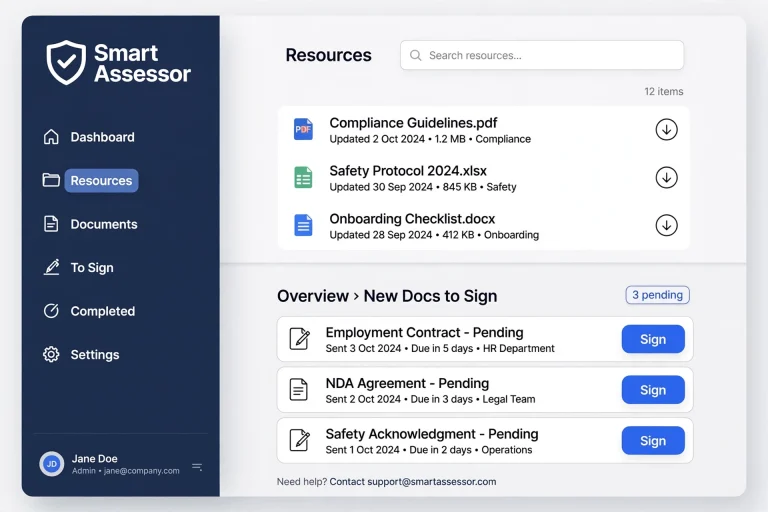
It also allows learners to review feedback from previous sessions and provide their own comments.
To find this section, open your portfolio, select your main qualification and access the Learning Plan widget.
You can then expand individual session records using the dropdown arrow. This displays the feedback provided by your assessor.
The TrainPlus guide also explains that learners can select one of three feedback icons to indicate how they felt about a session. A text box then appears where you can explain:
Submit your comments when you’ve finished. Your feedback will be saved against the relevant session.
Managing Actions and Activities
Actions are tasks assigned by your assessor throughout your course. Each activity may have a deadline or a specific requirement that you need to complete.
You can manage these tasks through the Actions and Activities widget on your learner dashboard.
When you open this area, you’ll see the actions available to you. Select Edit against the relevant task when you need to update its information.
You should then:
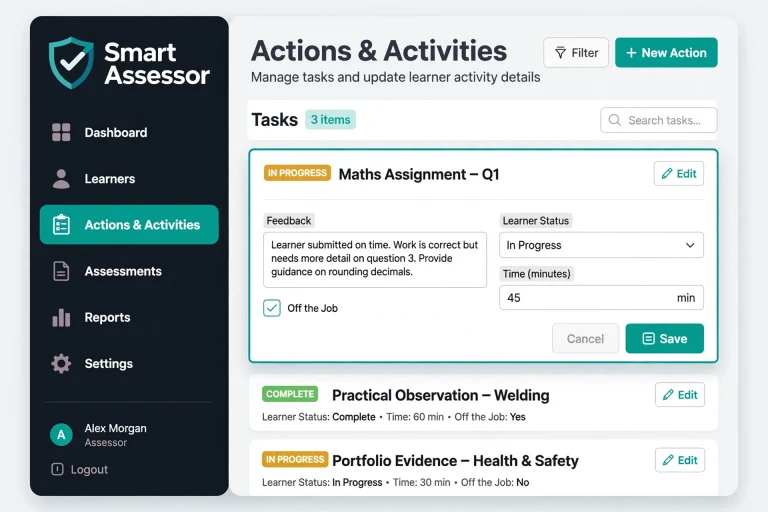
Updating these details helps your assessor understand what you’ve achieved and how much time you’ve spent on your learning activities.
Remember: Only mark an action as complete when you’ve actually finished the required work.
Smart Assessor E-Portfolio: How to Upload Evidence
The Smart Assessor e portfolio is an important part of managing your qualification. It allows you to submit work that demonstrates your knowledge, skills and progress towards the course requirements.
Evidence may include written assignments, reflective accounts, observations and other materials requested by your assessor.
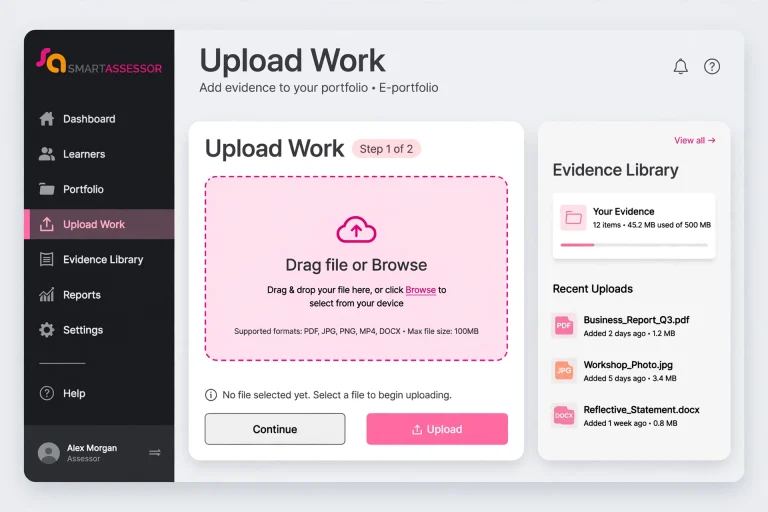
Steps to Upload Your Work
Follow this process to submit evidence through your portfolio:
After submission, your tutor or assessor can access the uploaded evidence through your portfolio.
Understanding Evidence Types
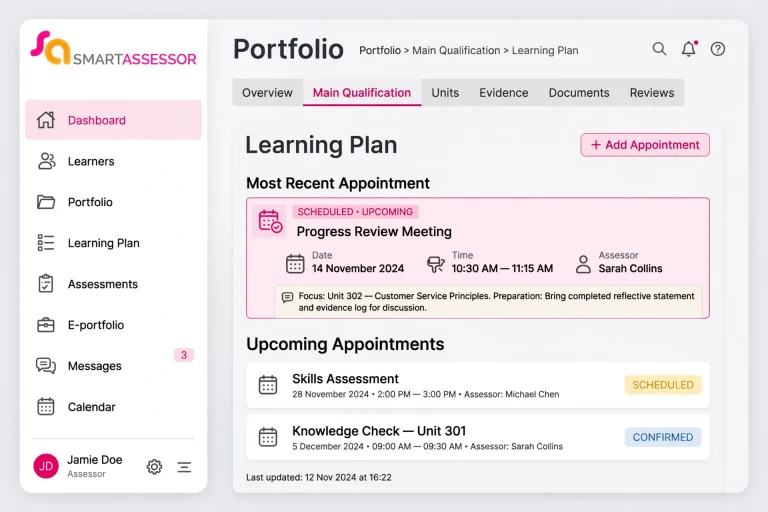
When submitting work, you’ll need to select the category that best describes your evidence.
| Code | Evidence type | Meaning |
|---|---|---|
| DO | Direct Observation | Work observed directly |
| WT | Witness Testimony | Evidence provided by a witness |
| PE | Product Evidence | A completed product or piece of work |
| QA | Questioning and Answers | Responses to assessment questions |
| PS | Personal Statement | Your own account of an activity |
| DI | Discussion | Evidence from a discussion |
| SI | Simulation | Work completed in a simulated setting |
| ET | Exams and Tests | Examination or test results |
| RA | Reflective Account | Reflection on your learning or experience |
| OT | Other | Another relevant evidence type |
| APL/RPL | Recognised Prior Learning | Previously acquired knowledge or skills |
Choose the category that accurately represents the material you’re submitting. If you’re unsure, ask your assessor before selecting an option.
What Happens After an Evidence Upload?
Once you’ve saved your submission, the work becomes available to your tutor or assessor for review.
Before leaving the page, check that:
These checks can help prevent incomplete submissions and unnecessary delays.
Smart Assessor Off-the-Job Training Hours Explained
For apprentices, recording off-the-job (OTJ) training is an important part of managing course activity.
The TrainPlus learner guide explains that employers have agreed to provide apprentices with 20% of their working hours during the course for relevant learning activities outside their normal employed role.
This time can include assignments, training, mentoring and other activities that help develop personal and technical skills.
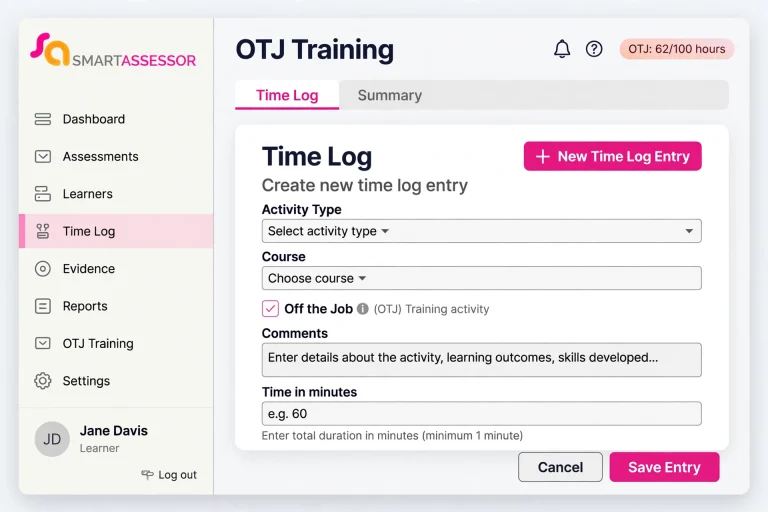
Recording OTJ Hours Against an Action
If an activity has been assigned by your assessor, you can record the time through its action entry.
Open Actions and Activities, select Edit against the relevant task and enter the time spent in minutes.
The amount recorded must be equal to or lower than the available off-the-job hours since the action was assigned.
For example, the TrainPlus guide provides an illustration involving five weeks of activity and a seven-hour working day. This produces a maximum of 35 hours, equivalent to 2,100 minutes.
Your own allowable time depends on the relevant dates and working arrangements.
Adding OTJ Hours Without an Assigned Action
Not every eligible learning activity will have a specific action attached to it.
In this situation, use the Time Log section:
Examples of Activities That May Qualify
The TrainPlus guide identifies several examples of work-related development:
Simply carrying out your normal everyday job duties does not count as off-the-job training under these instructions.
Functional Skills activities are also excluded from the course OTJ hours described in the guide.
Important recording rules:
For example, a ten-hour project could be divided into research and planning, writing the main sections, and evaluation and proofreading. Each activity should have its own accurate time entry.
Finding Course Resources on Smart Assessor
Your training provider may make learning materials available through your portfolio.
To access them, select the relevant qualification tab above your dashboard widgets. Open the Resources widget to reach the available materials.
The resource area includes a searchable list. You can browse the entries and select a resource name to open the material.
If you cannot find a particular document, check with your assessor to confirm whether it has been added to your course.
How to Sign Documents in Your Portfolio
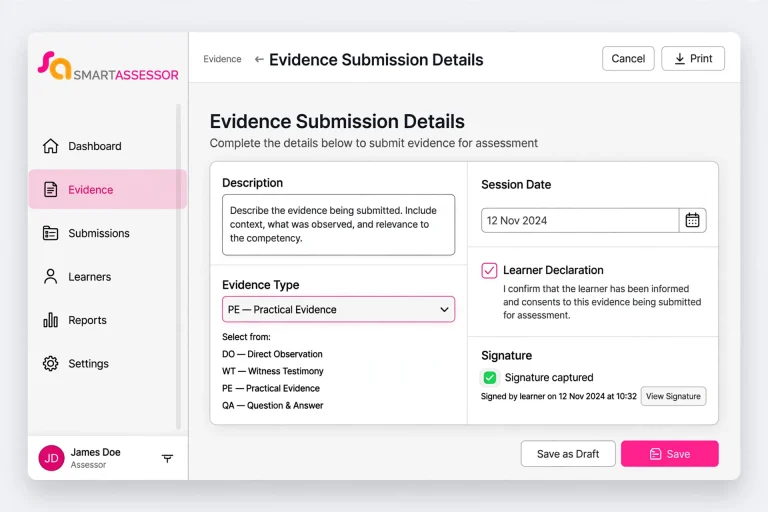
Some documents require your signature before your training provider can complete the relevant administrative process.
To find outstanding documents:
Check the information carefully before signing. If something is incorrect or unclear, speak to your assessor first.
Smart Assessor Login Problems: Troubleshooting Guide
Having difficulty accessing your account can be frustrating, especially when you need to submit work before a deadline.
The TrainPlus guide provides two useful instructions for learners who cannot sign in.
Check Your Username
For the TrainPlus account setup, your username follows this format:
First name.Last name
For example:
Joe.Bloggs
Enter your username carefully, including the full stop between your first and last names.
If your account details don’t match this format, check the instructions provided by your training organisation.
Reset a Forgotten Password
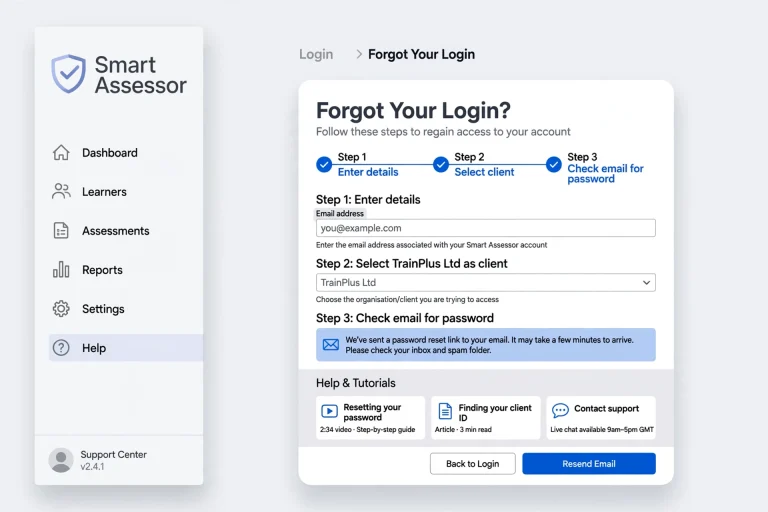
If you cannot remember the password supplied for your account, use the Forgot Your Login option on the login page.
For TrainPlus learners:
If the reset process doesn’t work, contact your assessor or the training provider for assistance.
Use the Help Section
The Smart home screen also includes a Help option.
According to the learner guide, this area provides access to tutorials and frequently asked questions that may help resolve common problems.
Smart Assessor App: Is There a Mobile Application?
Learners sometimes search for a Smart Assessor app because they want to manage their portfolio from a smartphone or tablet.
However, the supplied TrainPlus learner guide explains access through its website shortcut and browser-based learner dashboard. It does not confirm a dedicated mobile application, an official app download or specific mobile-app features.
Before downloading anything, check with your training provider or consult the platform’s official information. Avoid entering your login details into an application unless you’ve confirmed that it is authorised for your account.
Smart Assessor Contact Number and Support
If you’ve tried the available login recovery options but still cannot access your account, your training provider should be your first point of contact.
For learners following the supplied TrainPlus guide, the listed telephone number is:
TrainPlus telephone: 01268 574299
You can contact your assessor or training provider if you need help with:
Please note that this is the TrainPlus contact number provided in its learner guide, not a verified universal Smart Assessor customer support number.
Smart Assessor Reviews: What Should Learners Consider?
When researching Smart Assessor reviews, it is useful to distinguish between feedback about the software itself and experiences with a particular training provider.
A learner’s experience may depend on how their organisation configures the platform, which portfolio features are enabled and how regularly assessors update course information.
Before forming an opinion, consider:
The supplied learner guide explains the platform’s learner functions but does not contain independent customer ratings or verified user reviews. Therefore, a review score or overall satisfaction rating should not be assumed from this document.
Frequently Asked Questions
Final Thoughts
Smart Assessor provides learners with a central place to manage their training activities, monitor qualification progress and submit evidence for assessment. Understanding the dashboard, learning plan, actions, time log and portfolio features can make it easier to stay organised throughout your course.
If you’re new to the platform, start by checking your login details and exploring the learner dashboard. Make a habit of recording eligible training hours, submitting evidence with accurate descriptions and checking outstanding tasks regularly.
For TrainPlus learners, the supplied guide also provides a password recovery process and a direct contact number for additional assistance. If a feature or instruction doesn’t match your account, ask your assessor to confirm the correct process for your training provider.
Read more