
The My Uni Portal is the central online starting point for students at Wrexham University (formerly Glyndŵr University). It brings together links to learning materials, personal timetables, university email, student records, software and support services. Instead of visiting several websites separately, students can use the portal to reach many of the resources they need during their studies.
Whether you need the My Uni Portal student login, want to check your timetable, access Moodle or find your results through the relevant student system, understanding the portal’s layout can save time. This guide explains the main features, password recovery options, academic resources and support links using the information provided by the university’s portal guidance.
How to Access My Uni Portal Login

The My Uni Portal login screen is the starting point for accessing university services. It also provides access to login assistance and password-reset options.
Follow these steps to sign in:
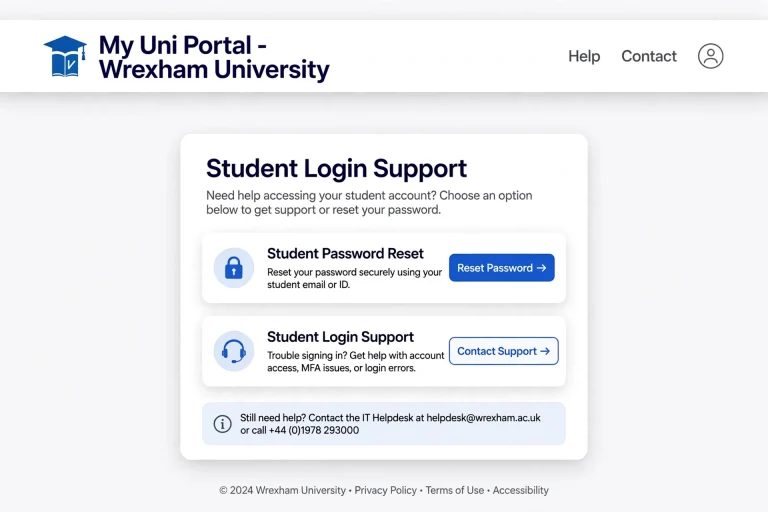
The my uni portal login process is intended for authorised university users. If you cannot access the sign-in page, check that you are using the correct university link before attempting to reset your password.
Official guidance: Wrexham University MyUni Portal Guide
New Student Registration and Password Setup
New students who have never signed in may need to create their password before using the portal. Returning students may need a reset if they have forgotten their credentials or have not accessed their account for some time.
How to create or reset your password
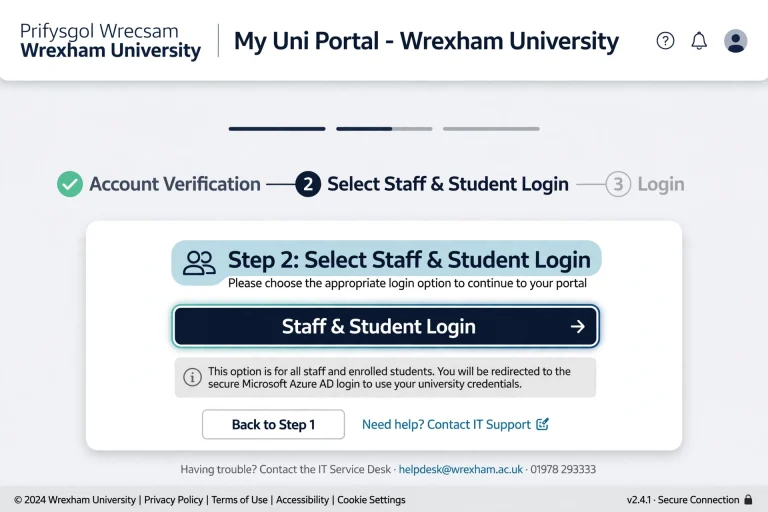
Use the following process described in the university’s guidance:
If you have already tried resetting your password and still cannot sign in, return to Student Login Support for further assistance.
| Login situation | Recommended action |
|---|---|
| First-time sign-in | Follow the student password creation instructions |
| Forgotten password | Use the Student Password Reset option |
| Password reset unsuccessful | Contact Student Login Support |
| Unsure which link to use | Return to the official university guidance |
Keep your login details secure, and do not share your password with other students.
Exploring the My Uni Portal Dashboard
After signing in, students arrive at the main dashboard. The layout groups commonly used services together, making it easier to move between academic work, student administration and campus support.
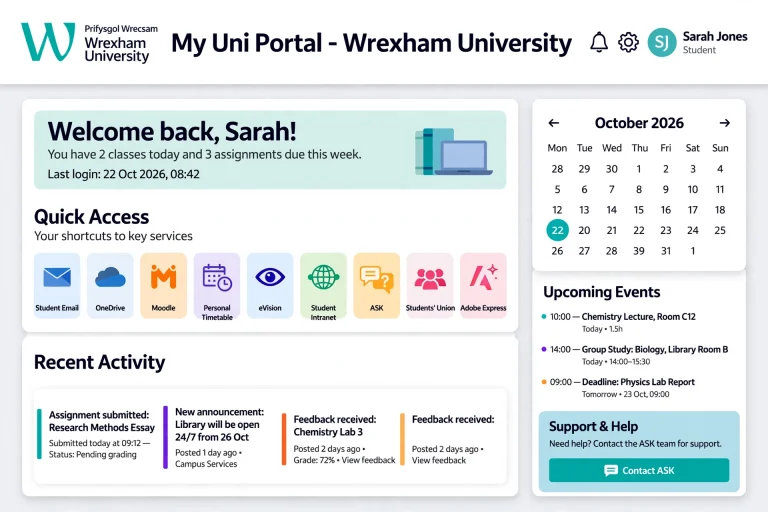
A row of shortcut icons provides direct access to key services:
Below these shortcuts, the dashboard includes rotating promotional images linking to university events and websites. A calendar appears alongside them, displaying the student’s personal timetable.
If your calendar looks empty after logging in, there is no need to assume your account is broken. The timetable may not have updated yet, or the university may not have released the relevant schedules.
The portal interface also includes a Cymraeg option in the top-right corner, allowing users to switch to Welsh after signing in.
My Uni Portal Moodle: Accessing Learning Materials
Moodle is one of the main academic resources linked through MyUni. Students use the virtual learning environment (VLE) to reach course modules and learning content.

The My Uni Portal Moodle link is particularly useful when you want to move from the student dashboard directly to your academic resources.
The VLE and academic support area also provides access to:
These resources support different parts of university study, from locating learning materials to developing academic and digital skills.
Tip: If you cannot find your course materials, start by opening Moodle through the portal. If the expected module is missing, seek help through the university’s support channels rather than assuming the portal login is incorrect.
Checking My Uni Portal Results and Student Records
Students looking for My Uni Portal results should distinguish between the main portal and the university systems linked from it. The supplied guidance identifies eVision as the place to access course-related and personal student information, but it does not specify the exact results-release process or confirm where every assessment result appears.

To find the relevant information:
eVision also provides access to personal information and council tax letters. The student information section links to academic regulations, university policies, administrative forms, frequently asked questions and information for international students.
The key point is that MyUni acts as a gateway to these services; the information available depends on the linked system and your student account.
Finding Your Timetable, Exams and Academic Calendar
The timetable section helps students organise their university commitments. It brings together links for personal schedules, general timetables and academic dates.
| Resource | What it helps you find |
|---|---|
| Personal timetable | Your individual schedule |
| All timetables | University timetable information |
| More timetable information | Additional scheduling details |
| Exam information | Links and information relating to exams |
| Academic calendar | Semester dates, learning weeks and closing dates |
| Absence reporting tool | A way to report an absence |
Students can access their personal timetable from the dashboard shortcut or through the timetable category.
Remember that a blank timetable does not necessarily indicate a login error. Check again later if schedules have not yet been updated or released.
Student Support and Campus Life
University life involves more than attending lectures and completing assignments. MyUni includes a dedicated area for student support, with ASK serving as the first point of contact for student and campus-life enquiries.
Through this section, students can find links to support services and use the student support self-referral form to contact the appropriate department.
This is a useful starting point if you need help with a university-related concern but are unsure which team handles it. You can use the available service links to identify the right contact instead of searching through unrelated university pages.
Software and Apps Available Through MyUni
Wrexham University provides access to several software tools that students may need for their coursework. The portal groups these resources together so students can locate relevant applications and services.
| Software or service | Main purpose |
|---|---|
| Microsoft Office 365 | Desktop productivity applications for Windows and Mac |
| NVivo | Research and analysis software that may be required for some courses |
| SPSS | Statistical analysis software used on some courses |
| Adobe Express | Creating and editing graphics, images, animations, videos, PDFs and web pages |
| Trellix Security | Antivirus protection against viruses and malware |
| ClickView | Access to previous television recordings that may appear in course modules |
| Panopto | Recording presentations and accessing lecturer-created recordings |
Access to particular applications may depend on your course and the university’s arrangements. Check the relevant software information through MyUni before installing a tool or assuming that every application is available for every student.
Does My Uni Portal Have an App?
The supplied university guidance describes the MyUni web portal and its links to other services, but it does not confirm the availability of a dedicated My Uni Portal app.
If you are searching for the My Uni Portal app, check the official university website for current mobile-access instructions. Avoid downloading an application from an unverified source or entering university credentials into an unfamiliar sign-in page.
You may be able to access individual services through their own mobile applications or websites, but their availability and setup requirements should be checked separately.
Student Experience, Sports and University Events
The student experience section connects students with activities and services beyond their academic work.
Its listed resources include:
The dashboard’s rotating images may also direct students to events and other university websites. Checking these links occasionally can help you find relevant activities and information without navigating through multiple pages.
My Uni Portal Wrexham University: IT Support and Troubleshooting
If you have trouble accessing university services, the IT Support section is the appropriate place to begin looking for technical assistance. It includes information about the Tech Zone, a link to the service desk and a user guide explaining how to navigate that service desk.
Before requesting help, identify the problem as clearly as possible.
| Problem | What to try |
|---|---|
| Cannot sign in | Check the login page and use Student Login Support |
| Forgotten password | Follow the Student Password Reset instructions |
| Timetable is empty | Check whether schedules have been updated or released |
| Moodle materials are missing | Open Moodle and check the relevant module |
| Cannot find student records | Open eVision and review the available options |
| Software access issue | Check the relevant software information |
| Still experiencing problems | Use the university’s service desk or login support |
When contacting support, explain what you were trying to access and describe the message or problem you encountered. Never include your password in a support request.
My Uni Portal Glyndwr: What Students Should Know
Some students still search for My Uni Portal Glyndwr or Glyndwr My Uni Portal because Glyndŵr University is the institution’s former name. The supplied portal guidance refers to Wrexham University.
If you are using an older bookmark or following a link that mentions Glyndŵr University, check that it leads to a current university service. The safest approach is to start with the official Wrexham University website or its published MyUni guidance rather than relying on outdated third-party login pages.
Searches such as my uni portal Wrexham, uni portal Glyndwr and uni portal login generally reflect the same need: finding the correct university entry point. However, always check the destination before entering your credentials.
Frequently Asked Questions
Conclusion
The most effective way to use My Uni Portal is to become familiar with its main shortcuts. Moodle supports access to course materials, the timetable section helps you organise academic dates, eVision provides student information, and ASK and IT Support direct you towards the relevant help services.
Bookmark the official university guidance, keep your login details secure and use the password-reset process if you cannot access your account. For results, mobile applications or any feature whose exact process is not covered here, consult the university’s latest instructions rather than relying on an unverified link.
Read more