
Hwb is the digital learning platform that helps students, teachers and eligible education users in Wales access school resources and connected services from one central place. If you are looking for Hwb login, need to access Outlook, Teams, Google Classroom or PowerPoint, or are helping a child with their school account, knowing where to begin can save time and avoid common login problems. This guide explains how Hwb works, how to sign in, what to do if your credentials fail, how connected learning tools fit together, and where students, parents and staff can find the right support when they need help. Visit our Homepage for more information.
What Is Hwb?
Hwb is the Welsh Government’s national digital learning platform for education in Wales, giving learners, teachers and education professionals a central place to access digital resources, curriculum information and online learning services. For students, it can provide access to tools such as Microsoft 365, Outlook, Teams, Google Workspace, Google Classroom and OneDrive, depending on what their school has enabled. If you are visiting to understand how Hwb works or where to find your school’s digital tools, the key point is that available services vary by school, so you should follow your school’s instructions for the specific applications and resources you need.
How to Complete Hwb Login
The normal starting point for login is the official website.
Open the official website
Before signing in, make sure you have the username and password supplied by your school or organisation. Learners who have forgotten these details should ask school staff or an administrator rather than trying to create a replacement personal account.
Sign-in process
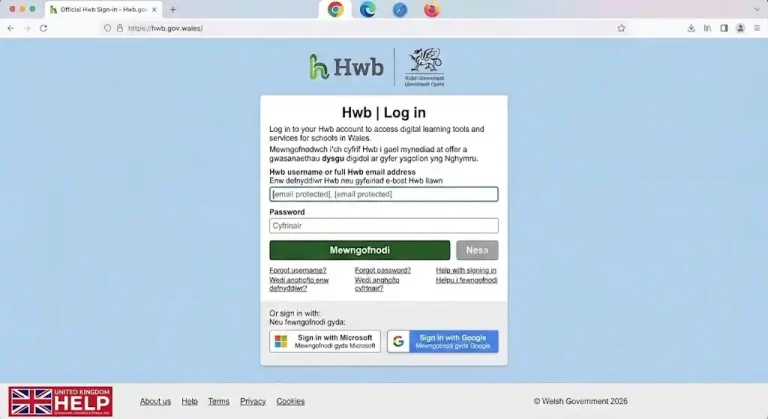
- Visit the official website.
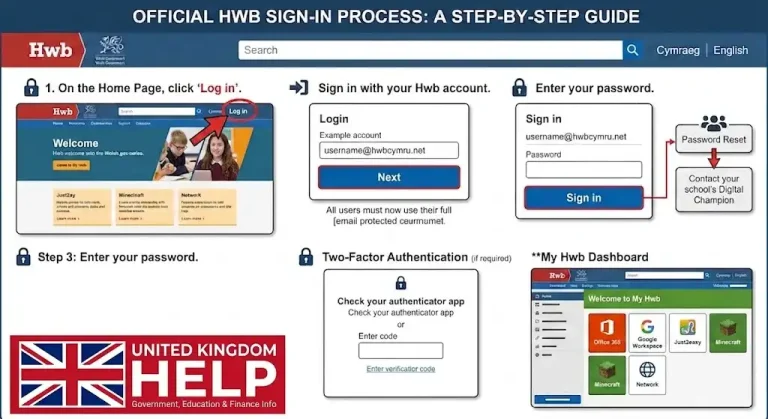
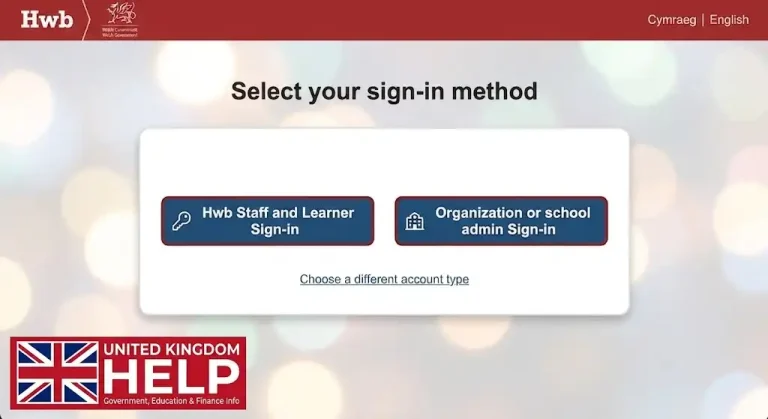
- Enter your school-provided username.


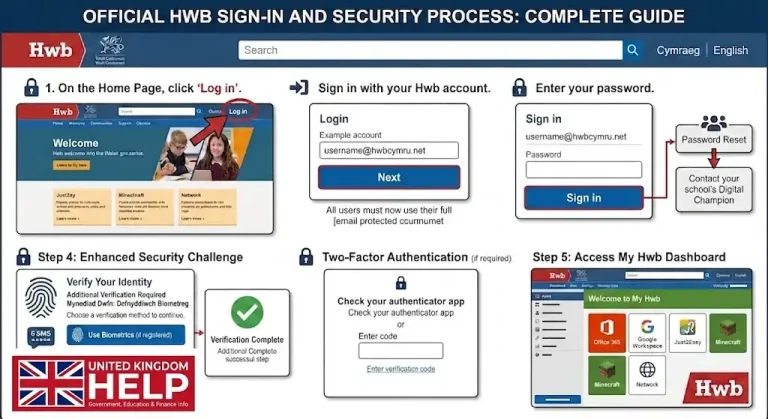
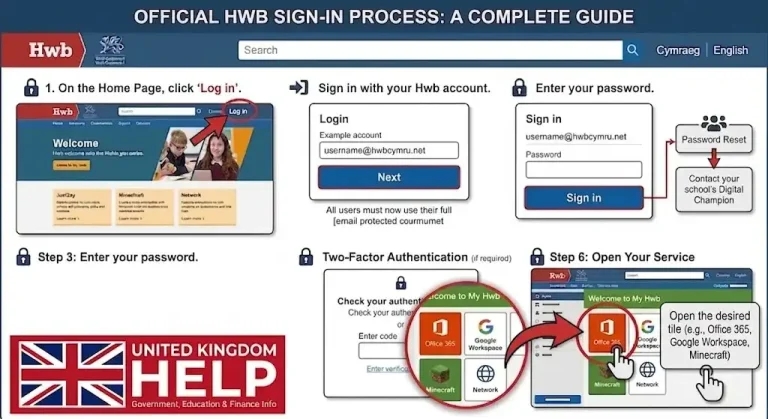
The account format described in the supplied material uses the @hwbcymru.net domain. If you are uncertain about your exact username, ask your school rather than guessing.
Who Can Use an Account?
Access depends on your role within the Welsh education system.
Students and learners
Learners in maintained schools in Wales can be given account details by their school. These credentials provide access to the services made available to the individual learner.
This arrangement can save students from remembering separate credentials for every school application.
Teachers and school staff
Eligible teachers and other education staff can also have accounts. Staff may use the platform for teaching resources, Microsoft 365, professional learning and other services.
There is an important security difference for non-learner accounts. Current guidance says multi-factor authentication is required for non-learner users when accessing the service remotely outside their trusted school or workplace network.
Parents and carers
Parents should not assume they automatically receive a general parent account. Schools can use connected digital services to communicate with families or provide learning activities, but arrangements differ between schools.
If you are helping a child, the school is normally the best place to obtain the child’s username, password and information about the applications they need.
What If Hwb Login Is Not Working?
A failed login can have several causes, and repeatedly entering a password is rarely the best way to solve the problem.
Start with these checks:
Learners who have forgotten their login details should contact school staff or an administrator. The supplied guidance specifically identifies the school as the main source of help for learner credentials.
A common problem on shared computers
Family computers often have several Microsoft or Google accounts saved in the browser. This can cause a student to open the wrong mailbox, classroom or Teams account.
If that happens, sign out of unrelated accounts and then sign in using the school credentials. A separate browser profile can also make school and personal accounts easier to keep apart.
Login Email and Outlook
One of the most common reasons students search for their login email is to reach Outlook.
Learners can have an Outlook email account through the education environment, although schools can determine whether pupils are able to send or receive messages outside the school.
For many users, the same school identity connects email with other Microsoft services. That means you do not necessarily need to create a separate personal Microsoft account for schoolwork.
Accessing Outlook
If Microsoft 365 is available to your account, the usual route is:
Sign in → Microsoft 365 → Outlook
The supplied material explains that users can either sign in through the central platform and select Microsoft 365 or access Microsoft 365 directly using their school credentials.
If Outlook displays the wrong mailbox, check which Microsoft account is currently active in the browser.
Google Classroom Hwb Access
Schools that use Google Workspace can provide access to Google Classroom for teaching and learning.
A teacher may use Google Classroom to publish assignments, announcements, learning resources and submission instructions. However, schools do not all use Google services in exactly the same way.
If your teacher says that homework is available in Google Classroom, use the school account connected to your education environment.
Why the correct Google account matters
A personal Google account may not have access to your school’s classes. Using it can make an assignment appear to be missing even though your teacher has already published it.
If you see an access-denied message, first check the Google account displayed in the browser before assuming the assignment has been removed.
Teams Hwb for Online Learning
Microsoft Teams can be used through the education environment for a range of school activities.
Teachers and schools may use Teams for:
The supplied source explains that students normally begin with their school credentials and then open Teams through Microsoft 365.
Teams showing the wrong classes
This is often an account-selection issue.
If Teams opens but your expected classes are missing, check whether you are signed in with a personal Microsoft account. Sign out if necessary and use the school-provided credentials.
Do not immediately assume that your teacher has removed you from a class.
PowerPoint Hwb and Microsoft 365
Students may use Microsoft PowerPoint for presentations, assignments and collaborative projects when Microsoft 365 is enabled for their account.
Available Microsoft applications can include:
The supplied material states that eligible users can access Microsoft 365 and install it on personal devices under the applicable licence. It also gives the current allowance as up to five laptops or desktop computers, five tablets and five smartphones.
This can be useful for students who move between school and home devices.
Is There an Login App?
People often search for an login app because they want a mobile way to reach their school services.
The platform itself is primarily accessed through its website, while connected services can have their own official mobile applications. These may include Microsoft Outlook, Teams or Microsoft Authenticator, depending on the user’s role and requirements.
For this reason, be cautious when searching an app store for an application described simply as an ” app”.
Start with the official website and follow the instructions for the particular service your school uses. Avoid entering school credentials into an unfamiliar application.
Hwb and Multi-Factor Authentication
Multi-factor authentication adds another security check to eligible non-learner accounts.
Current guidance in the supplied material states that non-learner users need MFA when accessing the platform remotely from outside their trusted school or workplace network. Learners do not currently require MFA for this purpose.
Microsoft Authenticator can be involved in this process for staff and other non-learner users.
If a staff member changes their phone, the MFA setup may need to be reset. The supplied guidance advises contacting the relevant administrator or Digital Champion in this situation.
What Can You Access After Login?
The exact services available depend on your role, school and account configuration.
|
Service |
Typical purpose |
|---|---|
|
Microsoft 365 |
Productivity and schoolwork |
|
Outlook |
Education email |
|
Teams |
Classes and collaboration |
|
OneDrive |
Cloud file storage |
|
PowerPoint |
Presentations |
|
Word |
Written assignments |
|
Excel |
Spreadsheets and data |
|
Google Workspace |
Google learning tools |
|
Google Classroom |
Assignments and classes |
|
Just2Easy |
Creative educational activities |
|
resources |
Curriculum and learning materials |
|
Personalised Assessments |
Online reading and numeracy assessments |
This makes the platform more than a basic login page. It can serve as a digital gateway connecting several parts of a learner’s school experience.
Hwb for Everyday Schoolwork
Once access has been established, students may use their account to:
The exact list will vary. A student should follow the instructions given by their school or teacher rather than assuming every service is available to every account.
Resources and the Curriculum for Wales
The platform also contains educational resources rather than functioning solely as an account gateway.
Students, teachers and families can find information and materials connected with the Curriculum for Wales, teaching and learning and other educational topics.
This can be especially useful for parents who want to understand the educational resources their children may encounter.
The supplied material also notes that National Reading and Numeracy Personalised Assessments are completed online by eligible learners and can be accessed using their education credentials.
Help for Parents and Carers
If you are helping a child with login, identify the problem before trying different passwords or applications.
Ask your child:
This approach can quickly separate an account problem from an application or browser problem.
Parents should also remember that schools decide which digital services are used. One child may use Teams while another school may rely more heavily on Google Classroom.
Forgotten Password
If a learner has forgotten their password, the best route is to contact the school.
The supplied guidance states that learners should ask school staff or an administrator for their login details. Staff and other non-learner users can also contact their relevant administrator when they need account assistance.
Avoid using unofficial password-reset pages or giving your credentials to another person.
Before contacting the school
Have the following information ready:
Providing this information can make it easier for school staff to identify the problem.
Common Problems and the Best Solution
|
Problem |
What to try first |
|---|---|
|
Forgotten username |
Contact the school |
|
Forgotten password |
Ask school staff or an administrator |
|
Outlook opens the wrong account |
Check the active Microsoft account |
|
Teams classes are missing |
Confirm you are using the school account |
|
Google Classroom is empty |
Check the correct Google account |
|
Staff cannot sign in remotely |
Check MFA |
|
Staff have changed phones |
Contact the relevant administrator |
|
Website behaves unexpectedly |
Try another supported browser |
|
Unsure which service to use |
Ask the teacher or school |
This table is useful because many apparent “login” problems are actually account-selection problems.
Important Information for 2026
Visitors following older tutorials should be aware that the platform and its services can change over time.
The supplied material is intended as a practical guide to the current environment, but users should always check the official website for the latest instructions rather than relying on an old screenshot or video.
That is particularly important if a school has changed the applications it uses for lessons, homework or communication.
FAQs
Conclusion
It provides a convenient central place for students, teachers and eligible education users in Wales to access school resources and connected digital services. Whether you need Outlook, Teams, Google Classroom, PowerPoint or other learning tools, the most important step is to use the correct school account and follow your school’s instructions. If you experience a login or password problem, check your account details first and contact your school or administrator when necessary. For the latest information and support, always start with the official website rather than relying on outdated guides.