
The Bromcom Student Portal gives students a convenient way to access important school information online. Depending on how a school has configured the platform, students may be able to check their timetable, homework, attendance, assessments, school announcements, and other academic information from one place.
For students using the platform for the first time, the sign-in process can seem confusing, particularly when an invitation code, School ID, or school-provided username is required. This guide explains the main steps in simple language so you can understand how the portal works and what to do if you cannot access your account.Visit our Homepage for more information.
What Is the Bromcom Student Portal?
The Bromcom Student Portal is an online environment used by participating schools to give students access to school-related information and digital learning resources.
The exact features available can differ between schools because schools configure their systems according to their own requirements. You may therefore see different menus or sections from another student using Bromcom.
Common areas can include:
If your school has provided you with a specific login URL, School ID, username, or invitation code, use those details rather than trying to create an account independently.
Bromcom Student Portal Login
Students generally need credentials supplied or enabled by their school before they can access their account. The exact login method can vary, so follow the option your school has provided.
Bromcom Student Portal Login Steps
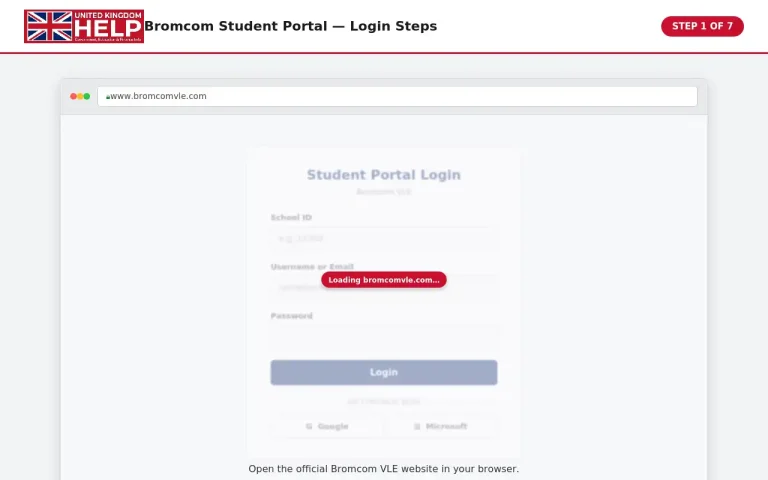
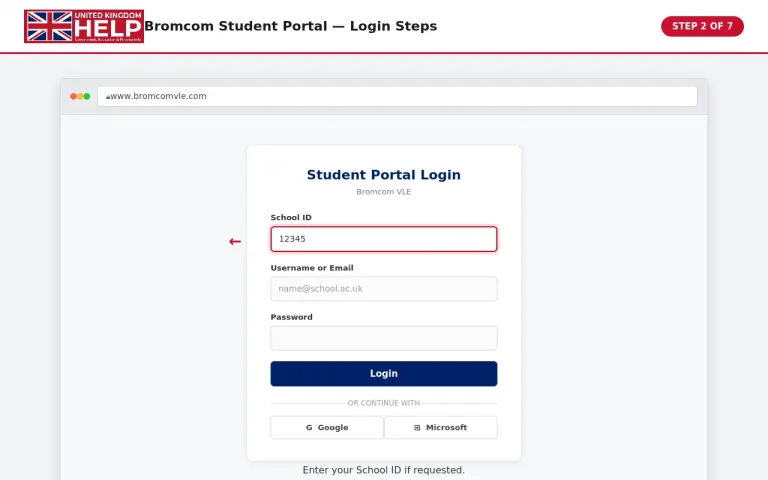
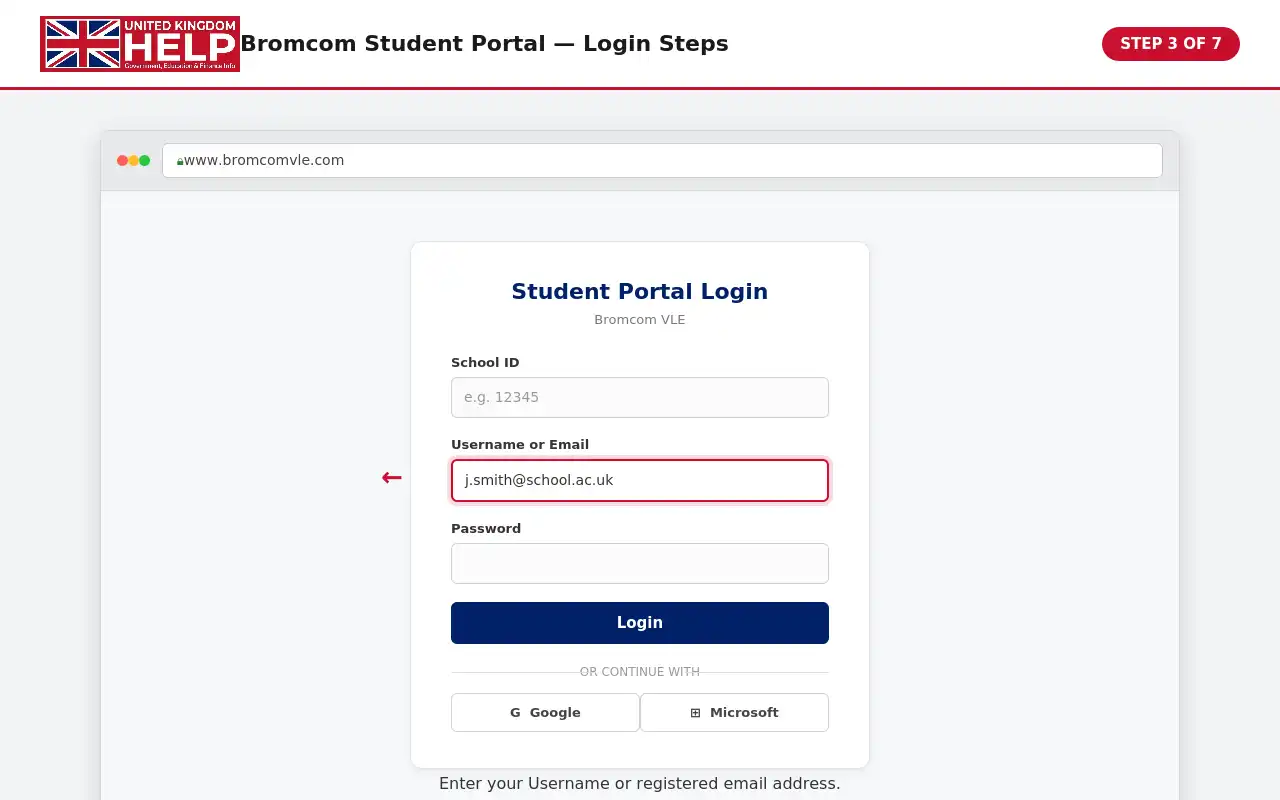
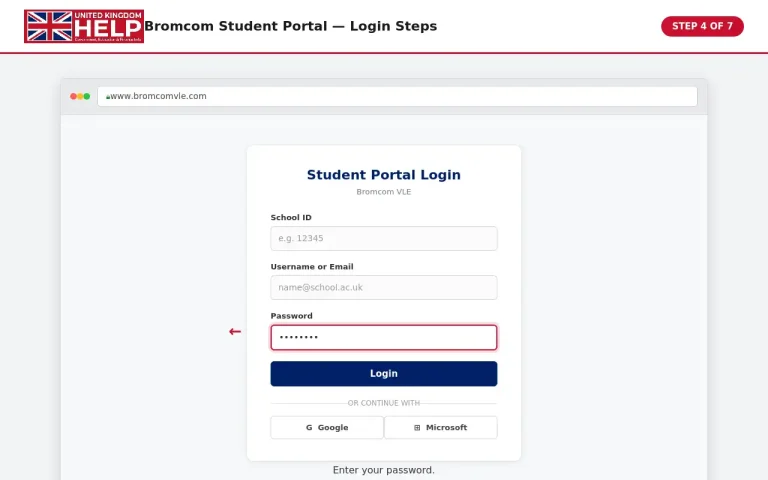
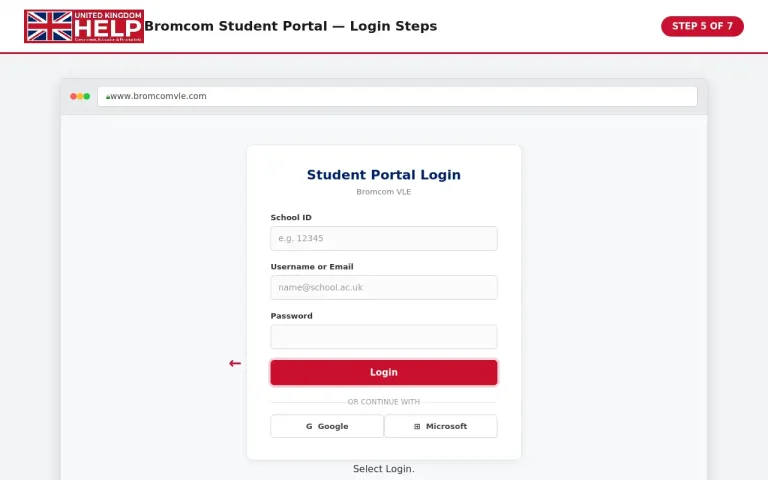
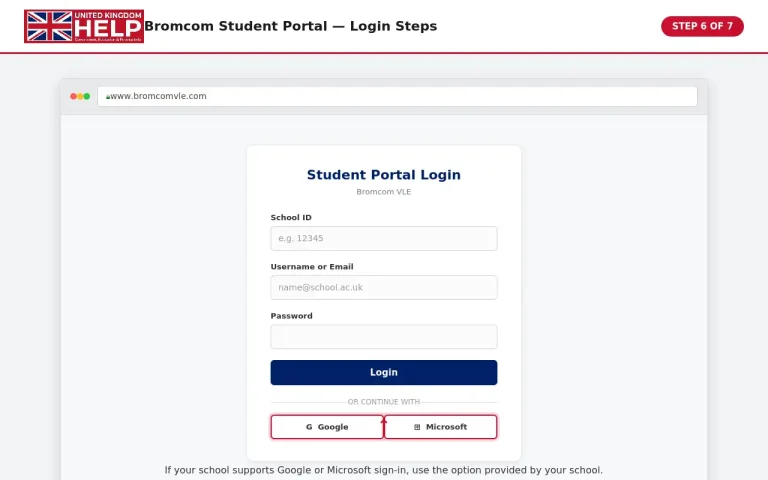
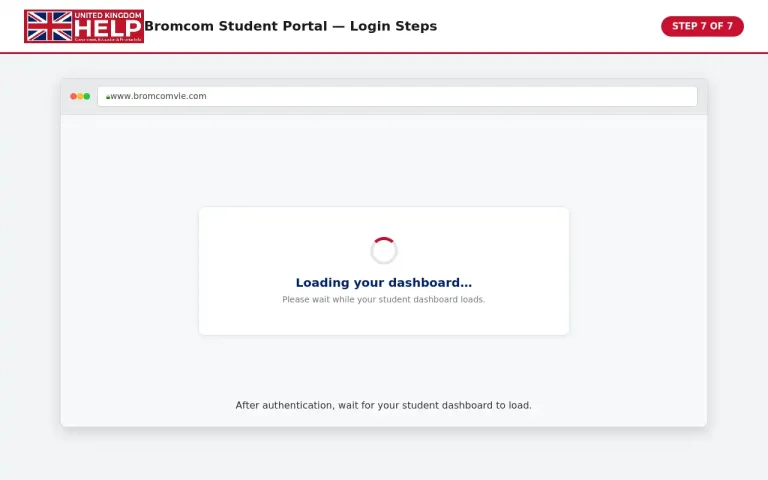
Keep your login information private. If you are using a shared computer, avoid saving your password in the browser unless the device is trusted and belongs to you.
What Do You Need to Sign In?
The information required can depend on your school’s configuration. You may be asked for:
If you are unsure which credentials apply to you, your school administration or IT support team can confirm the correct details.
Bromcom Student Portal Sign Up for New Students
New students may need to activate their account before they can use the platform. In some cases, the school provides an Invitation Code that allows the student to create or activate an account.
The registration process supplied for the VLE can include entering your School ID, name, and invitation code before setting up your account.
How to Redeem an Invitation Code
An invitation code is normally provided by the school, so contact your school if you have not received one or if the code does not work.
Student Portal Bromcom Dashboard
After signing in successfully, you should reach the main student dashboard. Think of this as the starting point for accessing the services and information your school has made available.
The exact appearance may differ, but the dashboard can provide shortcuts to several areas.
Main Dashboard Features
Timetable:
Your timetable can help you see scheduled lessons and understand what classes you have during the school day.
Attendance:
This area may show attendance records and other information relating to your school attendance.
Homework:
If your school uses the relevant features, homework and assignments may appear within the student area.
Assessments:
Assessment information can help you review results or feedback that your school has published.
Notifications:
Important announcements, reminders, or school messages may be displayed through the dashboard.
Calendar:
Some schools may provide events, deadlines, or other dates through the calendar.
Because schools can configure their Bromcom environment differently, you should not be concerned if your dashboard does not contain every feature listed above.
Grades and Assessments
One of the most useful parts of the Bromcom Student Portal can be the assessment area. It allows students to review academic information that has been made available by their school.
Depending on your school’s setup, you may see information such as:
| Section | What You May Find |
|---|---|
| Assessments | Results from tests or other assessments |
| Reports | Published school reports |
| Feedback | Comments or feedback from teachers |
| Targets | Academic targets where provided |
| Subjects | Information organised by individual subject |
To find your grades, look for a menu item labelled Assessments, Grades, Reports, or something similar.
Keep in mind that grades may not appear immediately after an assessment. Teachers or school administrators generally need to enter and publish the relevant information before it becomes visible to students.
Checking Your Academic Information
A simple way to review your results is:
If an expected grade is missing, avoid assuming that there is an account problem. The assessment may simply not have been published yet. Your teacher or school office can confirm its status.
Attendance on the Student Portal Bromcom System
Attendance is another important area for students. Where the feature is enabled, you can use the portal to review information recorded by your school.
Your attendance page may contain a summary as well as individual records. Depending on the school’s configuration, you could see categories such as present, absent, authorised absence, or late.
What Can Attendance Information Show?
The available information can include:
The terminology and presentation can vary between schools.
How to Check Attendance
Your school’s attendance office remains the appropriate place to ask about disputed or missing attendance records because the school maintains the underlying attendance information.
Bromcom VLE Student Portal
The Bromcom VLE Student Portal is designed to give students access to digital school information through a web browser. The exact services available depend on the school and the features it has enabled.
After signing in, students may find learning materials, assignments, school information, attendance, assessments, or other resources in their account. If a particular option is missing, it does not necessarily mean that your account is faulty. Your school may simply not have enabled that feature.
Bromcom Login Student Portal: Forgotten Password
Forgetting a password is one of the most common reasons students cannot access their accounts. If the portal provides a forgotten-login option, you can use it to begin the recovery process.
How to Reset Your Password
Only use the official portal or instructions provided by your school when entering your account information.
What If the Password Reset Email Does Not Arrive?
There are several possible reasons for this:
If you have checked your folders and still cannot find the message, contact your school’s IT team, administrator, or the person responsible for student accounts.
Bromcom Student Portal Login Problems
Sometimes the problem is not the password itself. A student may enter the correct information but still be unable to reach the dashboard.
Before contacting support, try these basic checks.
Check Your School ID
A School ID may be required alongside your username or other credentials. Make sure you are using the ID supplied by your school rather than guessing one.
Check Your Username
Look carefully for spelling mistakes, extra spaces, or incorrect characters. If your school uses an email address as your username, make sure you enter the complete address.
Check Caps Lock
Passwords are commonly case-sensitive. Make sure Caps Lock is not accidentally enabled.
Try the Official Website Again
Start from the official Bromcom VLE website rather than an old bookmark or an unofficial website.
Try a Different Browser
If the page does not behave normally, try another current browser. You can also close the browser completely and reopen it before trying again.
Clear Temporary Browser Data
Old cookies or cached information can occasionally interfere with websites. Clearing relevant browser data or opening a private/incognito window can help determine whether the issue is browser-related.
Check Your Internet Connection
Make sure your device has a stable internet connection. If other websites are also failing to load, the problem may be with your connection rather than your student account.
Student Portal Login Bromcom: Account Not Working
If your credentials appear correct but you still cannot sign in, your account may require assistance from the school.
For example, a school administrator may need to check whether:
Avoid repeatedly entering random passwords. Multiple unsuccessful attempts can make troubleshooting more difficult and may trigger security restrictions depending on the school’s configuration.
Bromcom Student Portal App: What Students Should Know
Students sometimes search for a Bromcom Student Portal app because they prefer accessing school information from a phone or tablet.
However, the availability of a dedicated app and the features it provides can depend on the particular Bromcom product and the school’s setup. Do not download an application simply because its name appears similar to Bromcom.
Before installing anything, confirm that it is recommended by your school and comes from an official or trusted source.
For browser access, you can start with the official Bromcom VLE website.
Using the Portal on a Phone
If your school expects students to use the web version, you can generally access the site through a modern mobile browser.
A few practical tips can make mobile access easier:
The appearance of the site may differ between desktop and mobile screens, so some menus may be located in different places.
Bromcom Com Student Portal: Avoiding Incorrect Websites
Students may search for terms such as “Bromcom com student portal” or “Bromcom login student portal” when trying to find the correct page.
Search results can contain third-party guides, school-specific pages, or unrelated websites. The safest approach is to follow the portal address supplied by your school or use the official Bromcom VLE address:
Do not enter your password into a website simply because it has “Bromcom” in its name.
Keeping Your Student Account Secure
Your student account can contain school and academic information, so basic account security is important.
Follow These Security Practices
If your school provides specific security instructions, follow those instructions because they may apply to your particular account.
When to Contact Your School
Some problems cannot be fixed from the login page. Your school is usually the best point of contact when your account details, student record, or access permissions need to be checked.
Contact the relevant school team if:
When contacting support, explain what you were trying to do and describe the exact error message if one appears. Avoid sending your password in an email or support message.
Quick Troubleshooting Table
| Problem | What to Try |
|---|---|
| Forgotten password | Use the available password-recovery option |
| No reset email | Check spam/junk and verify your registered email |
| Wrong School ID | Ask your school to confirm the correct ID |
| Invitation code fails | Contact the school that issued the code |
| Page will not load | Check your connection and try another browser |
| Dashboard is missing a feature | Ask whether your school has enabled it |
| Account appears locked | Contact your school’s administrator or IT support |
| Attendance looks incorrect | Speak with the school’s attendance team |
Timetable and Daily School Information
Your timetable can be one of the most practical sections of the student dashboard. It may help you check which lessons you have, when they are scheduled, and other information your school has attached to them.
Depending on the school’s configuration, timetable information may include:
Before heading to school, checking your timetable can help you confirm your lessons and identify any changes that have been published.
If your timetable looks different from information provided by your teacher, do not automatically assume the portal is incorrect. Schools can update schedules, and changes may take time to appear. Ask your school if you need confirmation.
Homework and Assignments
Some schools use Bromcom’s available learning features to provide students with homework or assignments.
If homework is available in your account, look for sections labelled Homework, Assignments, Tasks, or similar wording.
You may find:
How to Check Homework
Not every school uses the same homework features, so your account may not contain a dedicated homework section.
Notifications and School Announcements
The portal can also provide a central location for school communications where those features have been enabled.
Announcements may relate to:
Check notifications regularly rather than relying entirely on alerts from another service. Your school may use several communication channels, and important information can be distributed through a method chosen by the school.
Using the Student Portal Bromcom Account Responsibly
A student account is personal, even when the information relates to school activities. Treat your login credentials carefully.
You should never:
If you believe your account has been accessed by someone else, change your password if the self-service option is available and contact your school.
What Information Can Students See?
The information available through your account depends on the services activated by your school.
Possible information can include:
| Area | Possible Information |
|---|---|
| Dashboard | Shortcuts and school information |
| Timetable | Lessons, subjects, rooms and times |
| Attendance | Attendance records and related information |
| Assessments | Published results and reports |
| Homework | Tasks and deadlines |
| Notifications | School messages and announcements |
| Calendar | Events and important dates |
| Account | Available account or login settings |
This table is intended as a general guide. Your school’s version may use different names or may not include every section.
Bromcom Student Portal Guide for New Students
If you have just received your account details, you do not need to explore everything at once.
A simple starting routine is:
First: Confirm that you can sign in.
Second: Check your profile or account information if available.
Third: Look at your timetable.
Fourth: Check attendance and recent academic information.
Fifth: Review homework and announcements.
Finally: Save the official portal address somewhere safe so you do not have to search for it every time.
The most important thing is to use the login information supplied by your school and follow its instructions when the school’s setup differs from the general process described here.
Quick Student Checklist
Before contacting your school about a login problem, check these points:
Bromcom Student Portal Features at a Glance
The Bromcom student portal is designed to bring several school-related services together in one online location. Rather than checking separate systems for every piece of information, students may be able to access commonly used academic and school services from their dashboard.
The features available to you depend on your school’s Bromcom configuration. Common areas include:
| Feature | What It Can Help You Check |
|---|---|
| Student Dashboard | Main navigation and school information |
| Timetable | Lessons and scheduled activities |
| Attendance | Attendance records and punctuality |
| Assessments | Published academic results |
| Homework | Tasks and assignment information |
| Messages | School communications |
| Calendar | Important dates and events |
| Reports | Available school reports |
| Account Settings | Available account or login options |
Not every student will see every feature. Schools can control which services are available through their particular setup
Bromcom Student Portal Security Tips
Your school account can contain personal and academic information, so basic security practices are important.
Do Not Share Your Password
Never give your password to classmates or strangers. School staff should have their own authorised procedures for account support.
Check the Website
Before entering your credentials, make sure you are using the official portal address provided by your school.
Be Careful With Saved Passwords
If you use a shared computer, avoid saving your account credentials in the browser.
Sign Out
Always sign out when using a school computer, library computer, or another device that other people can access.
Avoid Suspicious Links
Do not enter your login information after following an unexpected email or message link. When in doubt, open the official portal directly.
How to Use the Student Portal Efficiently
Once your account is working, you can make the most of the Bromcom student portal login by checking the information that matters most to you regularly.
Check Your Timetable
Look at your timetable before the school day so you know which lessons are scheduled. If your school publishes timetable changes through the system, check for updates when necessary.
Review Attendance
Checking attendance periodically can help you notice incorrect entries early. If you believe an absence or late mark is inaccurate, provide the details to your school rather than attempting to alter the record yourself.
Monitor Assessments
When new results are published, review them carefully. Keep track of teacher feedback or target information where available.
Read School Messages
Important announcements can appear in the portal. Checking messages regularly reduces the chance of missing information about school activities, deadlines, or changes.
Check Homework
If homework is available through your account, use the relevant section to keep track of tasks and deadlines.
Frequently Asked Questions
Final Thoughts
The Bromcom Student Portal can make everyday school information easier to access by bringing several student services into one online environment. Once your account is active, you may be able to check your timetable, attendance, homework, assessments, announcements, and other resources without repeatedly searching for separate systems.
The most important point is that the available features and login process can vary between schools. Use the credentials and instructions provided by your school, and use the official Bromcom VLE portal when accessing the service.
If you have forgotten your password, cannot activate your account, or notice an issue with school records, your school’s IT, administration, or relevant support team can provide account-specific assistance.
Read more