
Glow login is the main starting point if you need to access schoolwork, Microsoft 365, Teams or other education services through your school account. The Glow sign in process uses RM Unify, so you can enter the username or email address and password provided by your school and then access the services available to your account.
The sign-in page includes a username or email field, password field and a Forgotten Password option. If you cannot remember your details, use the recovery option where available or contact your school or IT support for help.Visit our Homepage for more information.
Quick answer: Open the official Glow sign-in page, enter the username and password provided by your school or education authority, then select Sign In. Once authenticated, you should be able to access the services and applications assigned to your account.Visit our Homepage for more information.
What is Glow?
Glow is Scotland’s digital learning environment for schools and education users. Depending on your school, local authority and account permissions, it can provide a central route into learning resources, communication tools and other online services.
For many users, Glow login is not simply about opening one website. It is the authentication step that leads to a personalised collection of services. The applications visible after signing in can therefore differ between students, teachers, schools and local authorities.
The RM Unify connection is particularly important because it acts as the sign-in and application-launch environment. RM Education also confirms that schools in Scotland can access RM Unify through Glow.
Where should you sign in?
Use the official address rather than relying on a search result or an unofficial page:
Before entering your details, check that you have opened the correct RM Unify page. This is especially useful on shared computers, where another user’s session may still be active.
The sign-in service also includes a Forgotten Password option, which can be useful if you cannot remember your credentials.
How to Complete a Glow Login
The process is straightforward, but your exact username format and available authentication options can depend on how your school or local authority manages accounts.
Glow sign in: step-by-step
Follow these simple steps to access your Glow account and reach your available school services.
1. Open the Official Login Page

Go directly to the official Glow RM Unify sign-in page. Using the official address helps you avoid unofficial or misleading login websites.
Open the official Glow login page
2. Enter Your Username or Email

Type the username or email address provided by your school or organisation. Check the spelling carefully before continuing.
3. Enter Your Password

Enter your current password in the password box. Remember that passwords are usually case-sensitive, so check Caps Lock if your password is rejected.
4. Select Sign In

Click the Sign In button to submit your details. If your credentials are correct, you should move to your Glow account or available services.
5. Complete Any Extra Check

If your school has enabled additional security, follow the instructions shown on screen. Complete the verification before continuing.
6. Check Your Launch Pad
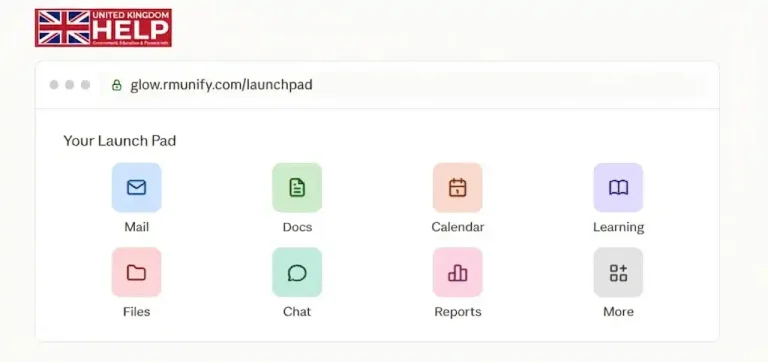
After signing in, look at your Launch Pad for the apps and services available to you. Your list may be different from another student’s because access depends on your account and organisation.
Tip: If an expected app is missing, check with your school or IT support rather than creating another account.
What happens after you sign in?
A successful Glow login should take you towards your RM Unify application environment rather than requiring you to repeatedly enter separate credentials for every service.
This is one of the practical benefits of using a central school platform. Instead of remembering a different entry point for every classroom tool, you can start from the Launch Pad and open the services your school has made available.
Your screen may contain tiles for services such as Microsoft 365, Teams, email or other education applications. The exact selection is controlled by your school or local authority.
Glow RM Unify: What Does It Mean?
You may see the terms Glow, RM Unify and Glow RM Unify used together, which can make the login process seem more complicated than it really is.
A useful way to think about them is:
| Term | What it refers to |
|---|---|
| Glow | Scotland’s digital learning environment |
| RM Unify | The platform used for authentication and application access |
| Glow login | The process of authenticating your Glow account |
| Launch Pad | The area where your available applications can be opened |
| Microsoft 365 | A suite of online productivity and education services that may be available through your account |
You do not normally need to search separately for every service before starting. If the application has been assigned to your account, check the Launch Pad after authentication.
Accessing Microsoft 365 Through Glow
For many students and staff, one of the most useful reasons to complete a Glow login is access to Microsoft 365 services.
Your organisation may provide Microsoft applications through the Glow environment, depending on its configuration and the services assigned to your account. Rather than treating Microsoft 365 as an entirely separate school login, check your available applications after signing in.
Common Microsoft 365 uses
Depending on what your school provides, you may use Microsoft services for:
If Microsoft 365 is available on your Launch Pad, select the relevant application or Microsoft 365 tile and follow the on-screen instructions.
Microsoft Teams and classroom work
Microsoft Teams can be used for communication, online lessons, assignments and collaborative class work where it has been enabled by the school.
A typical route is:
Glow login → RM Unify Launch Pad → Microsoft Teams → Class or Team
Once inside Teams, the exact classes and channels you see depend on your account and the groups to which your school has assigned you.
If a teacher tells you that you should be able to see a particular class but it is missing, avoid repeatedly changing your password. The issue may instead be related to account permissions, group membership or school-side configuration.
Using Glow for Classroom Services
The Launch Pad can act as a starting point for more than Microsoft applications. Schools and local authorities can configure access to different services according to their own requirements.
You might therefore find links for:
This is why two people using the same Glow sign in process may see different application tiles.
A better way to find your classroom tools
If you are looking for a particular service, first sign in and check the applications already assigned to you. If you cannot find it, ask your teacher, school administrator or ICT support team whether the service is available through your account.
Avoid creating a separate personal account for a school service unless your school specifically instructs you to do so. Using the account provided for education access helps keep your classes, assignments and permissions connected correctly.
What If Glow Login Does Not Work?
A failed sign-in does not always mean that your account has been deleted or that the whole Glow service is unavailable.
Start with the basic checks:
1. Check Your Username
Quick tip: Copy the username carefully if your school provided it in an email or document.
2. Check Your Password
Make sure you are entering your current password correctly.
Check for:
If you recently changed your password, type the new one manually instead of using an automatically saved password.
3. Use Password Recovery
If you cannot remember your password:
Whether you can reset the password yourself depends on how your school or local authority manages accounts.
4. Try Another Browser
If the sign-in page does not work properly:
RM Unify documents browser-based automatic login and supports this feature with Chrome and Edge.
5. Check Service Status
If several people are having the same problem, the issue may be with the service rather than your account.
6. Contact Your School if the Problem Continues
If none of the steps above works:
This gives support staff the information they need to check your account more quickly.
Forgotten Your Glow Password?
A forgotten password is one of the most common reasons people search for Glow login help. The safest approach is to use the recovery option presented by the official authentication service rather than using an unrelated password-reset website.
If self-service reset is available
If the reset does not work
Your school or local authority may manage password changes centrally. In that situation, contact the appropriate person at your school, such as:
Do not send your current password to a teacher or support worker. A legitimate administrator should not need you to disclose your private password simply to help with an account problem.
Before You Try Another Login
A few small checks can save time:
Before signing in, make sure:
The most important point is to start from the official service rather than a third-party page. The supplied Glow authentication address is the appropriate starting point for this process.
Microsoft 365 Access Through Glow
Once you have successfully signed in, the main benefit is that you may not need separate credentials for every education service provided through your school or organisation. The Glow environment can act as a central starting point for accessing the tools your school has made available.
Depending on your account and school setup, you may find links to Microsoft 365 services such as:
The exact applications shown can vary, so do not worry if your dashboard looks different from another student’s or teacher’s account.
How to Access Microsoft 365
After completing your Glow sign in:
If you are redirected to another Microsoft page, this does not necessarily mean your Glow account is not working. Single sign-on systems can move you between services while maintaining your authenticated session.
Official RM Unify sign-in page
Classroom Services and Learning Tools
Glow can also provide a starting point for classroom-related services. The tools available depend on what your school, college or education authority has configured.
For students, this can make everyday tasks easier because learning resources may be available from one central dashboard. You might use the available services to:
Teachers may have additional applications or administrative tools that are not visible to students. Therefore, two people using the same Glow environment can have noticeably different dashboards.
If a Classroom Service Does Not Open
If you select an application and receive an error, first check whether other services are working.
If other applications open normally:
The problem may be limited to that particular service. Try again later or contact the teacher or administrator responsible for the application.
If several services fail:
The issue may relate to your account, authentication or the wider RM Unify service.
If everyone at school is affected:
Your school or technical support team may need to investigate a wider service problem.
For broader RM Unify availability information, you can check the official service-status page.
Password Reset and Forgotten Details
A forgotten password is one of the most common reasons students and staff cannot complete the sign-in process. The official RM Unify page provides a “I have forgotten my password” option.
If your organisation allows self-service password recovery, use the following process:
Glow sign in and password recovery
What If Password Recovery Does Not Work?
Not every account will have identical recovery options. Your school or organisation may control how passwords are managed.
If you cannot reset the password yourself:
This is particularly important because education accounts can provide access to email, documents and other school services.
Common Glow Sign-In Problems
Sometimes the credentials are correct but the page still refuses to load properly. Before contacting support, work through these quick checks.
|
Problem |
What to try |
|---|---|
|
Incorrect password message |
Carefully re-enter your password and check Caps Lock |
|
Page keeps loading |
Refresh the page and try again |
|
Login works but an app fails |
Check whether that individual service is available |
|
Old account appears automatically |
Sign out of other school accounts or use a private browser window |
|
Password recently changed |
Use the new password and avoid saved credentials |
|
Browser behaves strangely |
Clear relevant browser data or try another supported browser |
|
Several services are unavailable |
Check service status or contact your school |
|
You do not know your username |
Ask your school or organisation’s administrator |
Avoid Saved Password Problems
If you are using a shared school computer, an old password may be automatically filled into the login form. This can create confusion because the browser may insert credentials that are no longer valid.
Before signing in, check:
The official RM Unify page uses fields for the username/email address and password, along with options such as password recovery and “Remember me.”
Using Glow on a Shared or Public Computer
Students often access school accounts from classrooms, libraries or shared devices. Security matters more in these situations.
After completing your work:
Never leave an active school account open on a shared computer. Someone using the device after you could potentially access information that remains signed in.
When You Should Contact Your School
Some account problems cannot be solved from the public sign-in page. Your school or organisation may need to check your account settings, permissions or access to individual applications.
Contact the appropriate school support team if:
For general Glow enquiries, the official Glow enquiry service is available online.
Glow RM Unify: Why the Two Names Appear Together
You may see both Glow and RM Unify mentioned when looking for account access. This can be confusing if you are simply trying to reach your school resources.
In practical terms, Glow is the education environment you are trying to access, while RM Unify provides the sign-in and application-access technology used in the journey. RM Unify’s own information also identifies Glow as a route through which Scottish schools can access the platform.
This is why the address may display an RM Unify domain even though you started by looking for Glow.
The important point is simple: use the official school-provided or Glow-specific sign-in route rather than searching for random login pages.
Quick Checklist Before Contacting Support
Before reporting an account problem, make sure you have checked:
Having these details ready can make it much easier for your school support team to identify the problem.
What to Do If You Still Cannot Sign In
If the usual checks have not solved the problem, avoid repeatedly entering different passwords. This can make account access more difficult if security controls are triggered.
Instead, work through these steps:
The official RM Unify sign-in service supports username/email and password authentication and provides a forgotten-password option.
Is There a Separate Glow Login App?
You may come across references to different apps, portals or shortcuts when searching for access. However, the most important thing is to use the official route supplied by your school or education authority.
If your organisation provides a dedicated application or mobile access method, follow its instructions. Otherwise, opening the official sign-in page in a supported browser is the simplest approach.
RM Unify also supports automatic authentication in supported browsers such as Chrome and Edge in appropriate configurations.
This means that, depending on how your school has configured its services, you may sometimes be redirected automatically rather than seeing every sign-in screen separately.
Account Security Tips
Your education account may connect you with school files, messages, learning platforms and Microsoft services, so basic account security is important.
Follow these habits:
A genuine sign-in page should be treated differently from websites that simply copy the appearance of an education portal. When in doubt, start from the official address provided by your school.
Quick Glow Sign-In Checklist
If you need access quickly, use this short checklist:
Before signing in
After signing in
If something fails
Frequently Asked Questions
Conclusion
The easiest way to access your school resources is to start from the official Glow sign-in route rather than searching for separate login pages for every service. Once authenticated, the available dashboard can provide access to Microsoft 365 and other classroom tools configured for your account.
If you cannot sign in, check your credentials first, then try basic browser troubleshooting. For password problems, use the official recovery option where available. If the issue involves account permissions, a disabled account or missing classroom service, your school’s support team may need to intervene.
Most importantly, keep your school credentials private and use official websites whenever you enter account information. This reduces confusion between the genuine education service and unrelated websites appearing in search results.
Read more