
Finding the correct Class Charts student login page is the first step for students who need to check school information online. The official student portal is provided by Class Charts, and the student area can be accessed through a web browser or supported mobile apps. The official pupil guide confirms that students can use the website and iOS or Android apps to access their accounts.
The login area is designed for students rather than parents or teachers. Depending on what a school has enabled, Class Charts students may be able to view homework, attendance, timetables, classes, behaviour information, announcements, detentions, rewards and other school-provided features.
This guide explains how the class charts login student process works, what to do with your student code, how to manage assignments and attachments, and what to do if you cannot access your account.Visit our Homepage for more information.
What Is Class Charts?
Class Charts is a school information platform that gives pupils access to selected academic and school-related information. The official student guide lists features including homework, behaviour, attendance, timetables, classes, announcements, detentions, wellbeing and rewards.
Not every student will see exactly the same dashboard. Schools choose which modules they make available, so one student’s account may contain features that are not displayed for another student.
That distinction is useful when using Class Charts for the first time. If a particular tab is missing, it does not necessarily mean that the account is faulty; the school may simply not have enabled that feature.
Class Charts Student Login at a Glance
The student portal is designed around a school-issued pupil code rather than the standard email-and-password process used for some other accounts.
| What you need | Details |
|---|---|
| Official portal | Class Charts student login |
| Sign-in detail | Pupil Code |
| Code supplied by | School or teacher |
| Main audience | Students / pupils |
| Forgotten code | Ask the school for a new code |
| Parent access | Uses the separate parent login system |
The official page currently identifies the student option separately from Teacher and Parent access. It also states that the code needed to view the student’s report is provided by the teacher.
How to Use Class Charts Student Login
If you have already received your pupil code, signing in is straightforward.
Student Login Steps
1. Open the official website
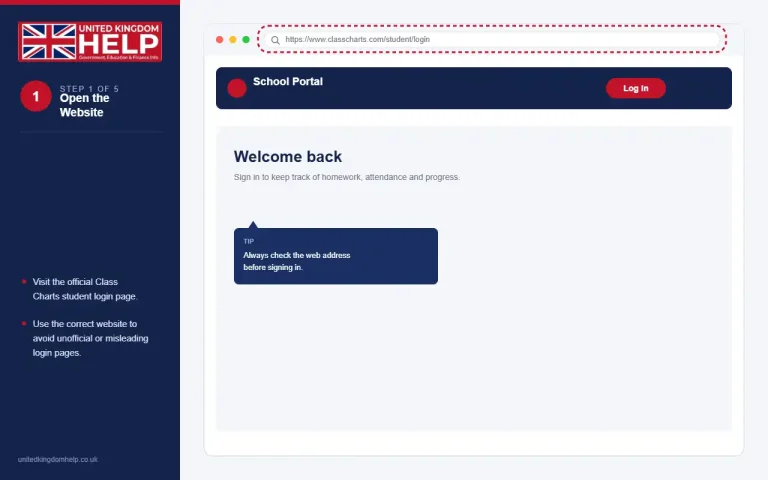
2. Choose “Student”
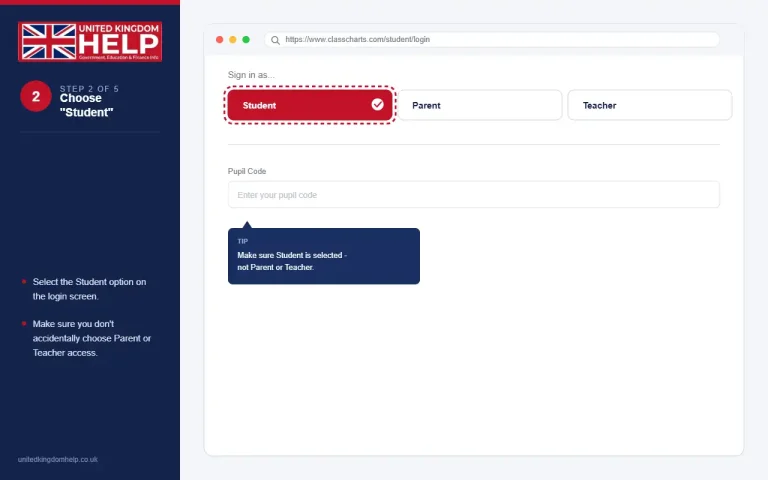
3. Enter your Pupil Code
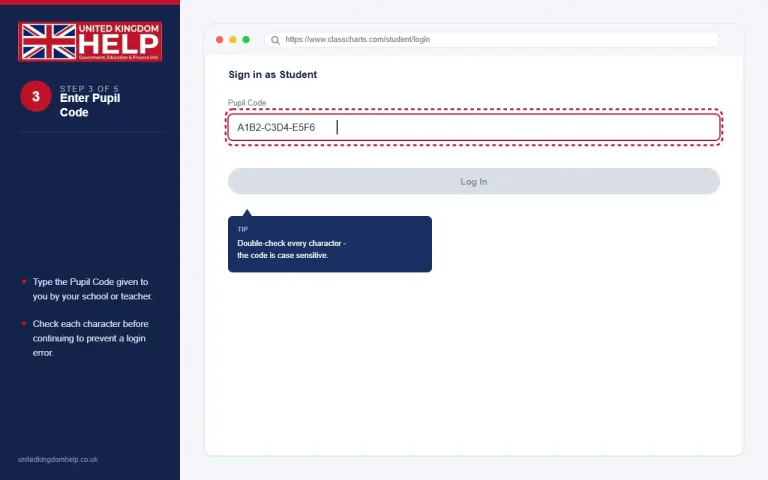
4. Select “Remember Me” if needed
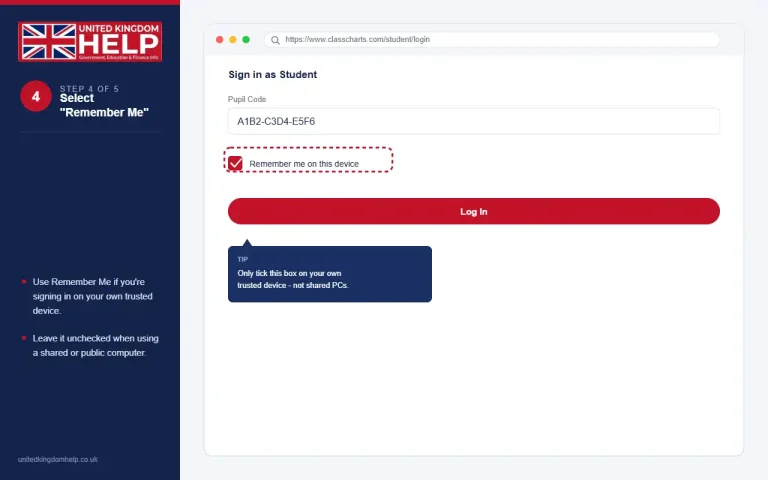
5. Log in to your account
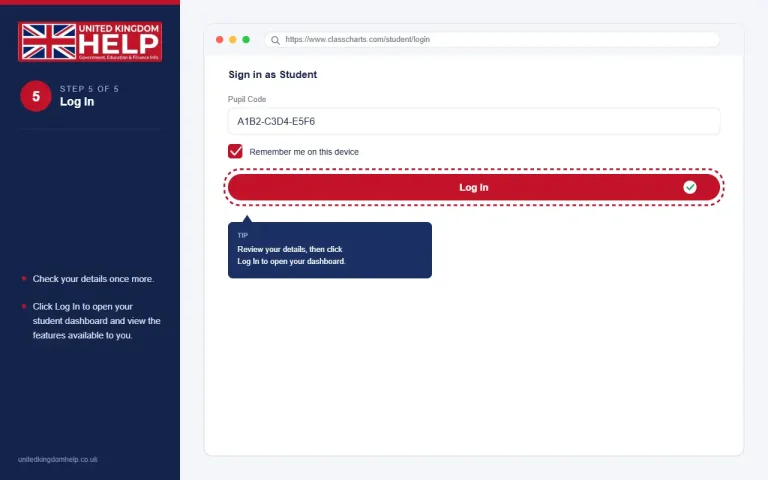
Important: Keep your student code private. If your school has issued the code specifically for your account, do not post it publicly or share it in screenshots.
The exact login experience can vary as Class Charts updates its service. For that reason, use the fields currently displayed on the official portal rather than relying on an old screenshot or an unofficial tutorial.
Student Code vs Parent Login
One common mistake is confusing a student account with a parent account.
The class charts student login is intended for pupils and uses the student access information supplied by the school. The separate Class Charts parent login has a different account process, including an email address, password and parent access code.
For students, remember the basic distinction:
| Account | Intended user | Main login information |
|---|---|---|
| Class Charts student | Pupil/student | Student or pupil code supplied by school |
| Class Charts parent | Parent/carer | Email, password and parent access code |
| Class Charts teacher | School staff | Staff login credentials |
If you are a student, selecting the parent area can lead you to the wrong login fields. Always use the dedicated student page when accessing your pupil account.
What Can Class Charts Students See?
Once you complete the class charts login student process, the available dashboard depends on your school’s configuration.
The official pupil guide identifies several possible areas, including:
These modules are not automatically available to every student. The school decides which features are shared with pupils.
For example, the timetable section can show the day’s lessons, lesson names, teachers, rooms and subjects when timetable information has been enabled for pupils. Students can also change the displayed day or week to check other timetable information.
The Classes section can similarly display class names, subjects, teachers and rooms where that information has been made available.
Class Charts Homework and Assignments
For many pupils, homework is one of the most useful reasons to access the platform. When a school shares homework with students, the Homework tab displays the tasks assigned to the pupil.
Instead of relying on memory or separate paper notes, students can use the available homework information to see what has been set and when it is expected.
How to check homework
After completing the Class Charts student login, open the Homework area if it is available.
You can then:
The official guide says that opening a homework tile provides more detail, including the task description, estimated completion time and any links or attachments supplied by the teacher.
Homework status categories
Class Charts uses several homework status categories. Understanding them can make the student dashboard easier to read.
| Status | Meaning |
|---|---|
| To-Do | Work that still needs to be completed |
| Submitted | Homework handed in on time |
| Not submitted | Work that was not handed in on time |
| Late | Work submitted after the deadline |
| Completed | Student has marked the task as completed, but the teacher has not yet marked it |
These categories are described in the official Class Charts pupil guide.
A useful habit is to check the Homework section regularly rather than waiting until a deadline is close. Students can also use the available date controls to focus on current or upcoming tasks.
Submitting Homework Attachments
Some assignments require more than simply ticking a completion box. If your teacher asks you to upload your work, the homework task can display an Upload attachment button.
The process is straightforward:
The official guide explains that successfully uploaded files appear above the upload button. If a teacher provides feedback on an uploaded homework attachment, a feedback indicator can appear on the related task.
This is particularly useful when a teacher expects a worksheet, document or other piece of completed work to be submitted electronically.
What about digital textbooks?
Class Charts can display links or attachments connected with homework tasks, but the official student guide does not state that every school provides digital textbooks directly through Class Charts.
If your teacher has attached a learning resource, open the relevant homework item and check its links or attachments. The available resources depend on what your school and teachers have provided.
Class Charts Student Login on Mobile
Students do not have to rely exclusively on a desktop browser. The official Class Charts pupil guide states that the student service can be accessed through the website and through iOS and Android apps.
When using a mobile device, make sure you install the appropriate Class Charts student application from a trusted app store and use the credentials or student code supplied by your school.
If the app behaves differently from the website, check whether the same information is available through the official web portal. The browser-based student login remains available at the official Class Charts address.
Open the official Class Charts student portal
Class Charts Parents Login: Don’t Use the Wrong Portal
Parents and pupils have different access routes, which is why searches for class charts parents login and class charts student login can produce different pages.
The parent area asks for parent account information, including an email address and password. It also provides a parent access-code process for people setting up an account.
If you are trying to access your own pupil information, use the dedicated student portal instead:
If you are a parent or carer trying to manage a child’s information, use the official parent login page:
Choosing the correct account type at the beginning can prevent unnecessary login errors.
Forgot Your Class Charts Student Code? Here’s What to Do
A lost access code is one of the most common reasons students cannot complete the class charts login process. Unlike a typical website account where you might receive a password-reset email, the student portal uses a pupil or student code supplied through the school.
If you cannot remember your code, avoid trying random codes repeatedly. The official student login page provides a route for students who have forgotten their code.
What to do if your code is missing
Tip: Do not use a pupil code belonging to another student. Your access details are connected to your own school profile.
Does Class Charts Have a Normal Password Reset?
This is an important distinction between student and parent accounts.
The information supplied for the pupil portal describes access through a student/pupil code rather than a conventional student username-and-password recovery system. Therefore, students should not assume that the parent password-reset process applies to their account.
If you are unable to access the student area, start with the official student page and use the available forgotten-code option or contact your school for account assistance.
For parents, the account system is different. The Class Charts parent login uses parent account credentials, so a parent should use the dedicated parent portal rather than attempting to recover access through the pupil page.
Class Charts Login Problems and Quick Fixes
Sometimes the issue is not the account itself. A browser problem, outdated application or incorrect login page can also prevent access.
Before asking your school to investigate the account, work through these basic checks.
Browser checklist
1. Check the web address
Make sure you are using the official student page:
Look carefully at the address before entering your student code. Avoid entering personal access information on pages that merely imitate the Class Charts login screen.
2. Refresh the page
A temporary loading problem can sometimes be resolved by refreshing the browser.
3. Try another browser
If the page does not work correctly, try another modern browser on the same device.
4. Clear cached website data
Old cached files or cookies can occasionally interfere with a website. Clearing the browser’s cached data and then reopening the portal can help identify whether the problem is browser-related.
5. Check your connection
A weak or interrupted internet connection may prevent the login page or dashboard from loading properly.
6. Try another device
If possible, test the account on another phone, tablet or computer. This helps separate an account problem from a device problem.
A useful troubleshooting test
If the same student code works on another device, the account is less likely to be the source of the problem. You can then focus on the original browser, application or device.
If the code does not work anywhere, contact the school that issued it so they can check the student account.
Timetable, Classes and Daily School Information
After successful class charts student login, students may have access to timetable and class information if their school has enabled those features.
The official pupil guide explains that the timetable can show lesson details such as the subject, teacher and room. Students can move between days and weeks to review their scheduled lessons.
This makes the timetable area useful for checking the school day before leaving home or when you need to confirm where a lesson is taking place.
The Classes section can also provide information about subjects, teachers and rooms where the school has made that information available.
What to check on your timetable
When reviewing your school schedule, look for:
Remember that Class Charts only displays information provided through your school’s system. If something appears incorrect, speak to the relevant teacher or school office rather than assuming that the portal itself controls the timetable.
Attendance Information in Class Charts
Attendance is another feature that may appear after logging into Class Charts, depending on your school’s settings.
The pupil guide identifies attendance as one of the areas that can be made available to students.
If your school provides this information, the account can give you a convenient way to review attendance-related records.
If you notice information that you believe is incorrect, use the school’s normal attendance enquiry process. Class Charts should not be treated as a replacement for contacting the school about a disputed attendance record.
Behaviour, Rewards and Detentions
The platform can also bring together behaviour-related information for pupils.
Depending on your school’s configuration, you may see behaviour points, rewards, detentions, badges or other related information. The official pupil documentation lists behaviour, detentions, rewards and badges among the features available within the pupil environment.
The exact layout can differ from one school to another. For example, one school may use several behaviour features while another may use only a smaller selection.
If you see an unexpected behaviour entry
Don’t assume that the information is automatically final or that Class Charts created it independently. The platform displays information entered through the school’s system.
If you believe an entry has been recorded incorrectly, ask the teacher or school staff member responsible for the record to clarify it.
Announcements and School Messages
Some Class Charts students can also receive school announcements through the platform.
Announcements can be useful for general school information, but students should still follow any communication channels their school specifically requires. If your school uses Class Charts alongside email, a learning platform or another school communication system, check those channels as instructed.
The official pupil guide includes announcements and messaging among the features that may be available to pupils.
A good routine is to check your student dashboard regularly, particularly when you are expecting homework, timetable changes or school notices.
Class Charts Student App: Web Browser or Mobile?
The student service is available through the web and supported mobile applications. The official pupil guide refers to iOS and Android access as well as the website.
The choice largely depends on how you prefer to check school information.
| Access method | Useful for |
|---|---|
| Web browser | School computers, laptops and quick access without installing an app |
| iPhone/iPad app | Checking information from an Apple mobile device |
| Android app | Access from compatible Android phones and tablets |
If you use an app, install it through the appropriate official app store and make sure it is the genuine Class Charts application.
When an app appears to be stuck or fails to load, first check whether the web version works. This can help determine whether the issue is limited to the application.
Common Mistakes During Class Charts Login Student Access
Several small mistakes can cause unnecessary confusion.
Using the parent portal
Searching for class charts parents login may take you to a different account area. Parent accounts and student accounts are not interchangeable.
Entering a parent password
A student should use the access information provided for the pupil account. Do not assume that a parent’s Class Charts password will work for the student portal.
Using an old code
If your school has supplied updated access information, an older code may no longer be appropriate. Ask the school which code you should currently use.
Using an unofficial website
Search engines can display multiple pages about Class Charts. For account access, use the official student address rather than entering your code into an unfamiliar site.
Assuming every feature should appear
Schools configure the platform differently. If another student has a particular option and you do not, that does not automatically indicate an account problem.
A Practical Student Login Checklist
Before contacting school support, run through this short checklist:
This approach can save time because it identifies basic access problems before you escalate the issue to school staff.
Keeping Your Student Account Secure
A school access code should be treated as private account information.
Follow a few straightforward precautions:
Security matters particularly when using a shared school or family computer. A student may finish checking homework or their timetable but leave the account open for the next person.
Official Class Charts Links
For convenience, these are the main links discussed in this guide.
Student access
Official Class Charts Student Login
Parent access
Official Class Charts Parent Login
Pupil guide
When accessing an account, use the official Class Charts domain and check the address before entering any login information.
Student Login: A Quick Reference
| Need | What to do |
|---|---|
| Sign in | Open the official student portal |
| Student code forgotten | Use the help option on the login page or contact your school |
| Homework | Open the Homework area when enabled |
| Assignment details | Select the relevant homework task |
| File submission | Use Upload attachment when provided |
| Timetable | Open the timetable feature if enabled |
| Attendance | Check the attendance area if available |
| Behaviour | Review the relevant school-provided section |
| Parent access | Use the separate parent login |
| Website not loading | Refresh, check the connection or try another browser |
| Persistent account issue | Contact your school |
Staying Safe When Using the Student Portal
Students should always begin with the official Class Charts website rather than an unofficial login page. The official student page clearly identifies the Student option and asks for a Pupil Code supplied by the teacher.
A few sensible habits can protect your account:
Students should also remember that a school account can contain personal educational information. Treat access details as private even if the code itself does not look like a conventional password.
Can Students Reset a Class Charts Password?
The student login process is different from the parent account system. The official student page specifically tells pupils who have forgotten their code to ask their school for a new one.
This means a student shouldn’t expect the same password reset process available on some conventional websites.
If you’ve lost your pupil code:
For comparison, the parent login page does provide a conventional Forgot password? option for parent accounts.
That difference is one reason students and parents should not use each other’s login route.
What Information Is Available After Class Charts Login?
The official pupil guide lists a range of areas that can be available within the student experience, including homework, behaviour, attendance, timetable, classes, rewards, wellbeing, announcements, messaging and badges.
The exact selection is controlled by the school’s use of Class Charts. Therefore, if a particular feature doesn’t appear after class charts login student, it does not necessarily indicate that your account is broken.
For example, one school may make extensive use of homework and announcements, while another may use the platform mainly for timetable, attendance and behaviour information.
Homework and Assignments: A Practical Routine
The official pupil documentation includes a dedicated Homework section.
Students can use the available homework information as a central place to keep track of school tasks, but they should still follow the instructions supplied by their teachers.
A useful routine is:
Check → Read → Complete → Confirm
Check: Look for newly posted homework.
Read: Open the task and carefully review the teacher’s instructions.
Complete: Carry out the work using the resources or instructions provided.
Confirm: Check whether your teacher requires a separate submission or another action.
Don’t assume that every homework task uses exactly the same submission method. Your school may use Class Charts alongside other learning platforms.
Digital Textbooks, Files and External Resources
The term digital textbooks can be misleading because Class Charts is not necessarily the location of every online textbook used by a school.
Teachers may use Class Charts to communicate homework and other pupil information, while learning materials may be hosted elsewhere. The official pupil guide confirms the Homework area and other student functions, but it does not establish that every school provides a universal digital textbook library through the platform.
If your teacher provides a link or attachment, follow that specific instruction. You may be directed to another school-approved learning service for the actual textbook, worksheet or lesson resource.
Class Charts Parent Login: When Parents Should Use It
Parents should use the parent account rather than attempting to sign in as a pupil.
The official parent page provides fields for an email address and password, as well as a separate parent access-code registration route for users who don’t yet have an account.
This makes the distinction straightforward:
| User | Appropriate access |
|---|---|
| Student / pupil | Student login with pupil code |
| Parent / carer | Parent login |
| Teacher | Teacher access |
If you’re helping a child access their account, don’t replace the pupil code with a parent’s email address. Use the account type that matches the person who needs access.
Frequently Asked Questions
Final Thoughts
The class charts student login portal gives pupils a central place to access school information that their school has chosen to share. Homework, timetable information, attendance, classes, behaviour records, announcements and other features can all be available, although the exact dashboard varies between schools.
The most important distinction is between student and parent access. Pupils should use the dedicated student page and the code supplied by their school, while parents should use the separate parent account system.
If you cannot sign in, start with the official portal, check your student code and work through the basic browser or app troubleshooting steps. When the problem concerns the code or school account itself, the school is the appropriate place to request further assistance.
Read more