
If your school uses ePraise, you may already have an account to check achievement points, follow your child’s progress, view school updates or keep track of activities. The platform brings students, parents and teachers together in one place, making it easier to recognise achievements and stay connected with school life.
Whether you need ePraise login details, want to download the mobile application or are trying to understand how the rewards system works, knowing which features are available to your school can save time. Access and available tools may differ between schools because each institution can customise its own ePraise setup.
This guide covers how students and parents can access their accounts, where to find ePraise points, how the rewards shop works and what to know before installing the app.
What Is ePraise and How Does It Work?
ePraise is a school rewards and learning engagement platform designed to support communication between students, parents and teachers. Schools use it to recognise positive behaviour, record achievements and share information about students’ educational activities.
It originally developed as a digital house points and rewards system. Over time, it expanded to include tools for classroom management, learning activities, parental communication and school administration.
Depending on the school’s configuration, ePraise can provide access to:
The main benefit is that different parts of school life can be managed through one platform rather than relying on several disconnected systems.
ePraise Login: How to Access Your School Account
The ePraise login process depends on how your school has configured access. Some schools provide their own account details, while others use an existing school sign-in service such as Microsoft or Office 365.
For the correct login route, start with the instructions provided by your school.
Steps to Sign In to ePraise
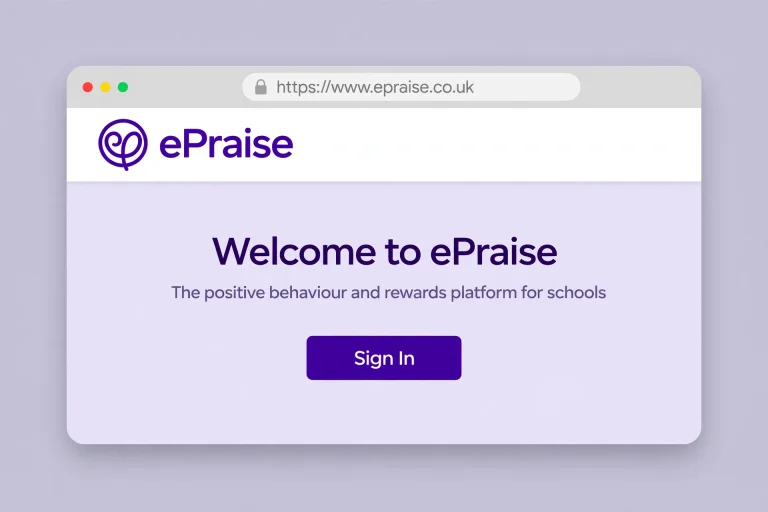
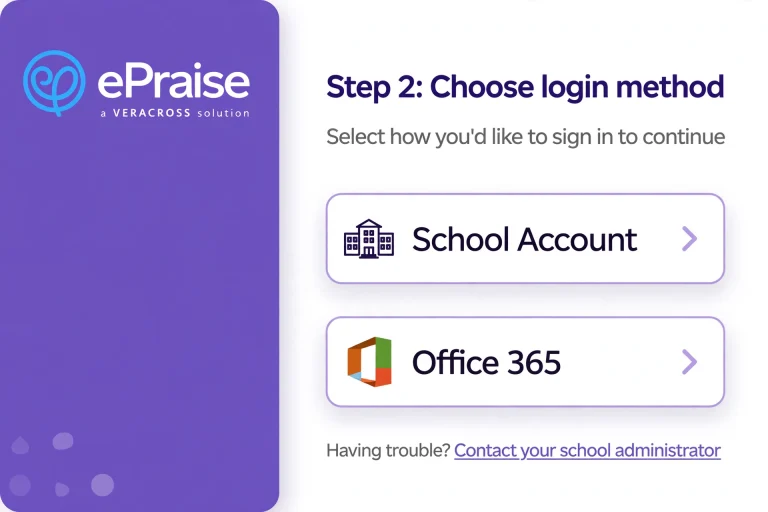
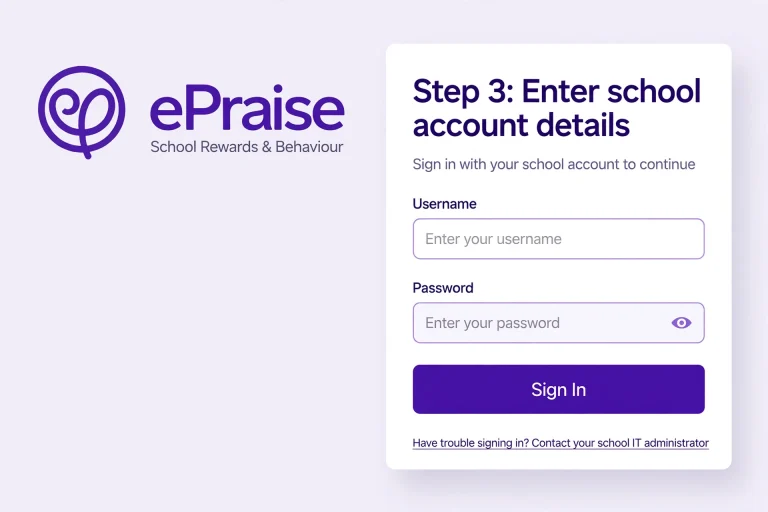
Important: Not every school uses the same login arrangement. For example, St Bede’s directs its students and parents to the ePraise website and uses the red Office 365 sign-in button. This should not be assumed to apply to every school.
ePraise Login Details at a Glance
| User | What to use |
|---|---|
| Students | School-provided ePraise account or supported school sign-in |
| Parents | Parent account or invitation supplied by the school |
| Teachers | School-authorised staff account |
| Office 365 users | Microsoft sign-in, where enabled |
If you cannot find the correct login option, contact your school’s office or IT support team rather than trying unrelated account details.
ePraise Student Login: What Can Students Access?
The ePraise student login gives learners access to the features their school has made available. The platform is particularly useful for students who want to keep track of achievements and see how their school recognises positive contributions.
After signing in, students may be able to access:
For example, a student might receive points for completing work, showing good behaviour, helping others or participating in school activities. The school decides which achievements qualify and how points are awarded.
What If You Cannot Access Your Student Account?
If the ePraise student login is not working, check the following:
Students should avoid creating another account unless their school specifically asks them to do so.
ePraise Parent Login: How Parents Can Get Started
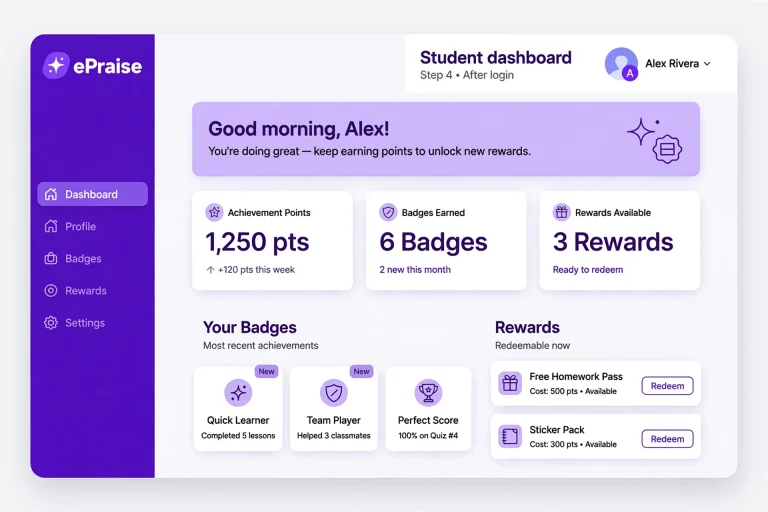
Parents can use ePraise to stay informed about their children’s school experiences. Instead of relying entirely on messages sent home, the platform can provide a convenient place to view achievements, receive updates and communicate with teachers.
However, parents generally need their school to arrange access before they can use the relevant features.
How to Set Up Parent Access
If you are a new parent user, follow these steps:
If your school has already sent an invitation, check your inbox and spam folder before requesting another one.
What Can Parents See on ePraise?
The parent experience can include several useful areas.
| Feature | What parents can do |
|---|---|
| Child’s profile | Open their child’s individual profile |
| Achievement records | Follow awards and recognised achievements |
| Planner | Check the child’s planner where available |
| Messages | Read and send messages through the platform |
| School information | Find useful documents and school updates |
| Notifications | Receive alerts about selected activities and awards |
The available information depends on what the school has enabled.
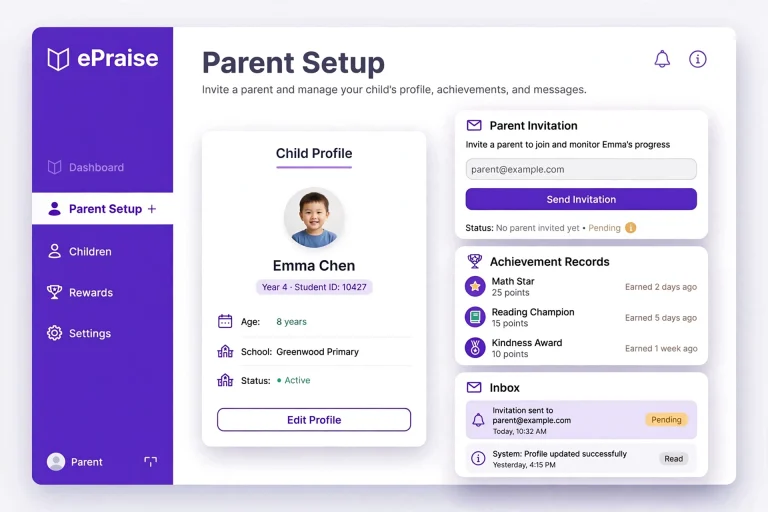
For instance, the ePraise parent dashboard provides an overview of school activity when accessed through the website. Parents can also use quick links to reach their children’s profiles, planner and inbox.
A Useful Note for Parents
If your email address is incorrect or you have not received an invitation, ePraise support cannot normally change your school’s parent records or send invitations on its behalf.
These account-related actions need to be handled by the school. Contact the school office or the person responsible for ePraise access.
ePraise App: Using the Platform on Your Phone
If you regularly check school updates, the ePraise app can make account access more convenient. Official mobile applications are available for both Apple and Android devices.
Parents can use the app to access supported school information without having to open a desktop browser every time.
Where to Download the ePraise App
Use the official application stores rather than downloading installation files from unknown websites.
<em>Check the app listing and your device’s compatibility before installation. The official guidance aims to support devices running operating systems updated within the previous year.</em>
ePraise App Download and Installation
Getting started is straightforward:
If your school uses a particular authentication method, you may need to follow its instructions when accessing the mobile application.
Website vs ePraise App
Although the website and app offer convenient access, they do not necessarily display identical features.
| Feature | Website | Mobile app |
|---|---|---|
| Account access | Yes | Yes |
| Child profiles | Available | Supported |
| Planner | Available | Access through supported app navigation |
| Inbox | Available | Supported |
| School information | Home section | More menu |
| Main dashboard | Available | Not available |
| Notifications | Customisable | Push notifications supported |
One difference worth remembering is the dashboard. According to the parent guidance, the website dashboard provides an overview of school activity, but this dashboard is not available in the mobile app.
Understanding ePraise Points and School Rewards
Points are one of the central features of ePraise. They allow schools to recognise students for positive contributions and encourage them to take an active role in their education.
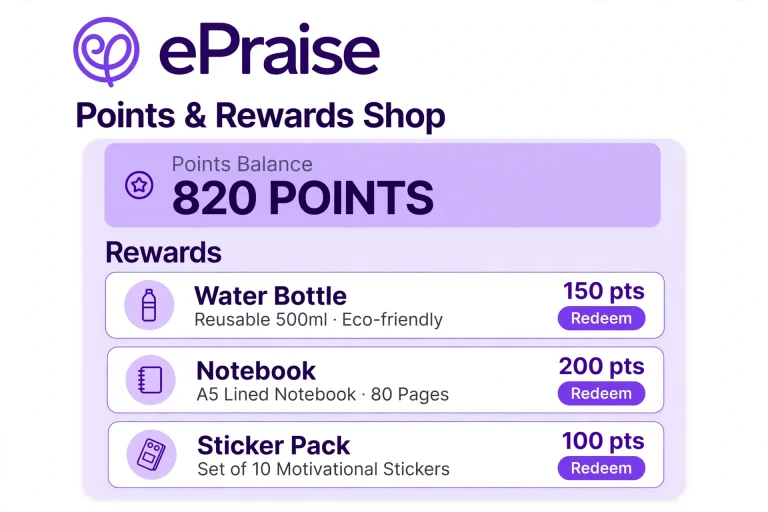
Teachers may award points for different reasons, including:
Each school decides how its reward structure operates. Some institutions use traditional house points, while others create their own achievement categories.
How Do Students Earn ePraise Points?
Students generally receive points when a teacher or another authorised member of staff records an achievement.
For example, a teacher might award points to a learner who has made a noticeable improvement in their classwork. Another student could receive recognition for helping with a school activity.
The system allows schools to record these achievements digitally, making it easier to review individual progress and recognise contributions.
Can Students Lose Points?
Yes, schools can also use ePraise to record negative behaviour.
The platform supports demerits, which can be recorded in a similar way to positive points. Schools can decide whether these demerits should reduce a student’s points total.
They can also use the system to record interventions, such as detentions and phone calls home.
This gives schools a way to review behaviour patterns across individuals, tutor groups, year groups and different categories.
ePraise Shop: How Do Student Rewards Work?
The ePraise shop is associated with the platform’s rewards system. Schools can use rewards to recognise students who have collected points through positive behaviour, effort or achievement.
However, the available rewards are not necessarily the same at every institution.
A school may choose its own rewards and decide how many points students need before they can access them. Other schools may use different recognition methods instead of a traditional rewards shop.
How to Check Your Available Rewards
If your school has enabled a rewards area, look for the relevant section after signing in.
You may need to:
If the shop is missing, it does not automatically mean that your account is broken. Your school may have disabled the feature or chosen a different way to recognise achievements.
ePraise at Swakeleys: What Students and Parents Should Know
People searching for ePraise Swakeleys are likely looking for school-specific access information rather than general platform details.
The key thing to understand is that ePraise is a configurable platform. Schools can choose which tools they want to use, how students earn points and which sign-in arrangements are available.
If you are connected with Swakeleys and need to access your account:
Do not assume that another school’s login instructions or rewards arrangements will be identical to those used at Swakeleys.
How to Change Your ePraise Password
If you want to update your existing password, the website provides a settings area for this purpose.
According to the parent guidance, parents can change their password by navigating to:
Me → Settings
The platform recommends passwords that are at least eight characters long and contain a combination of:
Choose a password that is difficult for other people to guess, and never share it with someone else.
What If You Have Forgotten Your Password?
If you cannot remember your password, first check whether your school uses a separate sign-in service.
For example, if you normally use Microsoft or Office 365 to access ePraise, your school account credentials may be managed through that service rather than directly through ePraise.
If you use a separate ePraise password, follow the available account recovery instructions. If no recovery option appears, contact your school’s IT team or ePraise administrator for assistance.
Managing Notifications and School Information
Parents do not need to keep checking their accounts manually for every update. ePraise supports notification settings that allow users to customise which push notifications they receive.
Change Your Notification Preferences
On the website, open:
Me → Settings → Notifications
From there, review the notification options available to your account and adjust them according to your preferences.
For example, parents may want to receive alerts when their child receives an award, depending on the options enabled by their school.
Where Can You Find School Information?
Schools can use ePraise to publish useful information, including links to documents such as:
The location differs slightly between devices:
| Device | Where to look |
|---|---|
| Website | Home → School Information |
| Mobile app | More menu → School Information |
This is useful when you need to find school documents without searching through older emails.
Common ePraise Login Problems and Solutions
Even when you have the correct account, you may occasionally experience problems accessing the platform. The best solution depends on whether the issue involves your password, school account or mobile device.
| Problem | What to try |
|---|---|
| Incorrect password | Check your credentials and account type |
| Login page not working | Open the official website again using an updated browser |
| Office 365 sign-in problem | Check your school Microsoft account |
| Parent invitation missing | Contact the school to check your registered email |
| Child’s profile unavailable | Ask the school to check your parent account permissions |
| App keeps crashing | Update the app and your device’s operating system |
| Notifications not appearing | Review your ePraise notification settings |
| Rewards shop missing | Check whether your school has enabled this feature |
The ePraise App Keeps Crashing
If the mobile application closes unexpectedly or stops responding, try these basic checks:
If the problem continues, submit a support case through the ePraise Community.
When reporting an issue, include a screenshot and explain the steps that caused the problem. This gives the support team more information to investigate.
Who Should You Contact for Help?
The correct contact depends on the problem.
| Issue | Recommended contact |
|---|---|
| Missing parent invitation | School office |
| Incorrect parent email | School administrator |
| Student account access | Teacher or school IT team |
| School policy question | School directly |
| Mobile application crash | ePraise Community support |
| General platform feedback | ePraise Community |
Parents should remember that ePraise support cannot normally make changes to school-managed parent information or carry out school-specific actions, such as sending invitations.
Frequently Asked Questions
Final Thoughts
ePraise provides a shared space where students can receive recognition, parents can follow school activity and teachers can manage different aspects of student engagement. Its points system, communication tools, profiles and optional rewards features make it useful for schools that want to bring these activities together.
If you are trying to complete an ePraise login, the most important step is to use the correct account and sign-in method supplied by your school. Parents should check their invitations, while students should use their authorised school credentials.
You can also install the official ePraise app if you prefer using your phone. Just remember that not every website feature is available in the mobile version, and your school’s settings determine which tools you can access.
Read more