Edukey Login: Parent, Teacher & Provision Map Guide

Edukey is a school management platform from Tes that helps schools organise special educational needs and disabilities (SEND) support, manage pupil learning plans, monitor interventions and record safeguarding concerns. One of its important tools, Provision Map, allows school staff to create and review individual plans for pupils who need additional learning support.

For parents, the Edu key login provides a way to view their child’s additional needs plan online and contribute feedback where the school has enabled parent access. Teachers and SENCOs use the platform for different tasks, including updating pupil targets, reviewing progress and managing provision.

Whether you are looking for the Edukey parent login, teacher access, the Provision Map or information about the app, this guide explains what the platform offers and how to approach common access questions.

What Is Edukey and How Does It Work?

It is part of the Tes family of education software products. It became part of Tes in March 2016, bringing its school-focused tools into a wider collection of educational services.

The platform supports schools with several administrative and teaching responsibilities, particularly SEND planning, classroom management, safeguarding and staff communication.

Its products include:

  • Provision Map: Helps SENCOs document, organise and review pupil support plans and interventions.
  • Class Charts: Provides classroom management tools and information about pupil behaviour, wellbeing and performance.
  • Safeguard My School: Allows school staff to report and monitor safeguarding concerns.
  • School Robins: Collects information from different staff members and organises their responses into reports.
  • Literacy Assessment Online: Helps schools assess literacy needs, select interventions and monitor progress.

The exact features available depend on the product and the school’s subscription or setup. Parents and teachers may therefore see different options when accessing Edukey services.

Edukey Login: How to Access Your Account

The correct Platform access login page depends on whether you are a parent or a member of school staff. Parents who have received an individual access code should use the parent login facility provided by their child’s school.

Official parent login

Official parent access link supplied in the school communication.

How to Complete the Edukey Parent Login

If your school has provided a unique access code, follow these instructions:
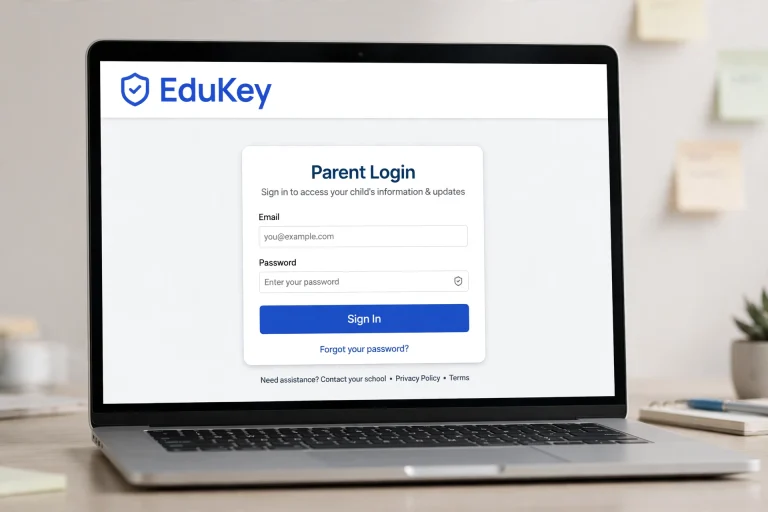
Open the official parent login page.

Laptop screen displaying the EduKey parent login portal with email and password fields.

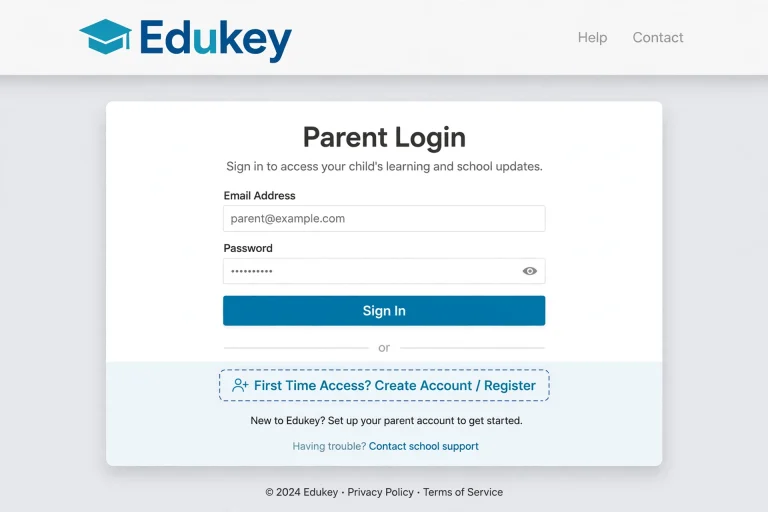
Look for the first-time access or account registration option.

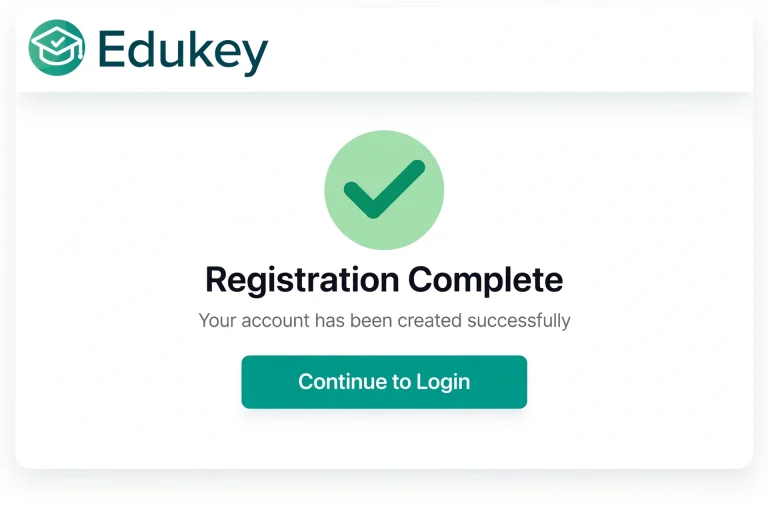
EduKey confirmation screen displaying a green checkmark icon with text stating Registration Complete - Your account has been created successfully.

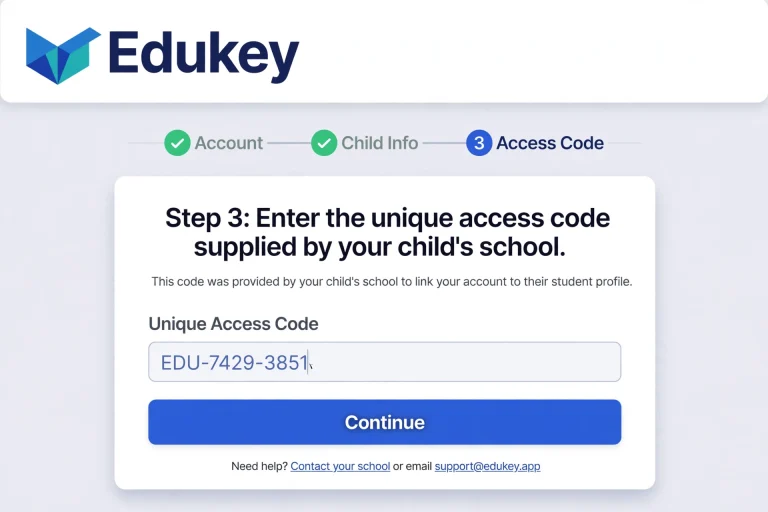
Enter the unique access code supplied by your child’s school.

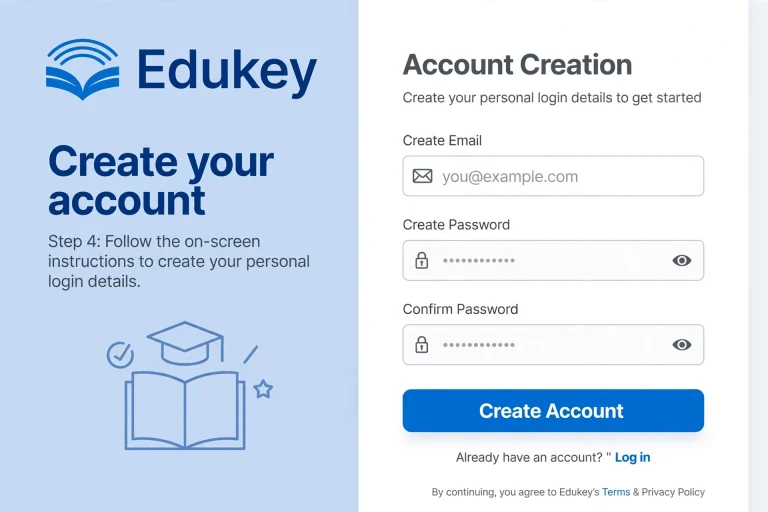
EduKey registration page displaying Step 4 form fields to enter email, password, and confirm password to create an account.

Follow the on-screen instructions to create your personal login details.

EduKey parent login page featuring the "First Time Access? Create Account / Register" option button.

Complete the registration process as requested.

EduKey registration page showing Step 3 where parents enter the unique school access code to link student profile

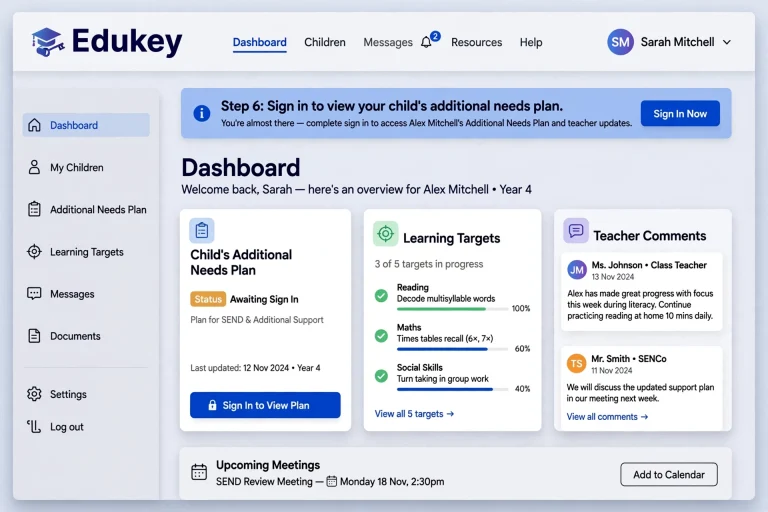
Sign in to view your child’s additional needs plan.

EduKey parent dashboard displaying student learning targets, teacher comments, and a prompt to sign in to view the child's Additional Needs Plan.

After signing in, you should be able to access the plan made available by the school. This may include learning targets, support information and comments from the class teacher.

Important: You cannot assume that every parent can register independently. You generally need the access code or instructions issued by the school.

Edukey Parent Login: What Can Parents Do?

The parent login is particularly useful for families whose children have an additional needs or SEND support plan.

Instead of relying entirely on paper copies or waiting for a school meeting, parents with access can review the information online and share their views with the school.

The parent facilities described in the supplied school communication include:

  • View your child’s plan: Check the support plan prepared and updated by school staff.
  • Review learning targets: See the targets set for your child and understand what the school is working towards.
  • Add comments: Share feedback about whether the current targets are suitable or whether changes may be needed.
  • Read teacher feedback: View comments added by your child’s class teacher.
  • Manage multiple children: Use the available Add Child option to connect another child using their individual access code.

How to Add Another Child to Your Edukey Account

Parents with more than one child who has a school support plan may be able to manage both profiles from one account.

To do this:

  • Sign in using your existing parent details.
  • Find the Add Child option near the top of the page.
  • Enter the additional child’s unique access code.
  • Follow any instructions displayed on the screen.
  • Check that the additional child’s information appears in your account.

This arrangement can make it easier to review different children’s plans without maintaining separate parent accounts.

Understanding Edukey Provision Map

Edukey Provision Map is a SEND management tool designed to help schools organise and monitor the support provided to pupils with additional educational needs.

It is particularly relevant to Special Educational Needs Coordinators (SENCOs), who need to keep track of individual pupil requirements, interventions and progress.

Rather than managing every support record separately, schools can use Provision Map to document information and review whether the support being provided is appropriate.

What Does Provision Map Help Schools Manage?

Provision Map is intended to reduce administrative work while helping schools make informed decisions about pupil support.

Who Uses Edukey Provision Map?

The software is primarily designed for school professionals involved in SEND provision.

Typical users include:

  • SENCOs managing individual support arrangements.
  • Teachers reviewing pupil targets and progress.
  • School leaders monitoring interventions and provision.
  • Relevant staff members contributing to pupil support records.

Parents may receive access to their child’s plan through a separate parent facility, but this should not be confused with the full staff-facing Provision Map system.

Edukey Teacher Login: Access for School Staff

The Edukey teacher login is relevant to teachers and other authorised school employees who use the platform as part of their responsibilities.

Staff access may support activities such as updating learning plans, reviewing pupil progress and contributing information to school records.

Unlike the parent access process, the supplied school communication does not provide a universal teacher login URL or a detailed staff registration procedure.

If you are a teacher trying to access, follow these recommendations:

  • Ask your school’s administrator or SENCO which Edukey service your school uses.
  • Obtain the correct staff login address.
  • Use the account credentials provided by your school.
  • Contact your internal IT support team if your account is not recognised.
  • Ask an authorised administrator to check your access permissions if a particular feature is unavailable.

Teacher access note: The teacher login and parent login serve different purposes. A parent access code should not be treated as a staff account registration code.

Is There an Edukey App? Download and Mobile Access

Some users search for an Edu key app or Edu key app download because they want to access school information from a mobile phone.

However, the supplied information confirms the parent website and its login facility, not a dedicated universal Edu key mobile application.

Before downloading anything, consider the following:

  • Check whether your school has provided official mobile access instructions.
  • Confirm the name of the application with your school administrator.
  • Use the official app store rather than downloading installation files from unknown websites.
  • Do not enter your school credentials into an application unless your school has confirmed that it is genuine.

You can start with the official Edukey parent login using your mobile browser.

This avoids installing an unverified application simply to access your child’s online plan.

Edukey Safeguarding: How Does It Support Schools?

Safeguarding is another area covered by the former Edukey product range.

Safeguard My School is a reporting and monitoring tool designed to help school staff record concerns involving pupil safety and wellbeing.

It allows authorised staff to report safeguarding concerns from school or home. The information can help schools monitor incidents, maintain records and provide evidence for inspections.

Its intended areas of support include:

  • Recording safeguarding concerns.
  • Monitoring reported incidents.
  • Supporting school safeguarding procedures.
  • Maintaining relevant records.
  • Helping schools address concerns involving harm, abuse, neglect or exploitation.

Parents should understand: Safeguard My School is a staff-focused safeguarding product. It is not the same as the parent login used to view an additional needs plan.

Other Tes Products Previously Associated With Edukey

It’s services are now presented within Tes’s wider education software range. Several products address different school requirements.

Class Charts

Classroom management software that helps teachers and parents understand behaviour, performance, wellbeing and pupil outcomes.

School Robins

Collects information from staff about a pupil, group or topic and brings responses together in an organised report.

Literacy Assessment Online

Supports literacy assessments, intervention planning and progress monitoring.

Safeguard My School

Helps authorised school staff report and monitor safeguarding concerns.

Provision Map

Provides SEND management tools for recording support plans, reviewing interventions and monitoring pupil provision.

Common Edukey Login Problems and What to Do

Having difficulty accessing an account can be frustrating, particularly when you need to review a child’s support plan before a school meeting.

The right solution depends on the type of account you are using.

What If You Have Forgotten Your Edu key Login Details?

If you cannot remember your password, look for an available account recovery option on the login page.

If no suitable recovery option appears, contact the school that issued your parent access code. Teachers should speak to their school administrator or IT department.

Avoid repeatedly guessing passwords, as this may cause additional access problems.

Frequently Asked Questions

Edukey is an education software provider whose tools help schools manage pupil information, learning support and student progress. Its Provision Map software is particularly useful for schools supporting pupils with special educational needs and disabilities (SEND). Teachers and SENCOs can use it to organise learning plans, record interventions, monitor outcomes and keep important pupil information in one place. Edukey is now part of Tes, and its school-focused products are designed to reduce administrative work while helping staff make better-informed decisions about pupils’ learning needs.

Edukey’s Provision Map service is primarily accessed online through a web browser. Parents can also use the Edukey parent portal to view their child’s learning plan and provision when their school provides an access code. This means you should check which Edukey service your school uses before looking for a mobile application.

You can usually access the parent portal using a phone, tablet or computer with an internet connection. The parent login page is available here:

Before downloading an app:

  • Confirm the correct Edukey product with your school.
  • Use the official website or portal supplied by the school.
  • Avoid unrelated apps with similar names.

Creating a learning plan in Edukey Provision Map generally involves selecting the pupil and recording the support they need. The exact options may differ depending on your school’s account permissions and software setup. Staff with the appropriate access can start by opening the pupil’s record and looking for the option to create a new plan.

A typical preparation process includes:

  1. Sign in to your school’s Edukey Provision Map account.
  2. Find and open the relevant pupil’s profile.
  3. Select the option to create a new learning plan, if available.
  4. Record the pupil’s strengths, needs and learning targets.
  5. Add suitable support strategies or interventions.
  6. Set review dates and save the plan.

Check the details with your SENCO or school administrator if the option is unavailable.

Edukey Provision Map helps school staff organise and monitor the support provided to pupils. Once you have access to the platform, you can use its available features to review pupil records, create learning plans, document interventions and track progress. The system is especially useful for SENCOs and teachers who need a clear record of support and review outcomes.

For a practical starting point:

  • Find pupil records: Open the relevant pupil’s information.
  • Manage learning plans: Create or update plans where your permissions allow.
  • Record interventions: Document the support a pupil receives.
  • Monitor progress: Review outcomes and identify areas needing attention.
  • Update information: Keep records accurate and prepare for scheduled reviews.

Your school’s administrator can explain which features are enabled for your account.

Edukey is an educational software provider that helps UK schools manage classroom behaviour, student progress, safeguarding and learning support. Its tools are designed to reduce teachers’ administrative workload while giving schools a clearer picture of pupils’ educational needs. Different products serve specific purposes, from organising classroom activities to monitoring individual learning plans.

Schools can use Edukey’s software for:

  • Class Charts: Tracks behaviour, rewards, seating plans and student performance.
  • Provision Map: Helps schools create and review SEND support plans and interventions.
  • Safeguard My School: Supports safeguarding records and incident reporting.
  • School Robins: Collects staff information and organises reports.
  • Literacy Assessment Online: Measures literacy intervention progress.

Parents can also use the Provision Map Parent Portal to view their child’s learning plans and provide feedback to the school.

The price of Edukey depends on which platform or service a school, learner or parent intends to use. For UK schools choosing Edukey by Tes, costs are generally based on an annual subscription, with the final amount depending on the school’s size and selected tools.

Here are the main pricing options mentioned:

  • Tes Provision Map: Starts at £795 per year for a single school.
  • Edu-key India Launch Pack: ₹25,000 annually, excluding GST.
  • Edu-key India Pro Control: ₹65,000 annually, excluding GST.
  • Edukey Academy: Language course fees vary, with group Arabic courses around AED 2,900 and private lessons costing up to AED 7,500.

UK schools may need to request a personalised quote from Tes. Multi-Academy Trusts (MATs) and local authorities may qualify for group discounts.

Accessing Edukey depends on whether you’re a member of school staff, a parent or carer, or an external agency. Each user group has a separate login page, so choosing the correct one will help you reach the relevant account without unnecessary confusion.

Use the appropriate login option below:

  • School Staff and Administrators: Visit the Edukey Account Login and enter your school email address and password provided by your administrator.
  • Parents and Carers: Open the Edukey Parent Login. First-time users should select I don’t have an account yet and follow the registration instructions using the pupil’s unique access code and date of birth.
  • External Agencies: Go to the Edukey Agency Login and use your assigned access code to register or sign in.

Tip: If you don’t have the required login details, contact your child’s school or the Edukey account administrator for assistance.

A provision map helps schools organise and review the additional support provided to pupils who need more help with their learning. It is particularly useful for children with Special Educational Needs and Disabilities (SEND), as well as disadvantaged or vulnerable learners. Rather than simply recording which interventions are available, it gives teachers and SENCOs a clearer picture of what support is being delivered, who is receiving it and whether it is making a difference.

Schools typically use a provision map to:

  • Record interventions: Document extra lessons, support sessions, staff responsibilities and delivery schedules.
  • Monitor progress: Assess whether additional support is improving pupils’ learning outcomes.
  • Manage resources: Identify gaps in provision and allocate staff, time and funding effectively.
  • Support accountability: Provide evidence for school reviews, inspections and discussions with parents.

A provision map helps schools organise and monitor the additional support provided to pupils with Special Educational Needs and Disabilities (SEND) or other learning needs. It gives SENCOs and teaching staff a clearer picture of which interventions are running, who delivers them and whether they are making a difference. Start by reviewing existing classroom support, staff expertise and available resources. Then group interventions according to the level of support required.

To build a useful provision map, include:

  • Current provision: Record existing interventions, one-to-one support and small-group activities.
  • Staff responsibilities: Identify teaching assistants, specialist teachers and external professionals involved.
  • Costs and time: Track staff hours and intervention expenses.
  • Support levels: Organise targeted (Wave 2) and specialist (Wave 3) provision.
  • Progress measures: Add SMART targets, starting points and expected outcomes.

Final Thoughts

Edukey helps schools organise important areas of education, particularly SEND support, provision mapping, classroom management and safeguarding. Its parent access facility also gives families an opportunity to review their child’s additional needs plan and contribute feedback.

If you are a parent, begin with the official Edukey parent login page and keep the unique access code provided by your school available. Teachers should use the staff access details issued by their institution.

For Provision Map and other education software, the official Tes product pages are the best starting point for checking the services available to schools.

Read more

Topmarks

My Uni Portal Login

Reading Plus Student Login

Dr Frost Maths Login

Purple Mash Login

Sparx Science

Leave a Comment

Your email address will not be published. Required fields are marked *

Scroll to Top