
Edulink One is a school communication and management platform that can help parents and students access important school information in one place. Depending on the school’s configuration, users may be able to check timetables, review attendance records, read announcements and access academic information without relying entirely on paper letters or separate communication channels.
For parents, having school updates available online can make it easier to keep track of a child’s day-to-day education. Students can also use the platform to check schedules and stay informed about school activities.
If you need to access your account, the first step is to use the official Edulink One website or the login link provided by your school. You will generally need the school identification details and login credentials issued by the institution.
This guide covers the Edulink login process, parent and student access, attendance, timetables, school documents, messaging and common account problems.
What Is Edulink One and Who Can Use It?
Edulink One provides a digital point of access for school-related information. Its available functions depend on the school, the user’s account permissions and the services the institution has enabled.
The platform may be used by parents, students and school staff to access relevant information through a web browser or supported mobile application.
Here is how different users may benefit:
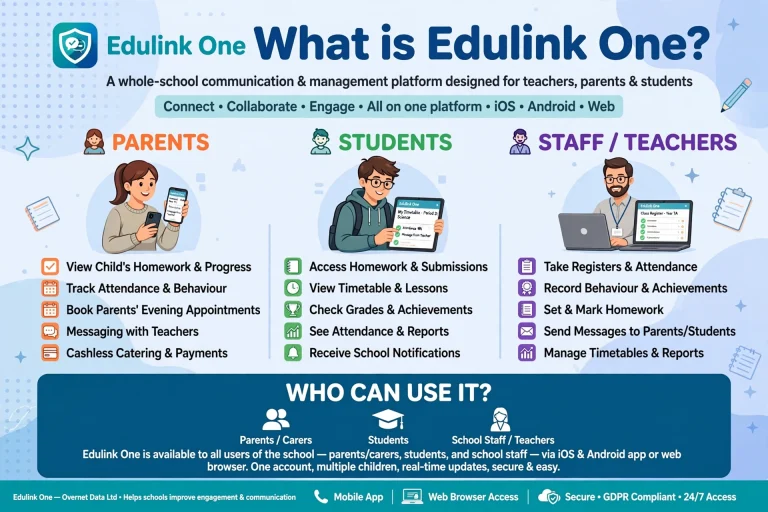
Not every school enables every feature. If a particular option is missing from your dashboard, check with the school before assuming that your account is faulty.
How to Log In to Edulink One
The Edulink login process depends on whether your school directs you to its own login page or asks you to start from the main platform.
Accessing Edulink Through a Web Browser
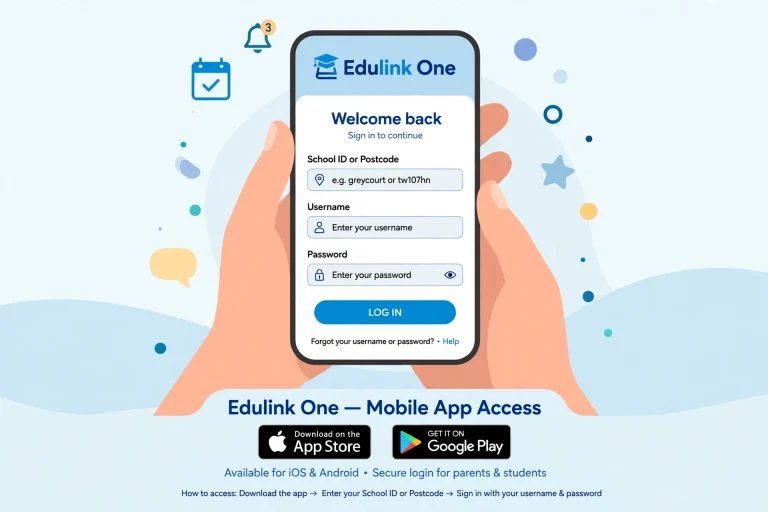
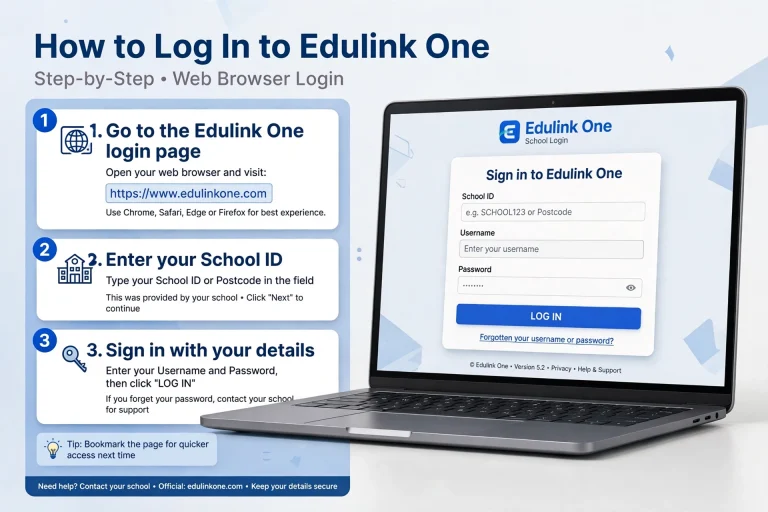
Follow these steps to access your account on a computer, laptop or mobile browser.
If the school has supplied a dedicated login link, use that link first. It can help you reach the correct institution rather than searching for a separate portal.
Before you begin: Keep your school’s welcome email or account instructions nearby. These can help you confirm the correct login address and identification details.
How to Access Edulink on a Mobile Phone
The mobile option can be useful for checking school updates while away from a computer.
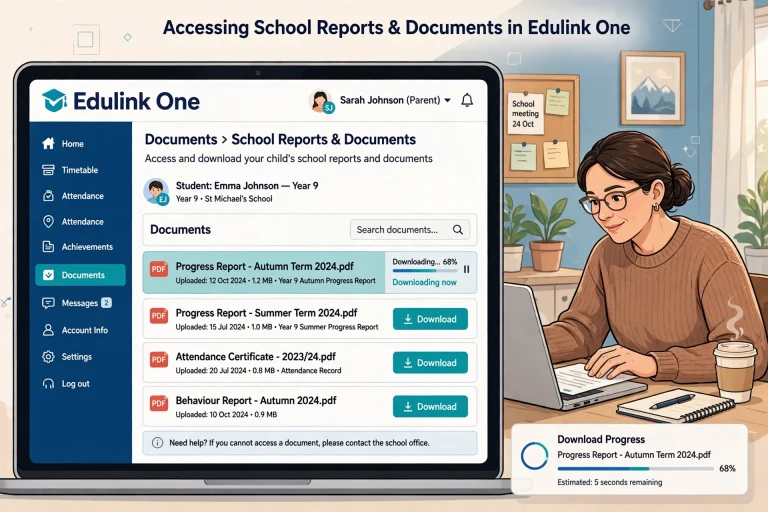
You can also check the official website for information about the platform and its supported access options.
If the app asks for a School ID, make sure it matches the details provided by your institution. A postcode or school name entered in the wrong field may prevent you from reaching the correct login screen.
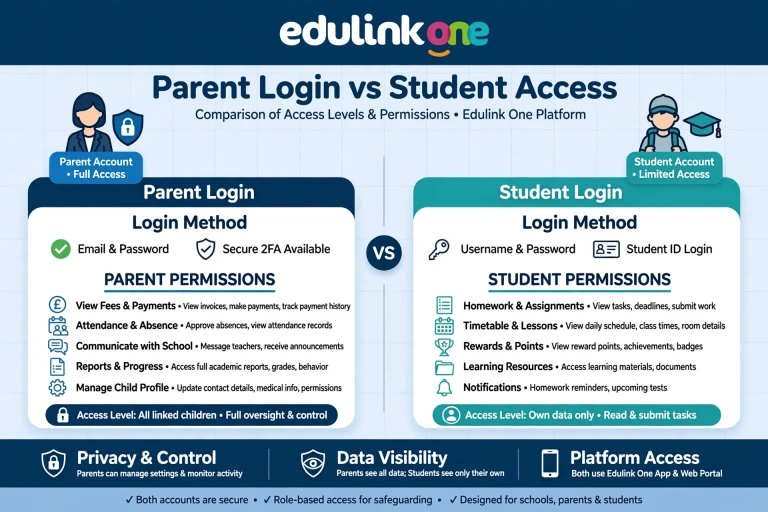
Edulink Parent Login and Student Access
Parents and students may have different account details or permissions. Use the credentials issued for your own account rather than assuming that a parent’s login will work for a student account, or vice versa.
If you are a parent registering for the first time, check whether the school has already created your account. The term Edulink sign up does not necessarily mean that every user can create an account independently.
If you have not received login details, contact the school office and ask how parent or student access is arranged.
Using the Edulink Dashboard
After signing in, the dashboard acts as the starting point for the information available to your account.
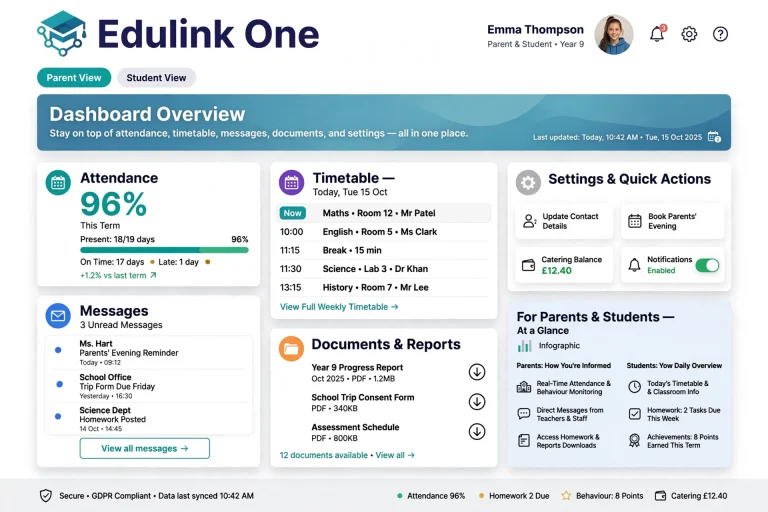
Depending on your school’s setup, you may see options relating to attendance, timetables, messages, documents or other school services.
| Dashboard area | What to look for |
|---|---|
| Attendance | Available registration and attendance records |
| Timetable | Daily or weekly lesson information |
| Messages | School announcements and communications |
| Documents or reports | Available academic reports and files |
| Settings | Account options, where provided |
The names and positions of these options can vary. If your dashboard does not match an online tutorial, follow the instructions provided by your own school.
Checking Attendance and Reporting an Absence
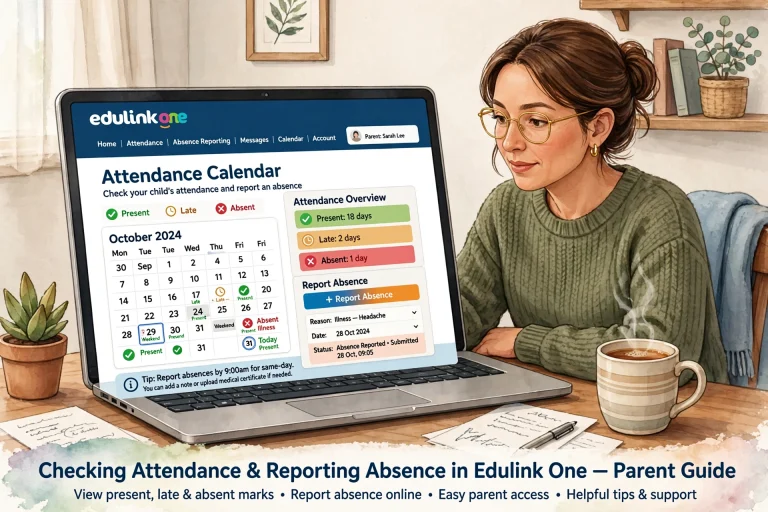
Attendance records help families understand whether a student has been marked present, late or absent. It may provide access to these records when the school has enabled the relevant functionality.
Where to Find Attendance Information
To review your child’s attendance, sign in to your account and look for the Attendance section or a similarly named option.
Depending on the information provided by the school, you may be able to review attendance entries for individual days or lessons. Check the date and the context of each entry if a mark appears unfamiliar.
UK schools use attendance codes to record different circumstances. However, the meaning of a code should be checked against the school’s current guidance rather than assumed from a general online list.
If an entry appears incorrect, contact the school attendance office. School staff can confirm the record and explain whether any correction is required.
How Parents Can Report an Absence
Some schools provide an online absence-reporting option through their parent-facing systems. Whether this function is available through it depends on the institution’s configuration.
If your account includes an absence-reporting feature:
The school may have its own rules about which reasons are accepted, what evidence is required and how absences should be reported.
Important: Do not assume that submitting an online notice automatically makes an absence authorised. Follow the school’s attendance policy and contact the school directly if you need confirmation.
Finding Your Edulink Timetable
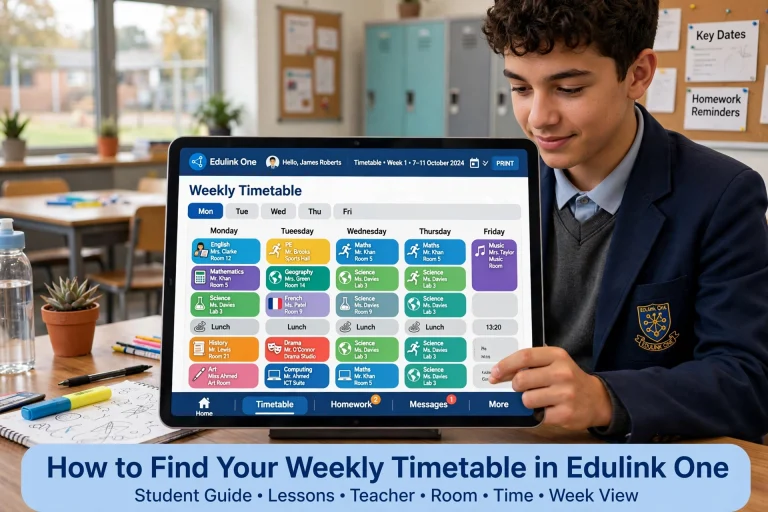
A timetable helps students prepare for lessons and gives parents a clearer picture of the school day. If your school makes timetable information available through Edulink One, you can look for the Timetable option on your dashboard.
How to View Daily and Weekly Lessons
Depending on the school’s data and settings, the timetable may include subject names, lesson periods, teacher details or classroom locations.
Students can use this information to prepare the right books and equipment before leaving home. Parents can also refer to the schedule when helping their children organise schoolwork and activities.
What If Your Timetable Is Missing or Incorrect?
A blank timetable does not always indicate a login problem. The information may not have been published, your account may not be linked correctly, or the school may still be updating its records.
Try signing out and back in, then check the timetable again. If the problem continues, contact the school office or the staff member responsible for timetables.
Provide the affected date and explain what is missing. This gives the school a clearer starting point for investigating the issue.
Accessing School Reports and Documents
Schools may use Edulink One to make selected reports or documents available to parents and students. The exact documents you can access depend on what the school has uploaded or enabled.
How to Find Available Reports
After completing your login:
If a report is available as a PDF, you may be able to open it in your browser or download it to your device.
Save important school documents in a clearly labelled folder so that you can find them again when preparing for parent meetings or reviewing academic progress.
Why a Report Might Not Appear
Not every report is necessarily available online. A school may publish documents at particular times, restrict access to certain users or distribute some records through another channel.
If you cannot find an expected report, ask the school when it will be available and where it can be accessed. Avoid assuming that an empty Documents section means something is wrong with your account.
School Messages and Notifications
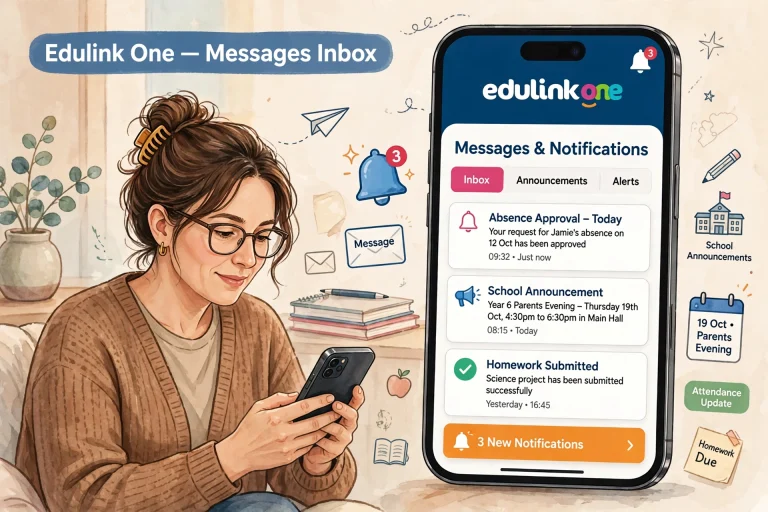
Edulink One may provide a convenient way to receive school communications, depending on the features enabled by the institution.
Messages can help parents and students stay informed about school notices, reminders and other relevant updates.
How to Check School Messages
Some accounts may also provide access to sent messages or additional communication options. Their availability depends on your account permissions.
Enabling Mobile Notifications
If the Edulink app supports notifications on your device, check both the app’s settings and your phone’s notification permissions.
On most smartphones, you can open the device settings, find the application’s notification controls and allow alerts if they are currently disabled.
If notifications still do not appear, confirm that you are signed into the correct account and check whether the app or school provides further instructions.
Remember that receiving a notification is not the same as confirming that a message has been read. Open the relevant message when the school shares information that requires your attention.
Edulink Password Recovery and Account Security
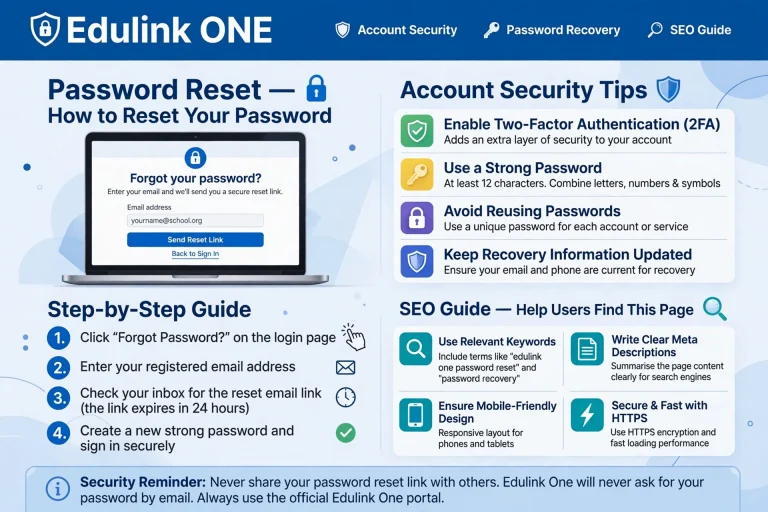
Incorrect credentials are a common reason people cannot access an online account. Before requesting a reset, check that you are using the correct school login page and entering the details associated with your account.
What to Do If Your Edulink Login Password Does Not Work
Work through these checks in order:
Resetting a Forgotten Password
If the login screen provides a Forgotten Password or similar option, follow the instructions displayed there.
You may be asked to provide an email address associated with your account. If a recovery message is sent, check your inbox and spam or junk folders.
Use only a genuine recovery link associated with the official platform or your school’s login system. If no email arrives, confirm with the school that the correct email address is registered and that your account is eligible for self-service recovery.
Do not assume that every it account has the same reset process. Some institutions may need to assist with account recovery directly.
Changing an Existing Password
If your account includes a password-change option, sign in and open the relevant account settings. Follow the displayed instructions to update your credentials.
Choose a strong, unique password and do not share it with other people. If you cannot find a password-management option, ask your school how account changes are handled.
Common Edulink Login Problems and Solutions
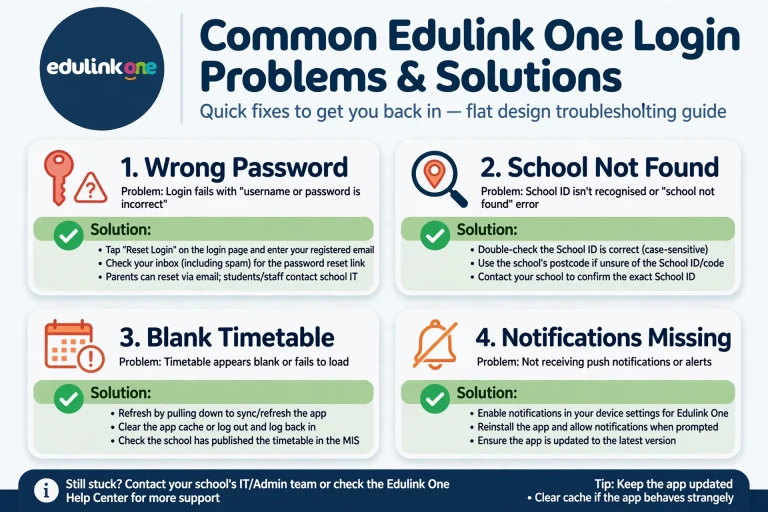
When it is not working as expected, identifying the exact problem can save time. Use the table below to decide what to check first.
| Problem | What to try |
|---|---|
| Login details are rejected | Check your username, password and school identification details. |
| School cannot be found | Confirm the School ID, postcode or login link supplied by the institution. |
| Forgotten password | Use the recovery option if available or contact the school. |
| Dashboard options are missing | Check whether your account has the relevant permissions and whether the school enables that feature. |
| Timetable is blank | Verify the date and contact the school if lesson information is still missing. |
| Attendance looks incorrect | Contact the school’s attendance office to check the record. |
| Report cannot be found | Ask whether the school has published the document and where it is available. |
| App notifications are missing | Review device permissions and the application’s notification settings. |
| App or website will not load | Check your internet connection, reopen the page and try an updated browser or supported app version. |
When Should You Contact the School?
Contact the school office or designated support team if:
Include a short description of the problem and the steps you have already tried. Never send your password in an ordinary email or include it in a support request.
Frequently Asked Questions
Final Thoughts
It One can make school information easier to access by bringing supported services into a central online platform. Parents can use their accounts to stay informed, while students can check the school information made available to them.
For the smoothest experience, start with the correct school login link, keep your account details secure and check your institution’s instructions whenever a feature is missing or behaves unexpectedly.
If you are still unable to sign in, the most useful next step is to contact your school rather than repeatedly trying different login details. You can also visit the official website for platform information.
Read more