
Educake account from your school, you will probably want to know how to access Educake login, find your homework, and deal with missing assignments. Educkae is an online platform for homework, quizzes, and revision that you can use through a web browser on a computer, tablet, or smartphone. To get started, open the official student login page and enter the details provided by your school; depending on your school’s setup, Google or Microsoft sign-in may also be available. This guide focuses on the Educake student experience, including how to access assignments and what to do when something doesn’t appear as expected.Visit our Homepage for more information.
What Is Educake Used For?
It is mainly used for online homework, quizzes, and revision. As a student, you can use your account to complete work assigned by your teacher, practise different subjects, and review topics where you need more preparation.
From your point of view, having your schoolwork in one place makes things easier. Instead of searching through worksheets or trying to remember what homework was mentioned in class, you can check Educkae to see which tasks are available to you.The subjects and resources you see depend on your school and the classes linked to your account. Educkae can include subjects such as maths, English, geography, computer science, history, languages, PE, business studies, and science.
How to Access Your Educake Student Account
Your school normally provides the information required to access your account. A student username may follow a pattern such as your first name, the first letter of your surname and four numbers, although the exact details can depend on your school’s setup.
If you’re opening Educkae for the first time, use the login information supplied by your teacher or school rather than trying to create another account.
Student login steps
Step 1: Open the official Educake page
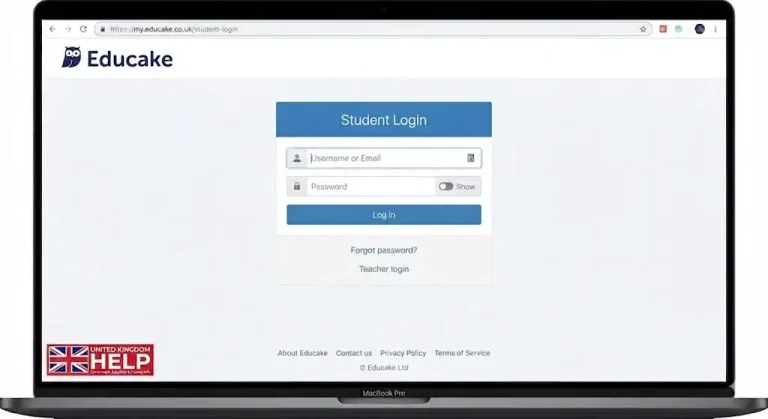
Step 2: Enter your account details
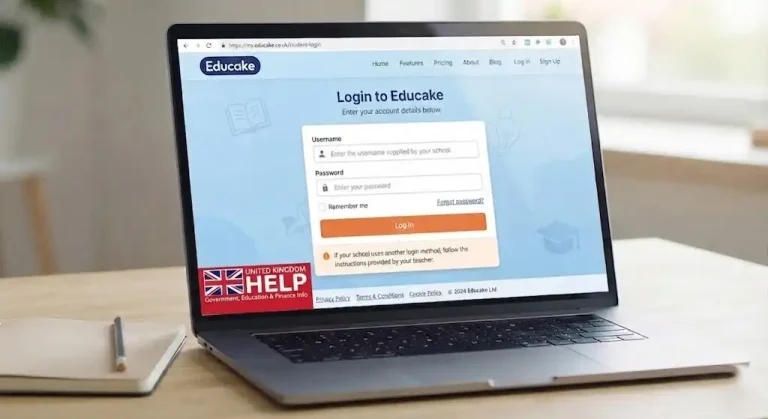
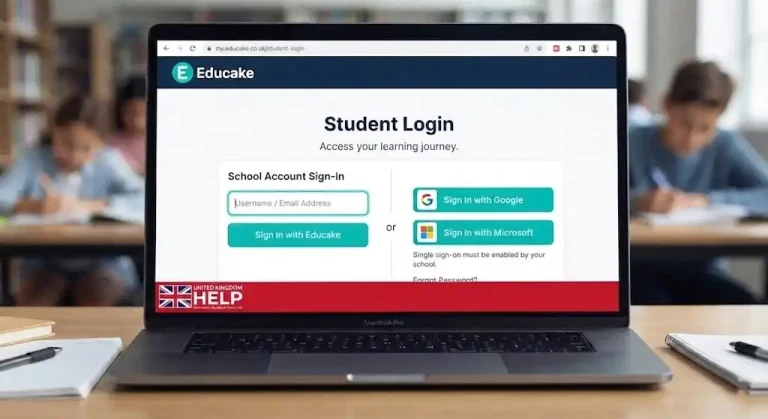
Step 3: Use your school’s sign-in option
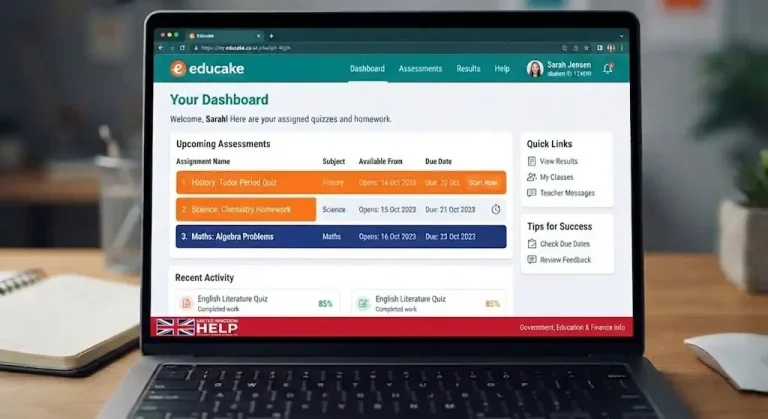
Step 4: Check your dashboard
Student tip: If you’re using a shared school computer, double-check that you’re signed into the correct school account before opening an assignment.
Do Students Need to Register for Educake?
This is where Educake sign up can be confusing for first-time users. Students generally don’t set up their own school classes or teacher accounts. Instead, the school handles account creation and class membership.
A school can add students individually or use a school-system integration to manage account information. Because of this, a student who has been told they should have access but cannot log in should normally speak to their teacher or school administrator.
Creating another account isn’t necessarily the solution. If you’ve recently moved into a new class and can’t see its homework, the school may need to connect your existing account with the correct class.
Where Can You Find Your Educake Homework?
Once you’ve completed the Educake login, your homepage is the first place to check for assigned work. Quizzes become available according to the settings chosen by the teacher, so an assignment may not appear until its start date.
If your teacher has given you a direct quiz link through Google Classroom or Microsoft Teams, you may also be able to open the assignment from there. You still need to be signed into the appropriate Educake account, and the quiz needs to have been assigned to you.
If an assignment isn’t showing
Before reporting the problem, check these points:
If the work is still missing after these checks, contact the teacher who assigned it. Students cannot normally change their own class membership or add themselves to a teacher’s assignment.
Using for Revision
Educke can also be useful when you’re studying independently rather than simply completing homework. The platform provides study material for some subjects, allowing students to review a topic before attempting questions.
This can be particularly useful when you notice a pattern in your mistakes. Instead of repeatedly attempting the same type of question without reviewing the topic, spend some time going through the relevant study material and then practise again.
For example, if you’re preparing for a science test and keep getting questions on one topic wrong, use the available revision material to refresh your understanding before returning to practice questions.
That makes the platform more than just a place to submit homework. Used consistently, it can become part of your normal revision routine.
A Simple Way to Use Effectively
You don’t need a complicated study routine to get useful results from the platform. A few habits can make your experience much smoother:
The main thing to remember is that your student account gives you access to the work your school has made available. Your teacher or school remains responsible for class membership and assignment setup.
How Educake Assignments Work
Once you complete your Educake login, your homepage is where you can keep track of schoolwork. The quizzes shown to you depend on what your teacher has assigned, including when each task becomes available and, where applicable, its deadline.educke
If several assignments are listed, check the full dashboard rather than opening the first quiz you notice. This helps you keep track of upcoming work and avoid overlooking another task.
Starting an Assignment
When a quiz is available:
Leaving homework until the final few minutes can be risky if your internet connection or browser develops a problem.
What If Your Educake Student Account Is Missing a Class?
If you can access your Educake student account but cannot see an expected class, subject or assignment, the issue may need to be checked by your school.
Students don’t normally manage school class lists themselves. The supplied information explains that teachers or school administrators can add students and organise them into classes, including through school-system integrations.
Instead of creating another account, contact your subject teacher and explain exactly what is missing.
For example:
“I can log in to it, but my science assignment isn’t showing on my dashboard.”
This gives your teacher enough information to check whether your account has been connected to the correct class.
Teacher Setup: What Students Should Know
It works differently from platforms where students can freely create an account and join any classroom. Your school normally manages the account and class setup.
Students generally cannot:
If your account opens but something related to your class is missing, your teacher or school administrator is usually the appropriate person to contact.
Keep your credentials private: never give your password to another student who offers to repair your account.
Educake Sign Up: What Should You Do?
Searching for Educake sign up may be confusing because students normally receive access through their school rather than creating an independent classroom account.
If your teacher says an account has already been created:
If you have recently joined a class and cannot see your work, your existing account may simply need to be connected to the correct class.
Login Problems? Try These Fixes
A problem with your Educke login doesn’t automatically mean that your account has been removed. Incorrect credentials, browser issues, internet problems or school account settings can all affect access.
Try these checks before asking for further help.
1. Use the Official Login Page
Open the official Educke student login page:
Make sure the website address is correct before entering your username or password.
2. Check Your Login Details
Carefully re-enter your credentials and check for:
If your school gave you the username on paper or through another system, compare the details carefully.
3. Try Another Browser
If the login page doesn’t work properly, open Edukake using another browser such as Chrome, Edge or Firefox.
You can also try a private or incognito browser window. This can help determine whether stored browser information is causing the problem.
4. Refresh the Page
A page that has loaded incorrectly may work after refreshing.
On a Windows computer, you can also try Ctrl + F5 for a hard refresh.
5. Test Your Internet Connection
If Edukake loads slowly or a quiz refuses to open, check another website.
If other websites are also having problems, your internet connection may be responsible rather than Edukake.
Should You Use an Educake Mobile App?
If you’re looking for an Educake app because you used one previously, check the current information provided by your school or Edukake before installing anything from an unofficial source.
The source material for this guide states that the legacy Educake mobile app is no longer supported and recommends using the browser version. Students can therefore access the service through a web browser on devices such as phones, tablets and computers.
If an old app is displaying outdated information or refusing to load assignments, switching to the browser version is the recommended approach based on the supplied material.
What Information Should You Give Support?
If basic troubleshooting hasn’t solved the problem, support may need some information about your device and browser. Never include your password.
|
Information |
What to provide |
|---|---|
|
Username |
Your Edukake username |
|
Device |
Laptop, iPhone, Android tablet, etc. |
|
Browser |
Chrome, Safari, Edge or Firefox |
|
Problem |
Explain what isn’t working |
|
Steps tried |
Mention refreshes, browser changes or other fixes |
When reporting an issue, be specific. Instead of writing “edukake doesn’t work,” explain what happens after you enter your details or open a quiz and mention which troubleshooting steps you’ve already attempted.
If your school has a preferred support process, follow that route first.
A Useful Routine for Students
If Educke is part of your regular homework routine, a few simple habits can make it easier to stay organised:
The main distinction is simple: your Educke login gives you access to your student account, while your school and teachers control the classes and assignments connected to it. Understanding that difference can save you time when homework or class information doesn’t appear as expected.
Getting More From as a Student
Once you understand the basic Educke student experience, you can use the platform for more than simply checking homework. Your account can help you keep track of assigned quizzes, practise different subjects and identify topics that need more revision.
Instead of viewing every quiz as a task that simply needs to be completed, use your results as feedback. When you make mistakes, look at the topic involved and consider reviewing it before attempting similar questions again. This can make your revision more focused and useful.
Using on Phones, Tablets and Computers
You don’t need to use a desktop computer to access Educake. The platform can be used through a web browser on computers, tablets and smartphones.
When using a phone, check that the page is displaying correctly before starting a longer quiz. A larger screen may be more comfortable when questions contain detailed text or other information.
If it doesn’t work properly on one device, try another browser or device before assuming there is a problem with your account.
Common Problems and Solutions
|
Problem |
What to try |
|---|---|
|
Can’t open the login page |
Check your internet connection and reopen the official login page |
|
Password isn’t accepted |
Check your login details or ask your teacher for help |
|
Login works but homework is missing |
Contact the teacher who assigned the work |
|
Quiz won’t load |
Refresh the page and try another browser |
|
Website behaves unexpectedly |
Try a private browser window or another device |
|
Old mobile app isn’t working |
Access through your web browser |
|
Wrong class appears |
Ask your teacher to check your account and class setup |
|
Shared quiz link doesn’t work |
Make sure you are logged in and the quiz has been assigned to you |
The key difference is between a technical problem and a school account problem. Browser or connection issues may often be resolved by trying basic troubleshooting. However, an incorrect class or missing assignment usually needs to be checked by your teacher or school administrator.
Before Starting Your Next Assignment
A little preparation can make online homework easier. Before starting, make sure you’re using the correct account, your browser is working normally and you know when the assignment is due.
Student Checklist
FAQs
Conclusion
For most students, Educake login is the starting point for managing homework, quizzes, and revision in one place. After signing in, you can check your assignments, complete available quizzes, and use your results to identify topics that need more practice. If you have trouble accessing your account, first use the official login page and try simple browser fixes. If you can sign in but your class or homework is missing, contact your teacher or school administrator instead of creating another account. Always use the official website or Student Login, keep your credentials private, and ask your school for help when an expected assignment or class does not appear.